Najlepsze Ustawienia CS2 – 2026 Czyli Każdy wmawia Ci bzdury
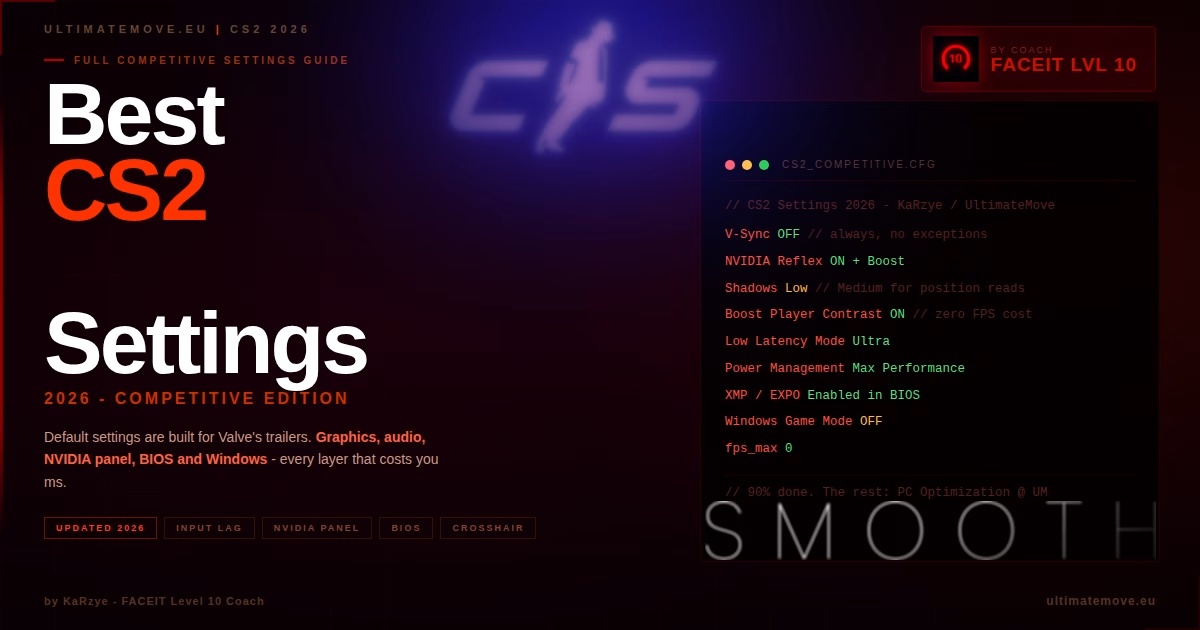
Najlepsze Ustawienia CS2 – 2026 od specjalistów od Optymalizacji PC / Faceit 10
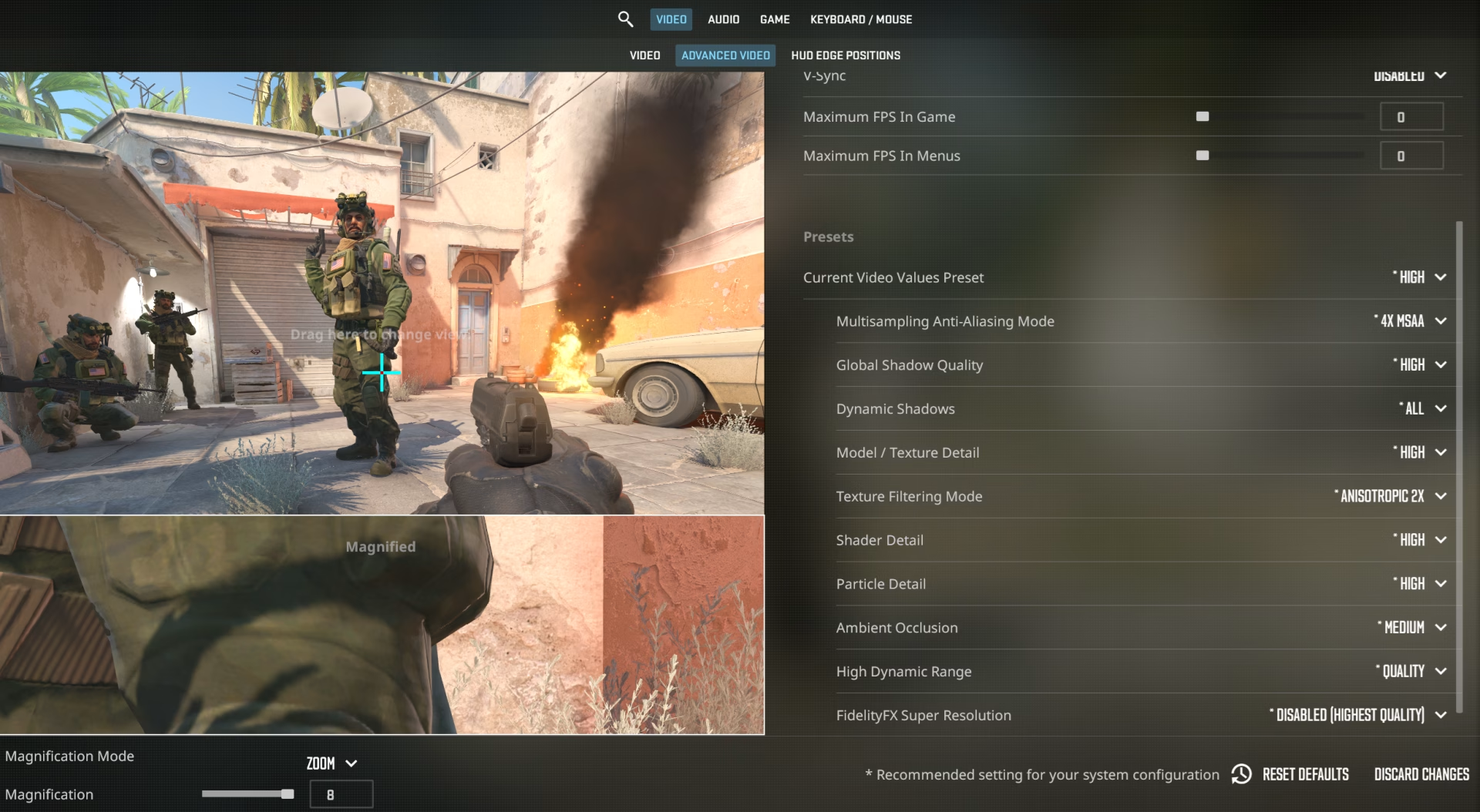
Domyślne ustawienia CS2 są zaprojektowane tak, żeby gra wyglądała ładnie na pokazach i w materiałach marketingowych Valve. Nie są zaprojektowane pod rywalizację. Oto co się dzieje, kiedy grasz na defaultach:
Input lag rośnie w nieprzewidalnym opóźnieniu ms bo V-Sync jest włączony – czyli kosztem input laga dostajesz stabilny frametime, NVIDIA Reflex/AMD Anti lag dodaje do tego miksu swoje wariacje. Niestety CS2 ma kompletnie skopany fps limiter, a rozwiązania typu RTSS są blokowane na Faceit, co stawia użytkownika w kiepskim świetle walki o płynną przewidywalną grę.
FPS spada o 30-60% przez niepotrzebne efekty wizualne, które w rywalizacji nie pomagają, a przeszkadzają. Shadows na Very High? Wygenerują ładne cienie, ale zjadają klatki.
Widoczność modeli jest czysto preferencyjna Player Contrast ustaw tak jak lubisz, a wysokie ustawienia shaderów chociaż bardzo fajne, nie przydają się do niczego w kwestii gameplayu.
Trzy filary kompetytywnych ustawień to: stabilny FPS powyżej odświeżania monitora, minimalizacja i stabilizacja input lagu na każdym etapie pipeline i maksymalna czytelność wizualna na każdej mapie.
Ustawienia grafiki CS2: pełna tabela z wyjaśnieniami
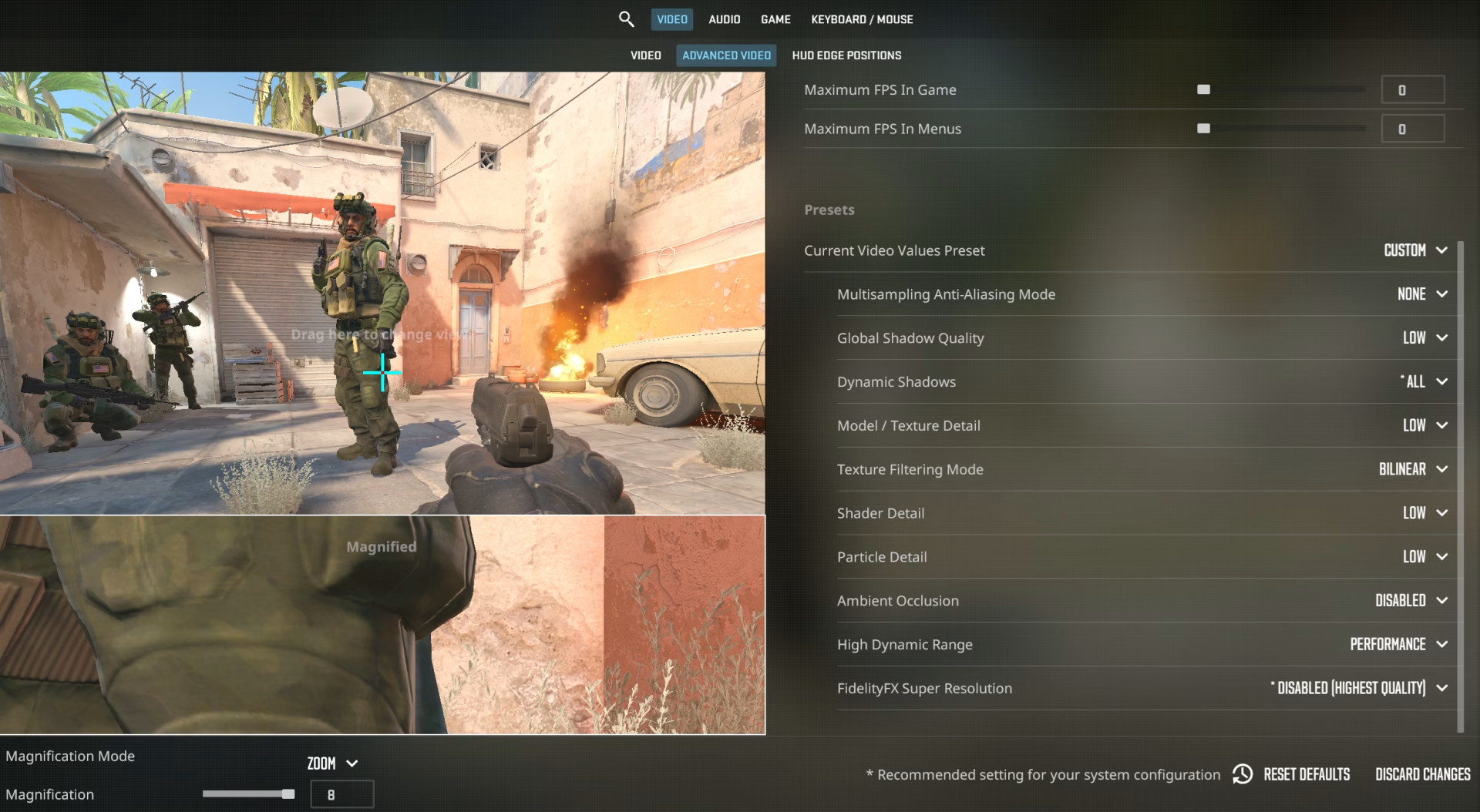
Poniższa tabela zawiera rekomendowane wartości dla trzech profili sprzętowych. Nie kopiuj bezmyślnie ustawień pro graczy, jeśli zamierzasz słuchać porad o 8x msaa, „makes game smoother” czy coś w tym stylu to gratuluje, nie masz pojęcia co robisz jak i osoba która to zaleca nie ma pojęcia co robi – nawet jeśli to pro player. Jedyny sens msaa to 2x na Vertigo, gdzie rafters jest widoczne od dołu na B, a Valve ma w poważaniu naprawienie tego. Poniżej przedstawiam tabelkę dla przybliżonych ustawień dla sprzętowych grup docelowych. W tabelce brakuje Dynamicznych Cieni – to ustawienie zawsze zostawiamy WŁĄCZONE. Rozdzielczości też traktujcie orientacyjnie, respektujemy Wasze. Mamy tutaj aspekty 4:3 bo dają więcej fpsów, ale obiektywnie 16:10 czy nawet 16:9 są znacznie lepsze, do tego dochodzi fakt, że często kombinujecie swoje jakieś customy :D.
| Ustawienie | Budget PC (GTX 1650 / RX 580) | Mid-Range (RTX 3060 / RX 6700) | High-End (RTX 4070+ / RX 7800+) |
|---|---|---|---|
| Tryb wyświetlania | Fullscreen | Fullscreen | Fullscreen |
| Rozdzielczość | 1024×768 (4:3 Stretched) | 1280×960 (4:3 Stretched) | 1280×960 / 1440×1080 |
| Odświeżanie | Maks. monitora | Maks. monitora | Maks. monitora |
| V-Sync | Wyłączony | Wyłączony | Wyłączony |
| NVIDIA Reflex | Włączony | Włączony + Boost | Włączony + Boost |
| Multisampling AA | Brak | Brak / 2x MSAA | Brak / 2x MSAA |
| Global Shadow Quality | Low | Medium | Medium |
| Model / Texture Detail | Low | Low | Low |
| Shader Detail | Low | Low | Low |
| Particle Detail | Low | Low | Low |
| Ambient Occlusion | Wyłączony | Wyłączony | Medium (opcjonalnie) |
| HDR | Performance | Performance | Performance |
| FidelityFX / DLSS | FSR Quality (jeśli potrzebujesz FPS) | Wyłączony | Wyłączony |
| Boost Player Contrast | Włączony / Preferencja | Włączony / Preferencja | Włączony / Preferencja |
Wyjaśnienia kluczowych ustawień
Rozdzielczość 4:3 Stretched to nie nostalgia za CS 1.6. Stretched rozciąga modele graczy w poziomie, dzięki czemu cel jest wizualnie szerszy. Na 1280×960 modele są około 33% szersze niż na natywnym 16:9. Wadą jest mniejsze pole widzenia po bokach, ale większość walk toczy się w centralnej części ekranu.
V-Sync musi być wyłączony. V-Sync synchronizuje klatki z odświeżaniem monitora, co brzmi dobrze, ale dodaje cały cykl renderowania opóźnienia (6-16 ms zależnie od FPS). W grze gdzie czas reakcji to 150-250 ms, dodanie 15 ms to ogromna strata.
NVIDIA Reflex to jedyny sync, który chcesz włączony. Zamiast czekać na GPU, Reflex mówi CPU: „nie wysyłaj kolejnej klatki do renderowania, dopóki GPU nie będzie gotowe”. Rezultat: mniejsza kolejka klatek, mniejszy input lag. Tryb Boost utrzymuje GPU na wyższych zegarach nawet przy niższym obciążeniu.
Shadows na High vs Low to kontrowersyjny temat. Na Low tracisz cienie graczy, które mogą zdradzić pozycję wroga za rogiem. Na High zjadasz 15-25 FPS. Kompromis: Medium daje cienie graczy bez pełnego kosztu wydajnościowego. Jeśli twoje FPS spada poniżej odświeżania monitora, zejdź na Low.
Boost Player Contrast to ustawienie widoczności modeli. Tworzy subtelny kontur wokół modeli graczy, który sprawia, że wyraźniej odcinają się od tła. Ustaw tak, jak Ci pasuje.
Przeczytaj teżMemory Integrity a spadek FPSMemory Integrity a spadek FPS: izolowany pomiar daje od 3,3 do 5,7 procent, nie piętnaście. Microsoft włącza tę ochronę od października 2026 roku.Pro tip od KaRzye: Jeśli nie wiesz, jaki masz monitor i ile Hz obsługuje, wpisz w konsoli CS2 komendę: sys_info. Zobaczysz dokładne parametry wyświetlania. Twoje FPS powinno być wyższe niż Hz monitora – mówimy o grze e-sportowej. 144 Hz monitor = celuj w 200+ FPS.
Łączymy się z Twoim komputerem zdalnie, zapisujemy punkt przywracania i przechodzimy przez zasilanie, sterowniki i input. BIOS ustawiamy razem na rozmowie na Discordzie, kiedy pokazujesz nam ekran telefonem. Ten sam benchmark na końcu pokazuje, ile z tego wyszło. Przez pół roku po sesji zostajemy z Tobą na Discordzie.
Ustawienia myszy i czułości: nauka, nie zgadywanka
Czułość myszy w CS2 to jeden z najbardziej osobistych aspektów ustawień, ale istnieją twarde dane, które pomagają znaleźć odpowiedni zakres.
W tej sekcji odsyłam do naszego artykułu o DPI i czułości myszy jeśli chcesz zgłębić temat aimowania na poważnie.
Ustawienia dźwięku: słyszenie kroków to połowa wygranych rund
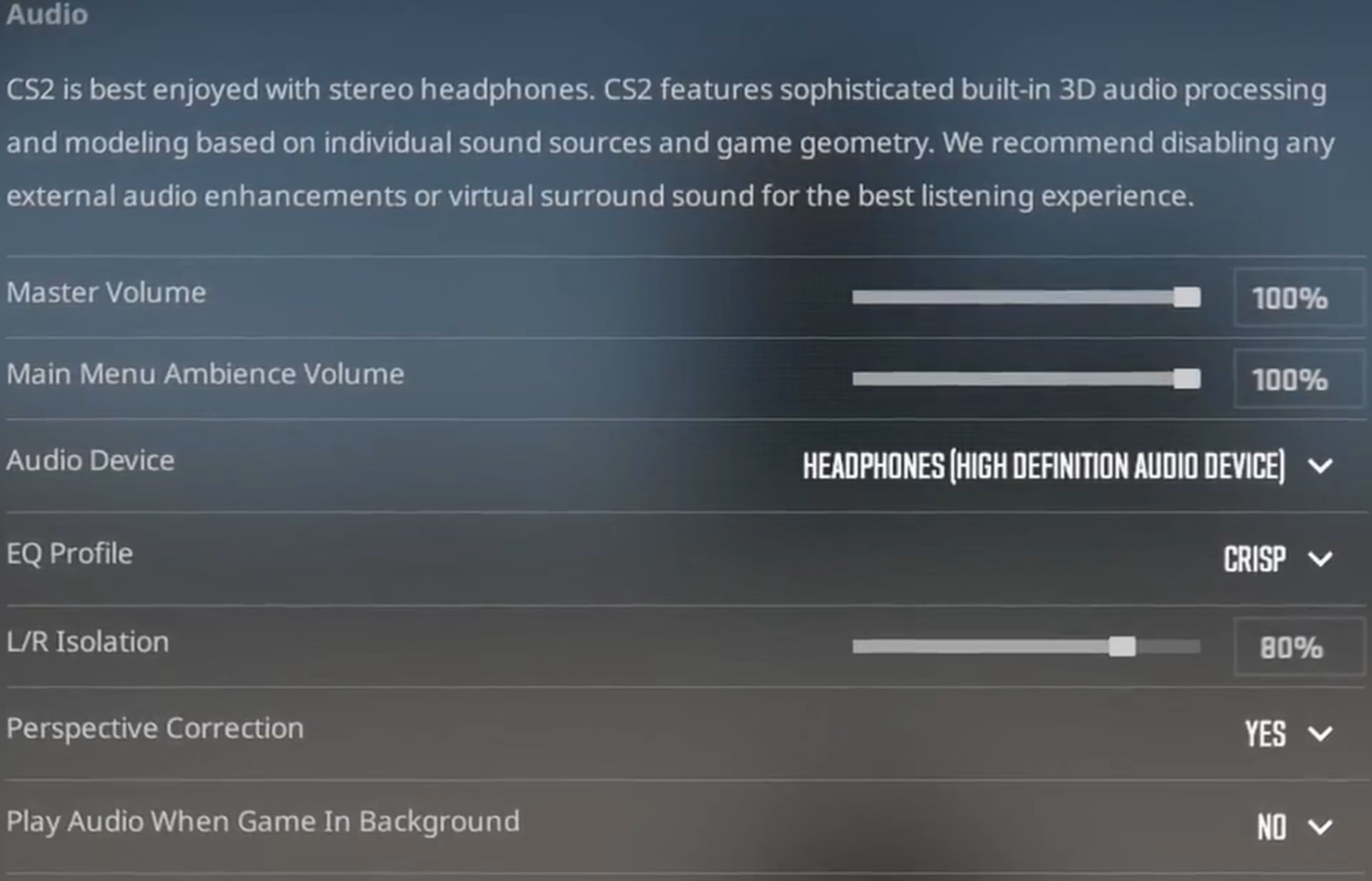
Dźwięk w CS2 to twój drugi celownik. Prawidłowo skonfigurowany audio pozwala Ci wiedzieć, skąd nadchodzi wróg, zanim go zobaczysz. Źle skonfigurowany sprawia, że kroki z lewej brzmią jak z prawej, a flashbang był tak głośny, że wybiło Ci wszystkie szyby w domu.
Poniżej tabela generalnych rekomendacji, ale uważaj, testuj i znaj swój sprzęt.
| Ustawienie | Rekomendacja | Dlaczego |
|---|---|---|
| Master Volume | 70-100% | Musisz słyszeć ciche kroki, ale nie chcesz ogłuchnąć od AWP |
| Profil EQ | Crisp (zależne od profilu EQ Twojego sprzętu) | Podbija wysokie częstotliwości, kroki i przeładowania są wyraźniejsze, ale może być nieprzyjemne na sprzęcie, który już to robi fabrycznie sam z siebie. |
| L/R Isolation | 50-80% | 0% miesza kanały za bardzo. 100% brzmi nienaturalnie. 50-80% to sweet spot |
| Urządzenie audio | Wybrany headset (NIE Default Device) | Default Device może routować przez zły output |
| Windows Enhancements | Wyłączone | Każdy filtr dodaje latencję audio i narzut na CPU |
Crisp vs. Smooth vs. Natural to kwestia gustu, ale dane są jednoznaczne: Crisp podbija zakres 2-6 kHz, gdzie leżą kroki, dźwięki przeładowania i defuzowania. Smooth tłumi te częstotliwości. Natural jest płaski. Na rankingu kompetytywnym, Crisp jest dominującym wyborem.
L/R Isolation to ustawienie, którego nie ma większość poradników. 0% oznacza, że dźwięk z lewego kanału spływa też do prawego (crossfeed). Pomaga w naturalnym brzmieniu, ale utrudnia precyzyjne namierzenie źródła. 100% to pełna separacja. Optymalne to 50-80% zależnie od słuchawek.
Komendy konsoli dla dźwięku:
snd_mixahead 0.05 – poprawia fps delikatnie, zwiększa delay dźwięku.
Crosshair: ustawienia celownika, które naprawdę mają znaczenie
Crosshair to temat, przy którym gracze spędzają godziny na workshop mapach testując kolory i grubości. Warto wiedzieć, co naprawdę wpływa na skuteczność, a co jest kosmetyczne.
Dynamiczny vs. statyczny: Dynamiczny crosshair rozszerza się podczas ruchu i strzelania. Wizualnie fajnie, ale informacja którą daje (rozproszona celność) jest dostępna w twojej pamięci mięśniowej po kilkuset godzinach gry. Pro gracze w 90%+ przypadków używają statycznego crosshaira. Mniej szumu wizualnego = lepsza koncentracja.
Kolor: Biały, jasnozielony (#00FF00), jasnoniebieski lub żółty. Unikaj czerwonego (zlewa się z blood effectami) i ciemnych kolorów (niewidoczne na ciemnych mapach). Najlepsze kolory to takie, które NIE występują naturalnie na mapach CS2.
Grubość i gap: Cienki crosshair (Size 1-3, Gap -2 do 0) jest preferowany. Za gruby crosshair zasłania głowy na długich dystansach. Za cienki jest niewidoczny na jasnym tle. Outline 0.5-1 pomaga na obu skrajnościach.
Popularne celowniki pro graczy:
| Gracz | Kod crosshaira |
|---|---|
| ZywOo | CSGO-33tjH-QWX3U-KcSnD-wu3wu-i2pxA |
| donk | CSGO-2w3SK-HasGr-BYazP-JL2Sv-o8veM |
| m0NESY | CSGO-eJRUn-yYTxp-bsSyA-RFOMh-DzurD |
Launch Options i komendy konsoli w 2026 roku
Launch options w CS2 działają inaczej niż w CS:GO. Wiele popularnych komend zostało usuniętych lub nie robi już nic. Oto co naprawdę działa:
| Launch Option | Co robi | Czy używać |
|---|---|---|
| -novid | Pomija intro Valve przy starcie | Nie działa w CS2 przecież XD |
| -high | Ustawia proces na wysoki priorytet | Nie. Może powodować problemy z inputem |
| -freq 240 | Wymusza odświeżanie monitora | Tak, jeśli system nie wykrywa poprawnie Hz |
| -threads X | Wymuszało ustawioną liczbę rdzeni -1 dla silnika gry | Nie wiem, potestuj |
| -nojoy | Wyłącza joystick | Opcjonalnie, oszczędza minimalnie RAM |
| +fps_max 0 | Odblokowanie limitu FPS | Tak |
| -allow_third_party_software | Zezwala na overlay’e | Tylko jeśli potrzebujesz (MSI Afterburner itp.) |
Zamień 240 na Hz twojego monitora. To wystarczy. Każda dodatkowa flaga to albo placebo, albo potencjalny problem.
Mit: -tickrate 128. W CS2 nie ma komendy -tickrate. CS2 ma sub-tick, który rejestruje dokładny czas strzału między tickami. Nie możesz tego zmienić launch optionem. Jeśli masz to w swoich opcjach uruchamiania, usuń.
Panel NVIDIA: ustawienia, które robią różnicę (i te, które nie)
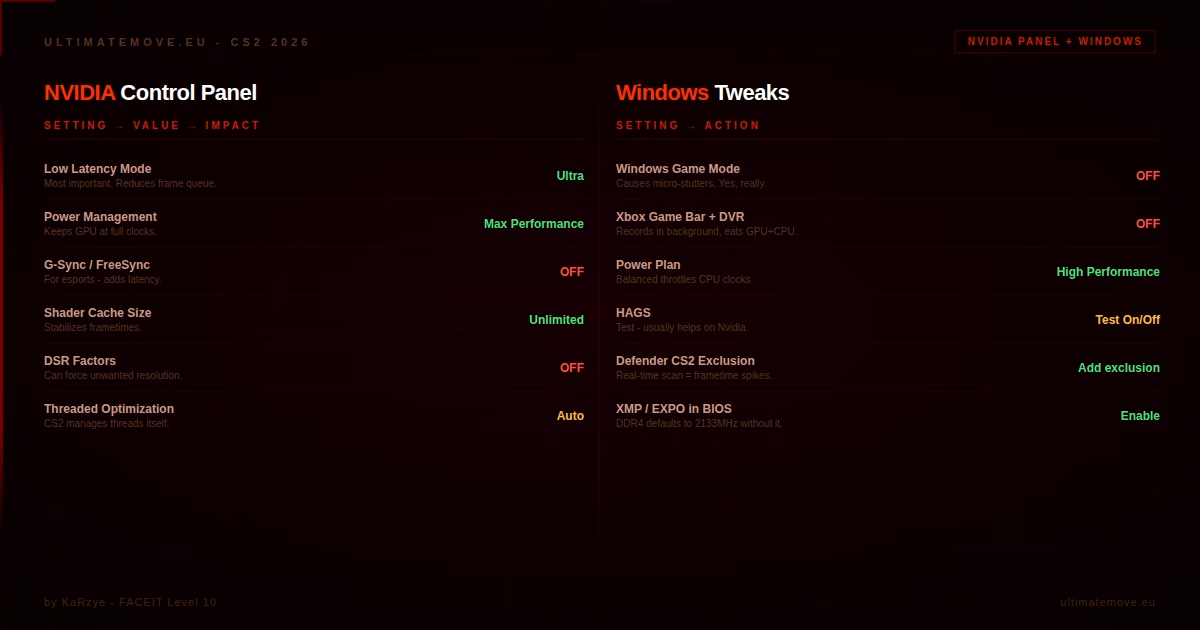
Panel NVIDIA to miejsce, gdzie możesz zyskać lub stracić milisekundy. Niektóre ustawienia mają realny wpływ, inne to czyste placebo. Poniżej tabelka odpowiednia dla większości użytkowników:
| Ustawienie NVIDIA | Wartość | Wpływ |
|---|---|---|
| Low Latency Mode | Ultra | Duży. Zmniejsza kolejkę klatek CPU na GPU |
| Power Management | Prefer Maximum Performance | Średni. Trzyma GPU na pełnych zegarach |
| Texture Filtering Quality | High Performance | Mały. Minimalny zysk FPS |
| Threaded Optimization | Auto | Żaden. CS2 zarządza wątkami sam |
| Max Frame Rate | Wyłączony lub cap 5-10 Poniżej Hz monitora | Umiarkowany. Cap zapobiega power throttlingowi |
| G-Sync / FreeSync | Pod e-sport raczej OFF | Opcjonalnie, Z małym input lagiem |
| Shader Cache Size | Unlimited | Mały ale stabilizuje frametimes |
| Anisotropic Filtering | Przez aplikację | Żaden widoczny wpływ w CS2 |
| DSR | Wyłączony | Wyłącz, inaczej może narzucać wyższą rozdzielczość |
Low Latency Mode na Ultra to najważniejsze ustawienie w panelu NVIDIA dla CS2. Działa podobnie do NVIDIA Reflex, ale na poziomie drivera. Reflex włączony w grze nadpisuje Ultra Low Latency (wg poradnika NVIDIA o opóźnieniu systemu), więc LLM Ultra ma znaczenie w grach bez Reflexa.
Uwaga dla użytkowników AMD: W AMD Software (Adrenalin), włącz AMD Anti-Lag 2 (jeśli dostępne dla CS2). Ustaw Radeon Chill na Off, Surface Format Optimization na On, i Shader Cache na AMD Optimized.
Optymalizacja Windows i BIOS: tweaki systemowe
Ustawienia w grze to każdy potrafi przestawić (chyba). Prawdziwa zabawa to Twój system operacyjny i BIOS.
Windows
Game Mode: Opcjonalny. Przetestuj go u siebie: porównaj frametimes z włączonym i wyłączonym Game Mode i zostaw to, co wypada lepiej. W UltimateMove zwykle go nie włączamy.
Xbox Game Bar i DVR: Wyłącz całkowicie. Nagrywa w tle, zużywa GPU i CPU.
Hardware Accelerated GPU Scheduling (HAGS): Do testowania On/Off zależne od konfiguracji systemu. Częściej pomaga na kartach Nvidii.
Plan zasilania: Ustaw na „Wysoka wydajność” lub „Najwyższa wydajność”. Zbilansowany plan obniża zegary CPU?? Come on, naiwne ustawienie z masą interruptów, co generuje stuttery, ludzie to forsują nie mając pojęcia o skutkach bo widzieli na graphie kilka fpsów więcej.
Ochrona antywirusowa: Dodaj folder CS2 do wyjątków Windows Defender czy jakimkolwiek innym rozwiązaniu z którego korzystasz.. Skanowanie w czasie rzeczywistym może powodować spike’i frametimes.
Wyłącz Full Screen Optimizations dla cs2.exe. Kliknij prawym na exe, Właściwości, Zgodność, zaznacz pole. To eliminuje warstwę kompozycji DWM, która dodaje latencję. W najnowszych kompilacjach Windowsa 11 prawdopodobnie nie ma już żadnego znaczenia to ustawienie w przypadku nowych gier, nie testowałem tho. CS jest na dx11 więc można uznać że jeszcze zalicza się do „starych gier”.
BIOS
XMP / EXPO: Jeśli masz DDR4/DDR5 RAM i nie włączyłeś XMP (Intel) lub EXPO (AMD) w BIOS-ie, Twoja pamięć prawdopodobnie działa na domyślnych, niższych prędkościach. DDR4 domyślnie to 2133 MHz, nawet jeśli twoje kości są 3600 MHz. Włączenie XMP może dać 10-15% więcej FPS w CS2.
Resize BAR / Smart Access Memory: Włącz. Pozwala CPU na dostęp do całej pamięci GPU zamiast fragmentów 256 MB. Zysk: 3-8% FPS w zależności od karty.
Ostrzeżenie: BIOS. Zmiany w BIOS-ie mogą spowodować niestabilność systemu, jeśli nie wiesz co robisz. XMP/EXPO jest ogólnie bezpieczne (producent RAM testował te profile) ALE nie każdy procek ma taką samą jakość i jest w stanie obsłużyć te same szybkości. Overclocking CPU czy RAM poza profile XMP wymaga wiedzy. Jeśli nie jesteś pewien, umów się na optymalizację PC z nami na UltimateMove.
Radar, viewmodel i ustawienia HUD
Radar to narzędzie, które większość graczy ignoruje lub używa na domyślnych ustawieniach. Tymczasem dobrze skonfigurowany radar daje informacje o całej mapie jednym rzutem oka. Nie jest to obowiązkowe i zależne od preferencji, ale polecam.
Kluczowe komendy radaru:
cl_hud_radar_scale 1.15 (powiększ radar na ekranie)
cl_radar_always_centered 0 (radar nie centruje się na tobie, widzisz więcej mapy)
cl_radar_scale 0.4 (oddal widok, żeby widzieć całą mapę)
cl_radar_rotate 1 (radar obraca się z tobą)
Viewmodel: Pozycja broni na ekranie. Prawa strona jest standardem, ale lewa może pomagać przy peek’ach na prawej stronie (nie zasłania kąta). Komendy:
viewmodel_fov 68 (maksymalne FOV broni)
viewmodel_offset_x 2.5
viewmodel_offset_y 0
viewmodel_offset_z -1.5
Masz też coś takiego jak dominujące oko, w zależności od tego które to jest zrób sobie test na to – ustawienie lewej lub prawej strony viewmodelu może pomóc Ci się skupić łatwiej.
Pełna Checklista Optymalizacji CS2 (krok po kroku)
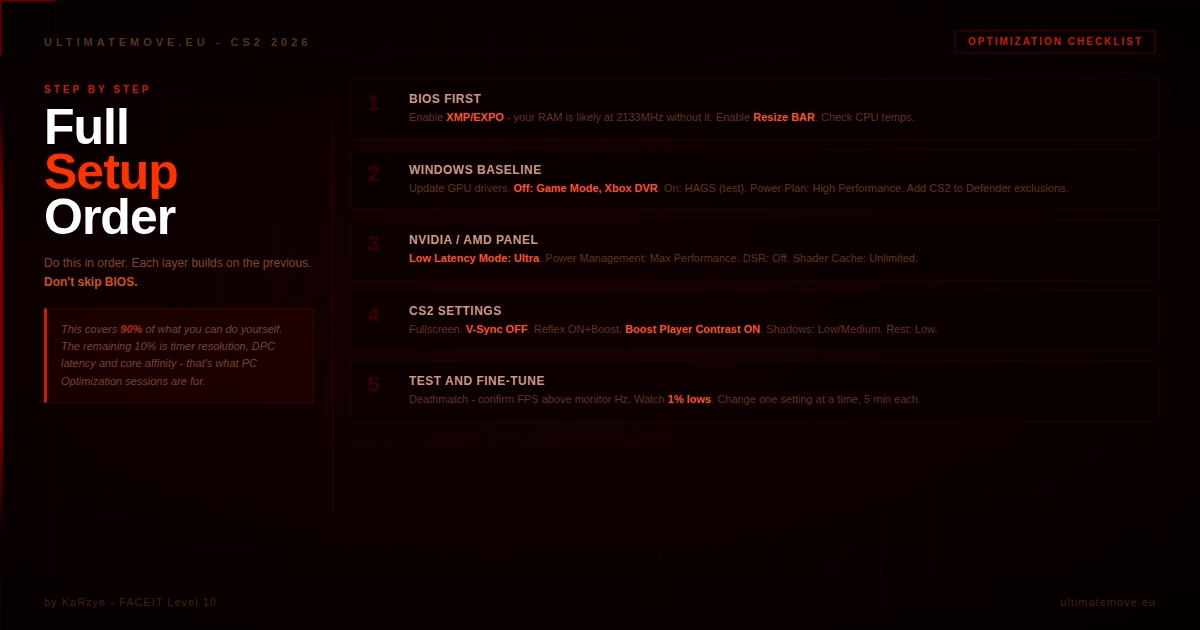
Podsumowanie kroków do wykonania:
Krok 1: BIOS
Włącz XMP/EXPO. Włącz Resize BAR. Sprawdź czy CPU nie jest throttlowany (temp limity).
Krok 2: Windows
Zaktualizuj drivery GPU. Game Mode: opcjonalnie, przetestuj. Wyłącz Xbox Game Bar. Włącz HAGS. Plan zasilania: Wysoka wydajność. Dodaj CS2 do wyjątków Defendera. Wyłącz Full Screen Optimizations.
Krok 3: Panel NVIDIA/AMD
Low Latency Mode Ultra. Power Management: Max Performance. Wyłącz DSR. Shader Cache: Unlimited.
Krok 4: CS2 Settings
Fullscreen. Rozdzielczość dopasowana do zestawu. V-Sync OFF. Reflex ON + Boost. Boost Player Contrast: wg preferencji. Shadows: Medium (lub Low na słabszym sprzęcie). Reszta: Low.
Krok 5: Audio
Crisp EQ. L/R Isolation 50-80%. Wyłącz Windows Audio Enhancements.
Krok 6: Testowanie
Wejdź na deathmatch. Sprawdź czy FPS jest stabilnie wyższe niż Hz monitora. Obserwuj 1% low FPS. Jeśli 1% low poniżej odświeżania monitora masz wąskie gardło (bottleneck).
Krok 7: Fine-tuning
Przetestuj każde ustawienie osobno. Zmień jedno, zagraj 5 minut, sprawdź FPS. To pozwala zidentyfikować, które ustawienie daje największy zysk na TWOIM sprzęcie.
Dzięki tym ustawieniom staniesz się drugim ZywOo. Sprawdziłem – jak nie no to zapraszam na Najlepszy CS2 Coaching w UltimateMove!
Optymalne ustawienia nie zamienią cię w ZywOo. Ale złe ustawienia tymbardziej. Każda milisekunda input lag, każdy spadek FPS poniżej odświeżania monitora, każdy moment gdy wróg zlewa się z tłem, bo nie włączyłeś Player Contrast, to sytuacja w której twój system grał przeciwko tobie.
Ten artykuł pokrywa 90% tego, co możesz zrobić sam. Pozostałe 10% to deep-dive optymalizacja specyficzna dla Twojego konkretnego sprzętu: timer resolution, power plan tuning, latencja DPC, core affinity, specyficzne BIOS tweaki dla twojego procesora i płyty głównej. To robimy na sesjach optymalizacji PC w UltimateMove.
Gotowy na więcej? Jeśli chcesz wycisnąć maksimum ze swojego sprzętu, umów się na sesję optymalizacji PC. Analizujemy Twój system, identyfikujemy bottlenecki i konfigurujemy wszystko pod twoje konkretne komponenty. Wejdź na Optymalizacja PC lub napisz na Discord.
 KaRzye
Prowadzi research i wszystkie sesje w UltimateMove. FACEIT Level 10 w CS2,
Immortal w Valorancie. Dwadzieścia lat w BIOS-ie, pamięciach i sterownikach.
Zobacz jak gra.
KaRzye
Prowadzi research i wszystkie sesje w UltimateMove. FACEIT Level 10 w CS2,
Immortal w Valorancie. Dwadzieścia lat w BIOS-ie, pamięciach i sterownikach.
Zobacz jak gra.
Nasze darmowe narzędzia
Zbudowane in house. Bez konta, bez limitu.
 Ultimate Demo Analyzer
Wrzucasz demo z CS2, dostajesz rozpisane błędy i statystyki rundy.
Za darmo, bez konta Deadlock Replay Analyzer
To samo dla Deadlocka: analiza powtórki i plan na kolejne mecze.
Za darmo, bez konta Konwerter czułości
Przenosisz cm/360 między grami bez gubienia pamięci mięśniowej.
Za darmo, bez konta Trener celności
Trzydzieści sekund, trzy poziomy. Bez instalacji i bez konta.
Za darmo, bez kontaCzytaj dalej
 Gaming Research
MW4 wymagania PC: oficjalne specyfikacje, TPM 2.0 i Secure Boot
2026-10-31·3 min czytania Gaming Research
Phantom Blade Zero wymagania PC: minimum, zalecane i co znaczy upscaling
2026-10-31·4 min czytania Deadlock