Najlepsze Ustawienia Valorant 2026
TLDR – Zestaw optymalnych ustawień
Jeśli chcesz tylko ustawienia bez tłumaczenia „dlaczego,” to pełna konfiguracja competitive do e-sportu używana przez większość pro i wysoko rankowanych graczy w 2026:
Wyświetlanie: Pełny ekran | Twoja ulubiona rozdzielczość np 2560x1440p lub częściej 1920x1080p | Max Hz | V-Sync OFF | Monitor najlepiej do 24,5″.
Grafika: Wszystko Low/Off | Multithreaded Rendering ON | NVIDIA Reflex ON+Boost (chyba że optymalizujesz u nas 🙂
Czułość: 800 DPI | 0.3-0.4 w grze | eDPI 240-320 (średnia pro: ~267)
Celownik: Mały statyczny | Bez ruchu/strzelania | Kontrastowy kolor (cyan/biały/żółty)
Dźwięk: HRTF ON/OFF (zależnie od pozycjonowania Twoich słuchawek – przetestuj) | Efekty 100% | Muzyka 0% | Stereo
Klawisze: Domyślne są w miarę – ale zawsze możesz dostosować do preferencji! Znam ludzi którzy strzelają na klawiaturze a na myszce chodzą XD
Czytaj dalej jeśli chcesz zrozumieć DLACZEGO te ustawienia są ważne i jak je dokładnie dostroić.
Te porady to też część naszego serwisu optymalizacji PC który robimy zdalnie.
Dlaczego domyślne ustawienia Valoranta Ci szkodzą
Valorant chodzi na toasterze. To celowe – Riot zbudował silnik pod 60 FPS na minimalnym sprzęcie i 144+ na średniej półce. Sześcioletni GTX 1660 Super wyciąga 240 FPS na niskich.
Więc po co optymalizować? Bo domyślne ustawienia Valoranta NIE są zoptymalizowane pod granie competitive. Są zoptymalizowane żeby „ładnie wyglądały przy pierwszym włączeniu.” Domyślnie masz:
Bloom ON (rozmywa jasne obszary, ukrywa modele przeciwników przy abilitach)
Distortion ON (zniekształca ekran podczas abilitów, tracisz informację wizualną)
V-Sync OFF ale bez limitu FPS (kolejka renderowania się buduje, lag rośnie)
NVIDIA Reflex OFF domyślnie (tracisz 30-50% redukcji opóźnienia)
Przyspieszenie myszki może być włączone w Windows (niespójny aim)
Każda z tych rzeczy kosztuje Cię milisekundy, klatki lub widoczność. W grze gdzie jeden headshot z Vandala zabija na każdym dystansie, każdy piksel widoczności i każda milisekunda responsywności się liczy.
BIOS, pamięć, sieć i input przechodzimy razem na Twoim ekranie. Pomiar przed i po robimy w Twoich grach, więc różnicę widzisz sam, zanim się rozłączymy.
Ustawienia Wideo i Grafiki
Wyświetlanie
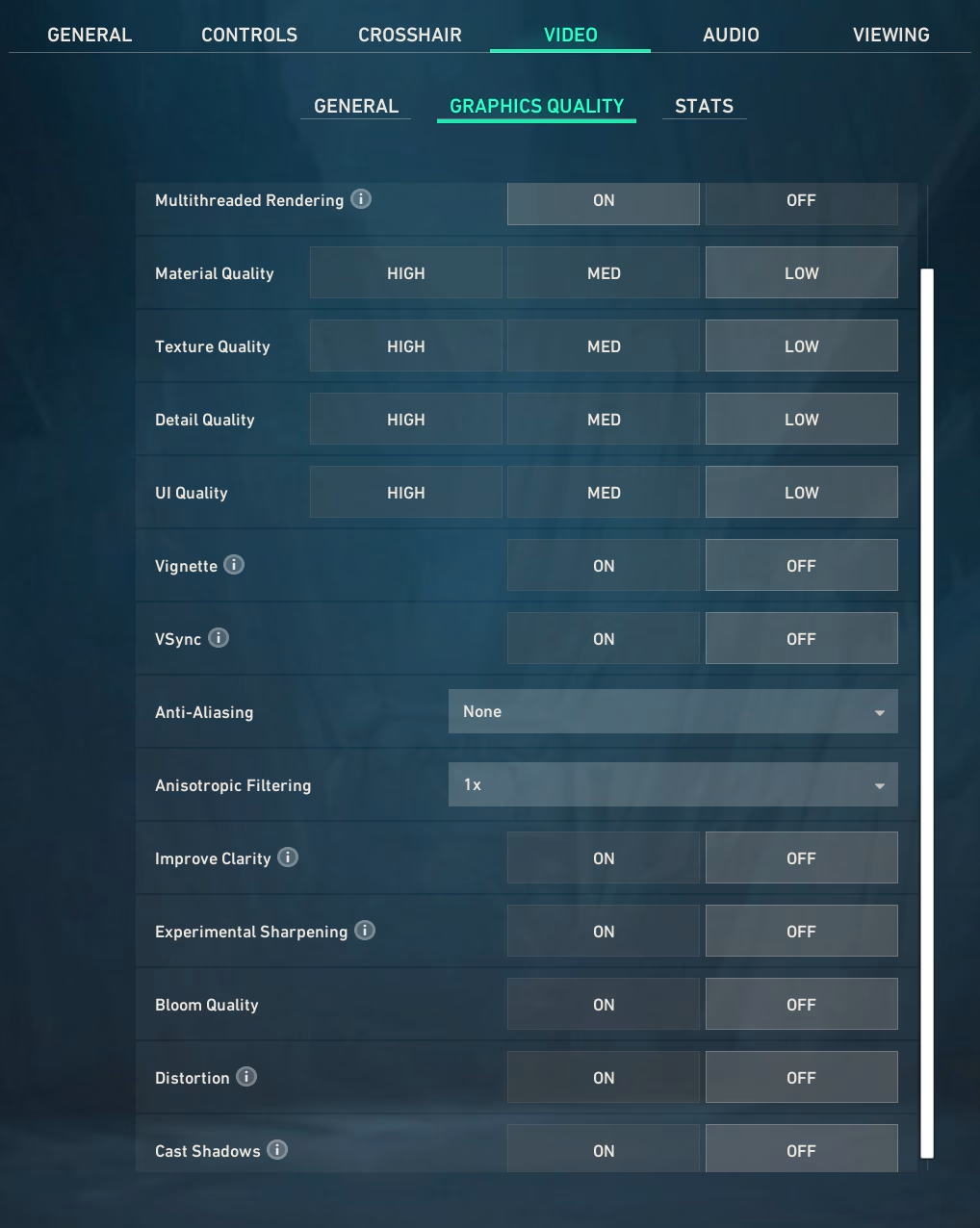
Tryb: Pełny ekran. Zawsze. Bez wyjątków. Fullscreen daje GPU bezpośredni dostęp do wyświetlacza. Borderless Windowed dodaje krok przez Windows DWM, co dodaje lag. (Istnieją poprawki Windows 11 które minimalizują to dla Borderlessa, więc jak musisz to w porządku)
Rozdzielczość: 1920×1080 (natywna). Według bazy ProSettings.net (640+ pro graczy) ogromna większość gra na natywnym 1080p. Valorant blokuje FOV na 103 stopni niezależnie od rozdzielczości. Stretched sprawia że HUD się skaluje do proporcji aspektu rozdzielczości, ale fizyczny ruch myszki na 360 stopni jest identyczny. Klarowność 1080p jest warta więcej szczególnie na większych mapa gdzie odległość jest masywna.
Częstotliwość: Maximum Twojego monitora. Sprawdź czy Windows faktycznie to ustawił (Ustawienia > System > Wyświetlacz > Zaawansowane). Wielu ludzi ma 240Hz monitor na 60Hz bo Windows domyślnie to ustawił albo używają HDMI zamiast DisplayPort. Często to wyłapujemy na optymalizacjach co zabawne :D.
V-Sync: OFF. Dodaje do pełnej klatki opóźnienia. Jeśli masz tearing, użyj G-Sync/FreeSync.
Limit FPS: Refresh monitora minus 3 (237 dla 240Hz, 141 dla 144Hz). Zapobiega budowaniu się kolejki renderowania. Istnieją setupy gdzie fps cap całkowicie desyncuje grę więc ostrożnie z tym.
Jakość grafiki
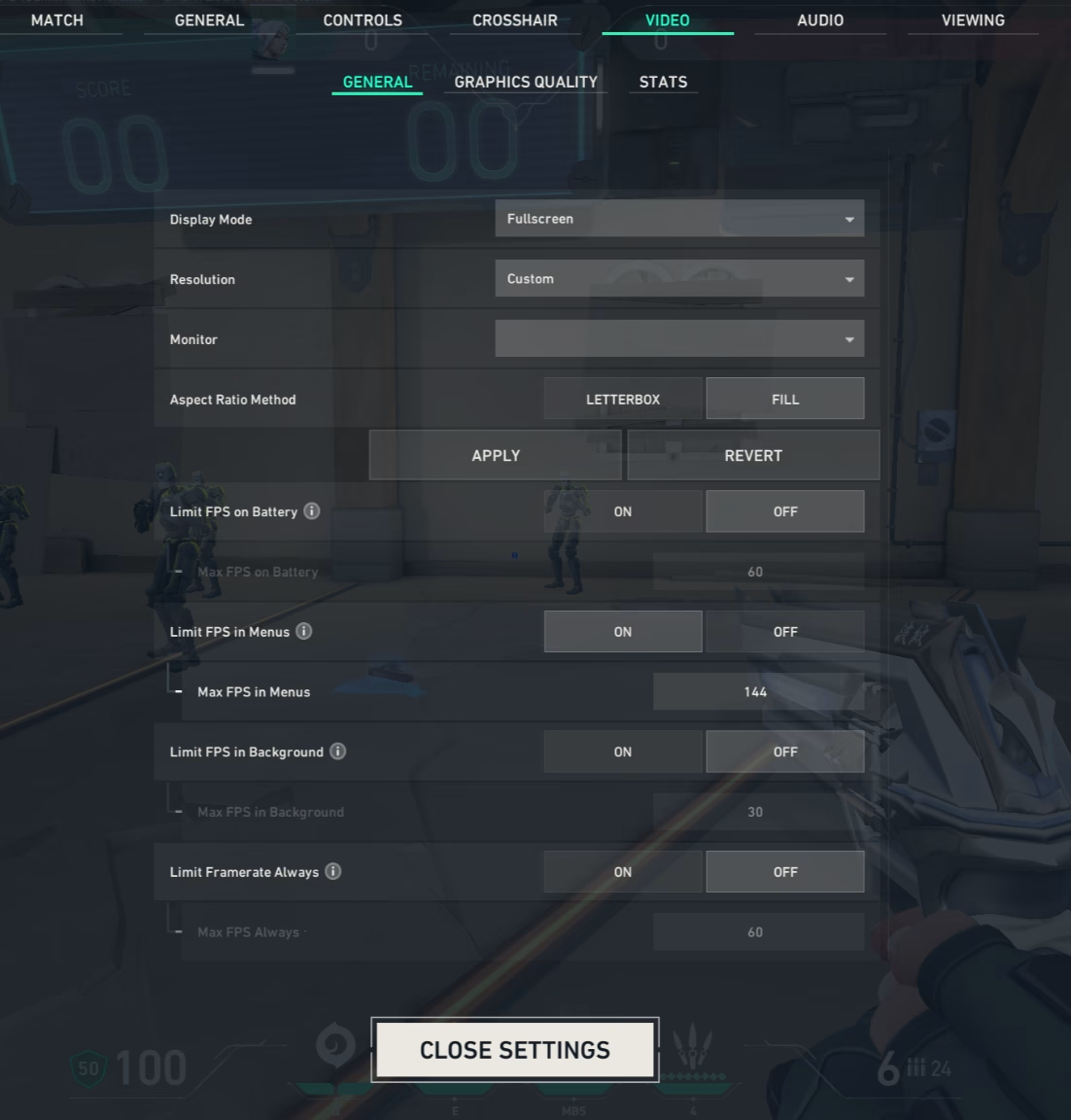
Wszystko na Low lub Off do gry competitive. Nie chodzi o wyciąganie FPS ze słabego GPU. Chodzi o usunięcie balastu wizualnego który ukrywa przeciwników.
Material Quality: Low. Największy wpływ na FPS w Valorancie. Na High każda powierzchnia przechodzi pełny cykl renderowania shaderów PBR. Na Low silnik używa uproszczonych shaderów. Na GTX 1660 Super zmiana z High na Low daje 80-110 FPS więcej.
Texture Quality: Low. Nie potrzebujesz tekstur 4K na podłodze Ascent żeby trafiać w głowy. Co ciekawe opcja ta kontroluje motion blur na skillach np.
Detail Quality: Low. Kontroluje tło, gęstość liści, gruz. Więcej rzeczy na ekranie = trudniej wyłapać przeciwnika wychylającego się zza rogu.
UI Quality: Low. Zero wpływu na granko.
Bloom: Off. Sprawia że jasne miejsca świecą i wchodzą w sąsiednie piksele. Off.
Distortion: Off. Zniekształca ekran podczas rzucania skilli. Zaprojektowane żeby Cię dezorientować. Czemu miałbyś to zostawić włączone?
Cast Shadows: Off. Wyjątek: niektórzy zostawiają On bo pokazuje cienie przeciwników w Viper Pit. Jeśli grasz dużo przeciw Viperom, przetestuj. W innym wypadku Off.
Vignette: Off. Przyciemnia krawędzie ekranu. Czysto estetyczne.
Anti-Aliasing: Off lub MSAA 2x. Off to najczystsza wydajność.
Multithreaded Rendering: On. Krytyczne dla wielordzeniowych CPU. Rozkładanie pracy renderowania na wiele rdzeni zamiast wąskiego gardła na jednym wątku. Przynajmniej z definicji.
NVIDIA Reflex
NVIDIA Reflex Low Latency: On + Boost.
Pojedynczo najbardziej wpływowe ustawienie na input lag w Valorancie. Synchronizuje CPU i GPU żeby wyeliminować kolejkę renderowania. Bez Reflexa CPU może przygotować 3-4 klatki do przodu. Każda klatka w kolejce to lag który czujesz w myszce.
Reflex 2 (RTX 50-series): Frame Warp wygina wyrenderowaną klatkę w ostatnim momencie żeby odzwierciedlała najnowszą pozycję myszki. NVIDIA pokazała poniżej 3ms w Valorancie na RTX 5090.
AMD: Anti-Lag 2 (rebrandowane na FSR Latency Reduction 2.0) – włącz w ustawieniach Valoranta, nie w Adrenalin. RX 5000+.
Czułość i ustawienia myszki
eDPI
eDPI = DPI myszki x Czułość w grze. To jedyna liczba która liczy się do porównywania czułości.
Średnia pro w 2026: 250-320 eDPI (baza ProSettings.net, 640+ pro, mediana ~267). Oznacza to ~45cm ruchu myszki na pełny obrót 360 stopni.
Punkt startowy: 800 DPI, 0.35 czułość (280 eDPI).
Blisko średniej pro, dobry balans między precyzją a szybkością. Reguluj po 0.02-0.03 i trzymaj każde ustawienie minimum 1-2 tygodnie.
Role:
Dueliści: Trochę wyższe eDPI (280-350), aspas gra na 320.
Kontrolerzy/Straże: Trochę niższe (220-280), Boaster gra na 208.
Ale to trendy, nie reguły. TenZ (duelista) gra na 240 eDPI.
Uwaga: eDPI powyżej 400 to statystyczny extrem. Tylko ~5% pro VCT gra powyżej 400.
DPI
~85% pro używa 400 lub 800 DPI. 800 najpopularniejsze. Użyj 800 DPI i reguluj czułość w grze.
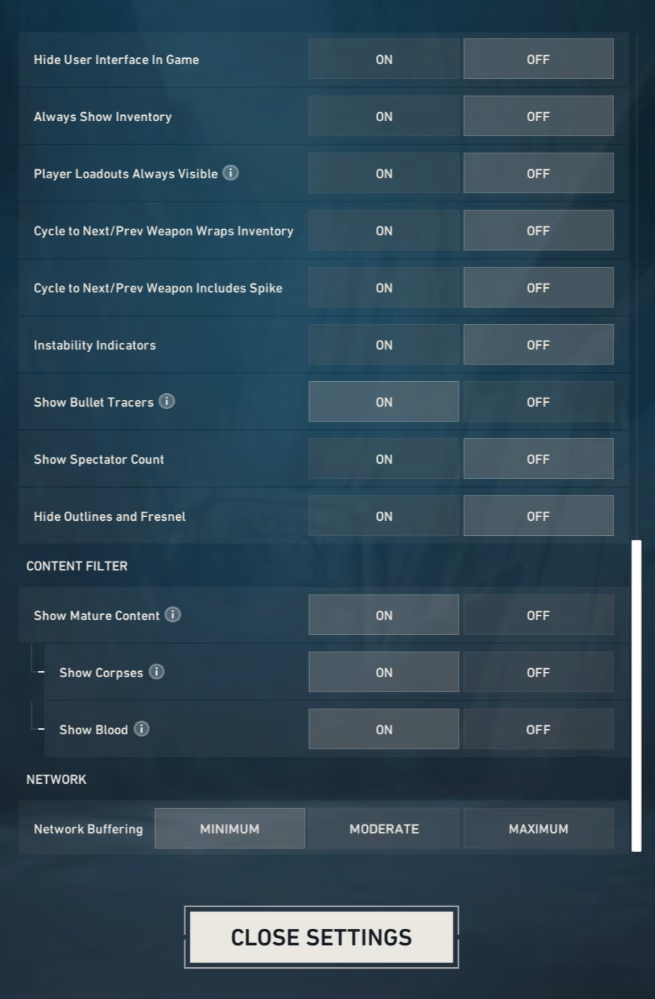
Scoped Sensitivity
1.0. Prawie każdy pro używa 1.0. Niektórzy main’owie Operatora zniżają do 0.9.
Polling Rate
1000Hz minimum. 4000Hz jeśli myszka wspiera. W 2026 Valorant natywnie obsługuje wysokie polling rate’y. Pro coraz częściej używają 4000-8000Hz myszy.
Jeśli gra Ci zacina od takich ustawień Polling rate – potrzebujesz naszej optymalizacji.
Ustawienia myszki Windows
Wyłącz „Zwiększ precyzję wskaźnika” (przyspieszenie myszki):
Ustawienia > Bluetooth > Mysz > Dodatkowe ustawienia > Opcje wskaźnika > Odznacz
Celownik
Standard w tacticalach w 2026: mały, statyczny celownik bez rozszerzania przy ruchu/strzelaniu.
Movement Error i Firing Error: Off. Rozszerzanie celownika to szum wizualny który uczy złych nawyków. Statyczny celownik zawsze pokazuje dokładnie gdzie poleci pierwsza kula.
Kolor: Kontrastowy. Biały, cyan, zielony, żółty. Wielu pro używa żółtego (włącz Deuteranopia w Dostępności).
Popularne kody:
TenZ: 0;P;c;5;h;0;0l;4;0o;2;0a;1;0f;0;1b;0
aspas: 0;s;1;P;c;5;o;1;d;1;0l;3;0o;1;0a;1;0f;0;1b;0
Import: Ustawienia > Celownik > Importuj kod profilu
Audio
Dźwięk to jedna z najbardziej niedocenianych rzeczy w Valorancie.
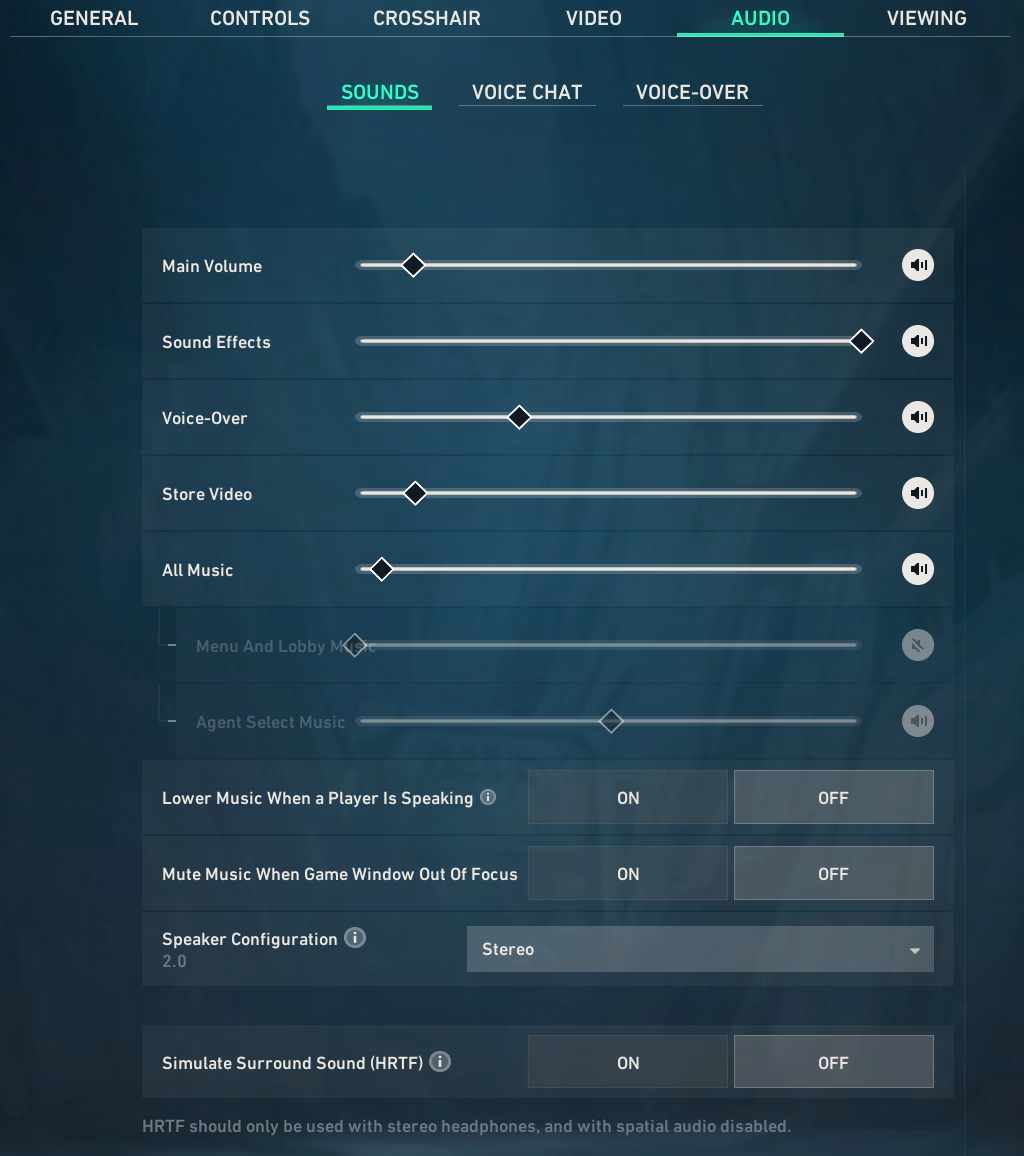
HRTF: ON. Wbudowane audio przestrzenne Valoranta. Drastycznie poprawia określanie kierunku i odległości dźwięków. Wyłącz WSZYSTKIE inne przetwarzania 3D audio (Dolby Atmos, DTS:X, Windows Sonic, surround na słuchawkach). Kolidują z HRTF.
Speaker Configuration: Stereo. Nawet ze słuchawkami surround.
Efekty dźwiękowe: 100%. Kroki i strzały muszą być głośne i czyste.
Voice-Overs: 50%.
Muzyka: 0-10%. Zero wartości dla gracza.
Push-to-Talk: Zalecane.
Minimapa
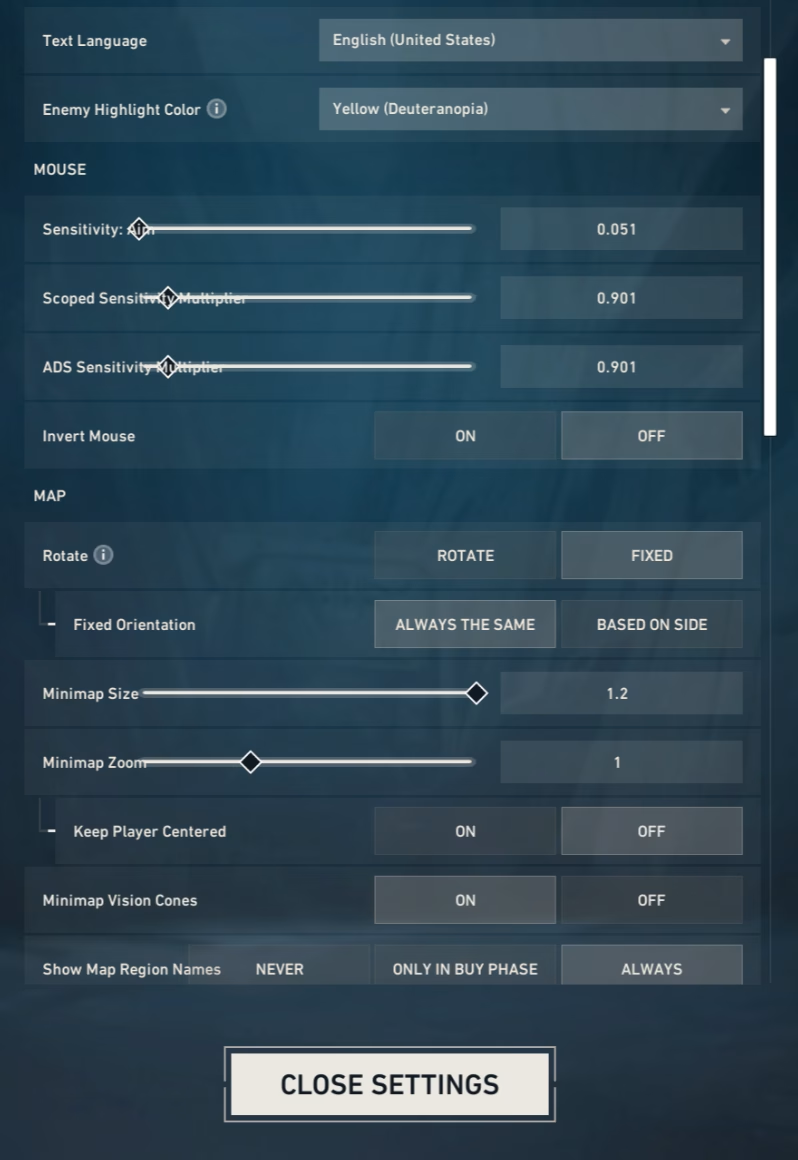
Rotate: On. Obraca minimapę względem Twojego kierunku patrzenia.
Keep Player Centered: Off. Mapa nieruchoma kiedy się ruszasz.
Rozmiar: 1.1-1.2. Trochę większe niż domyślne.
Zoom: 0.7-0.8. Wystarczająco oddalone żeby widzieć całą mapę.
Vision Cones: On. Pokazuje gdzie patrzą współgracze.
Optymalizacja systemu
Ustawienia w grze to połowa sukcesu. Windows, sterowniki GPU i hardware robią resztę.
Napisaliśmy pełny poradnik: Jak zmniejszyć input lag w CS2 i Valorancie (Pełny poradnik systemowy)
Krótka wersja:
Wyłącz VBS/Memory Integrity (-5-15ms)
Włącz HAGS w ustawieniach wyświetlacza
High Performance power plan
Wyłącz telemetrię
Zaktualizuj sterowniki GPU (clean install przez DDU)
Exclusions Windows Defender dla folderu Valoranta
Nasz serwis optymalizacji PC pokrywa to wszystko i nie tylko, dostrojone pod Twój hardware.
Profile sprzętowe
Valorant jest CPU-bound, nie GPU-bound. Procesor liczy się bardziej niż karta graficzna.
Budżet (240 FPS stabilne, 1080p Low):
CPU: i5-10400 / Ryzen 5 5600
GPU: GTX 1660 Super / RX 5600 XT
RAM: 16GB DDR4 3200MHz (dual channel)
Monitor: 144Hz (AOC 24G2, BenQ ZOWIE XL2411K)
Poniżej tego sprzętu bym nie schodził jeśli nie chcecie się denerwować, a już o prawdziwym e-sportowym podejściu nie wspominam.
Średnia półka (300+ FPS):
CPU: i5-13400F / Ryzen 5 7600
GPU: RTX 4060 / RX 7600
RAM: 16GB DDR4/DDR5 3600MHz+
Monitor: 240Hz (BenQ ZOWIE XL2546K)
High-End (400+ FPS, poniżej 10ms latency):
CPU: Ryzen 7 7800X3D / i7-14700K
GPU: RTX 4070+ (Reflex 2 na RTX 5070+ kiedyś może)
RAM: 32GB DDR5 6000MHz
Monitor: 360Hz+ (BenQ ZOWIE XL2566K)
Klawiatura: Rapid Trigger (Wooting 60HE+, Razer Huntsman V3)
O Rapid Trigger: W 2026 ~90% pro Valoranta używa klawiatur z Rapid Trigger. Standardowa klawiatura wymaga pełnego puszczenia klawisza. Rapid Trigger rejestruje w momencie gdy podnosisz palec o 0.1mm. Efekt: natychmiastowy counter-strafing. Jeśli nie masz – to prawdopodobnie Twój najważniejszy upgrade sprzętowy.
Rozwiązywanie problemów
Nagłe spadki FPS: Thermal throttling. Sprawdź HWiNFO64. CPU > 90°C = problem z chłodzeniem.
Zacinanie przy wysokim FPS: Często RAM. Pojedyncza kość? Dodaj drugi na dual channel. Sprawdź XMP/EXPO w BIOS.
Lag mimo Reflexa: Overlaye (Discord, Steam, Xbox Game Bar) – wyłącz wszystkie. Game Mode ON w Windows.
FPS < 200 na Low: Valorant jest CPU-bound. GPU usage < 80% = CPU jest wąskim gardłem.
HRTF dziwnie brzmi: Wyłącz WSZYSTKIE inne audio 3D (Dolby Atmos, DTS:X, Sonic, surround na headset).
Mity
„Stretched daje przewagę”
Valorant blokuje FOV na 103 stopni. Stretched nie zmienia czułości ani FOV. Cm/360 identyczne. Większość pro gra na natywnym 1080p – Spora część officiali (turniejów) wymaga też zgodności z grą i grania w 16:9.
*Istnieje True Streched – Który daje przewagę JEŚLI preferujesz szersze postaci/otoczenie kosztem szybszego optycznie movementu (przez rozciągnięcie pikseli).
„Wyższe DPI zawsze lepsze”
Powyżej 3200 DPI różnica gładzenia jest znikoma. 400 i 800 używane przez ~85% pro. Liczy się eDPI. Część z Was może preferować jednak mniejsze lub większe DPI w zależności od predyspozycji fizycznych. Dłuższy materiał poświęcony temu zagadnieniu tutaj 🙂
„Potrzebujesz PC za $5000”
Używany i5-10400 + GTX 1660 Super (~ $1000 razem w 2026) wyciąga 240 FPS na Low.
„Pro crosshair naprawi mojego aima”
Celownik to preferencja wizualna. Nie zmienia celności. Aim pochodzi z praktyki i spójnej czułości, nie z kodu celownika.
Podejście UltimateMove
Ustawienia dają narzędzia. Praktyka daje skill. Coaching daje kierunek i pomaga zrozumieć swoje błędy które czasami ciężko dojrzeć samemu.
Możesz zoptymalizować każde ustawienie z tego poradnika i dalej być hardstuck jeśli crosshair placement jest zły, timing utili spudłowany, albo tiltujesz się po dwóch przegranych rundach.
UltimateMove łączy:
Optymalizacja PC – wszystko z tego poradnika + per-hardware ($60-250, szczegóły)
Coaching 1-on-1 – KaRzye, Faceit 10, Phantom rank Deadlock, $15/h (szczegóły)
Coaching mentalny – tilt management, anxiety, spójność, kontrola gry.
Przejrzyj naszą stronę, oraz Bloga – znajdziesz tu więcej cennych artykułów oraz narzędzi lub po prostu dołącz pogadać na Discord.
Nasze darmowe narzędzia
Zbudowane in house. Bez konta, bez limitu.
 Ultimate Demo Analyzer
Wrzucasz demo z CS2, dostajesz rozpisane błędy i statystyki rundy.
Za darmo, bez konta Deadlock Replay Analyzer
To samo dla Deadlocka: analiza powtórki i plan na kolejne mecze.
Za darmo, bez konta Konwerter czułości
Przenosisz cm/360 między grami bez gubienia pamięci mięśniowej.
Za darmo, bez konta Trener celności
Trzydzieści sekund, trzy poziomy. Bez instalacji i bez konta.
Za darmo, bez konta