Best Deadlock Settings 2026
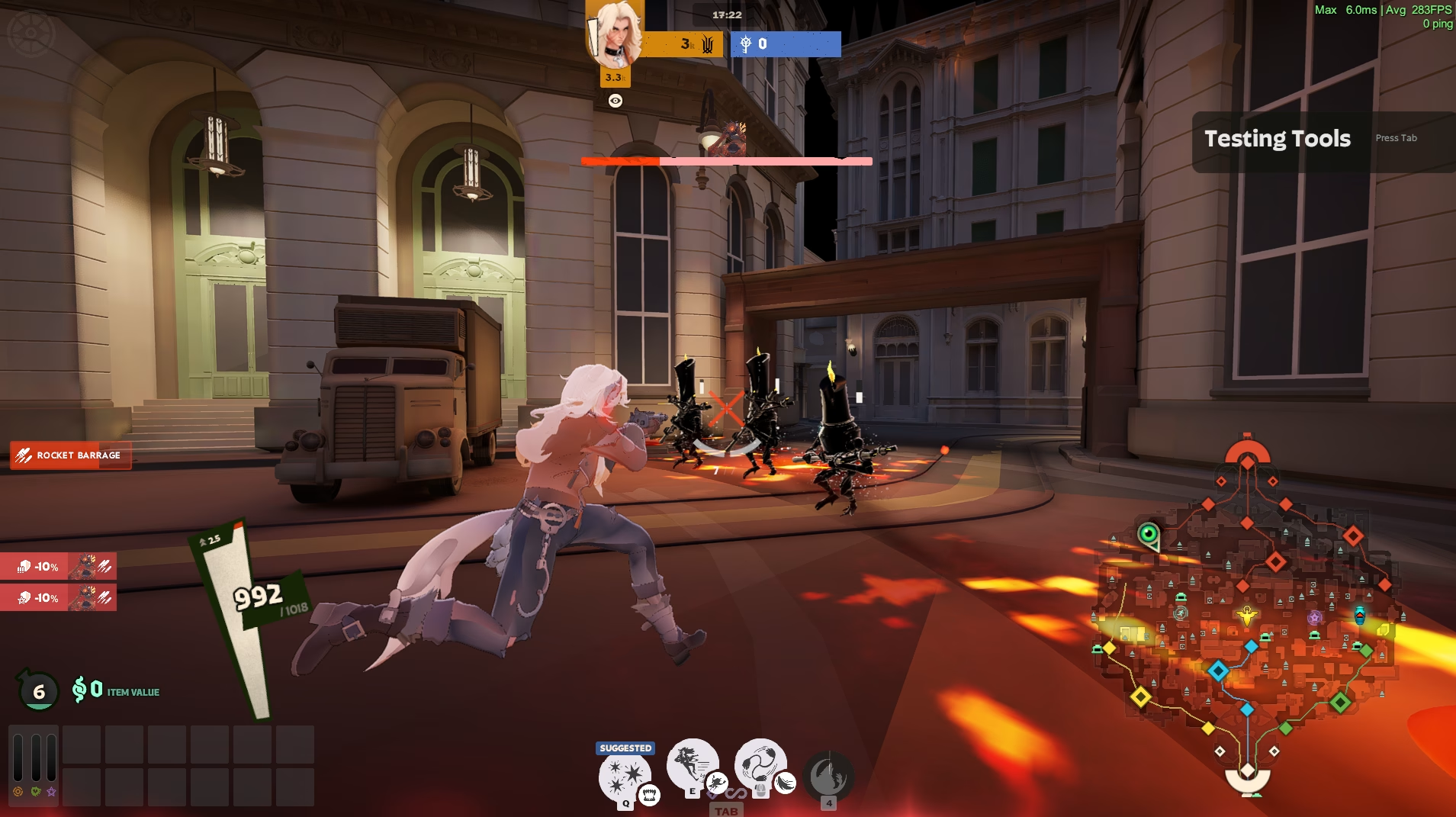
Let's put it bluntly: Deadlock's performance is terrible. And it's not about your computer. From the player reports I see, even on an RTX 5070 Ti, Radeon 9070 XT or Ryzen 9900X some patches can cost a lot of frames: in teamfights, drops from 144+ FPS to below 50, with the game looking like buffering video. This is a Source 2 engine game, but it's not the same branch as CS2, which is known for being brutally CPU-bound and comes with a default configuration that prioritizes server stability over your machine's performance.
There’s also another factor that barely anyone talks about, and right now it hurts the most: summer. If you don’t have air conditioning, your room turns into an oven in July, and your CPU and GPU - already stressed by poor optimization - start thermal throttling. A game that barely held frames in winter chokes even harder in summer. Higher ambient temperatures mean lower clocks, more drops, and less stable frametime exactly when you need it least - in the middle of a fight.
This guide gives you a complete set of the best Deadlock settings for 2026. But we will also tell you honestly where your control ends and where the real work starts: Deadlock optimization.
Why Deadlock runs so poorly (and why it’s not your fault)
Deadlock is CPU-bound. That means the bottleneck is usually not your graphics card, but your processor and how the game communicates with the system. That’s why people with powerful GPUs see the same drops as users with weaker cards - the problem isn’t where most people look.
On top of that, there are documented issues confirmed by the community: certain UI elements (like opening the Tab menu) cause noticeable FPS drops. Looking toward the center of the map can cut your framerate. Teamfights, where multiple ultimates go off at once, are where the game struggles the most - exactly when stability decides whether you win.
This isn’t a game you “fix” with a single slider. But you can tame it - and that’s what we’ll do below.
Graphics settings - full list
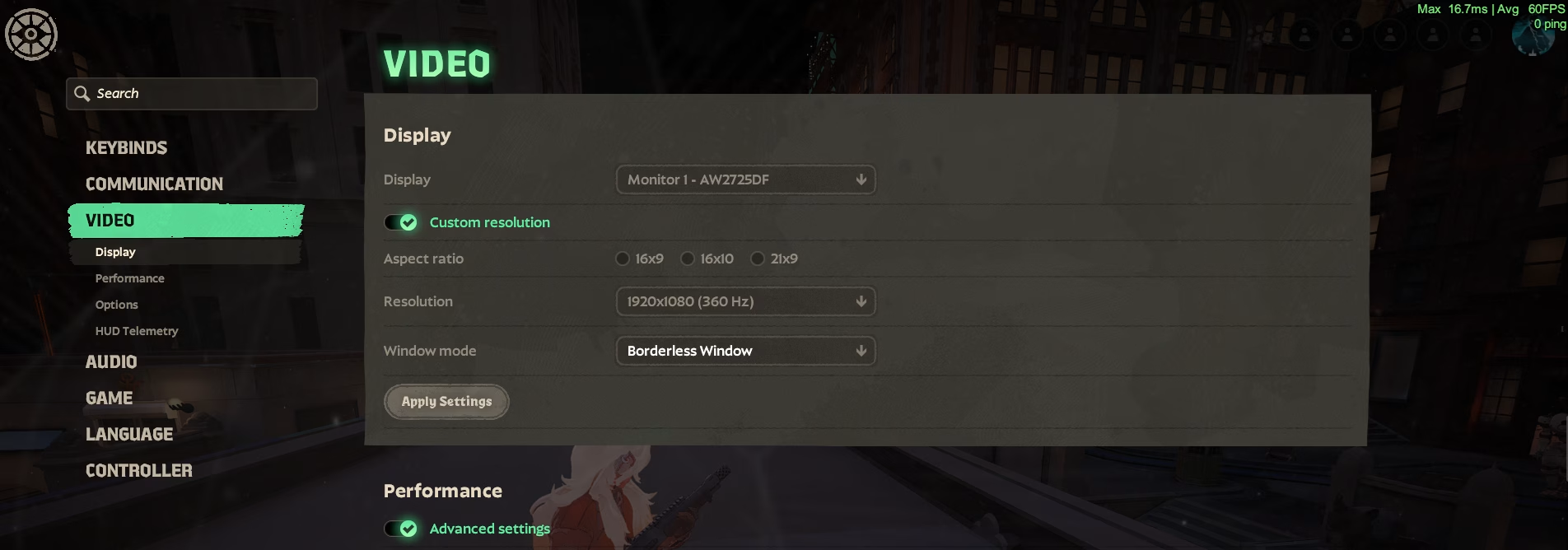
Rendering: DirectX 11. In most cases more stable and better optimized for Deadlock than alternatives. Corresponds to the launch option -dx11.
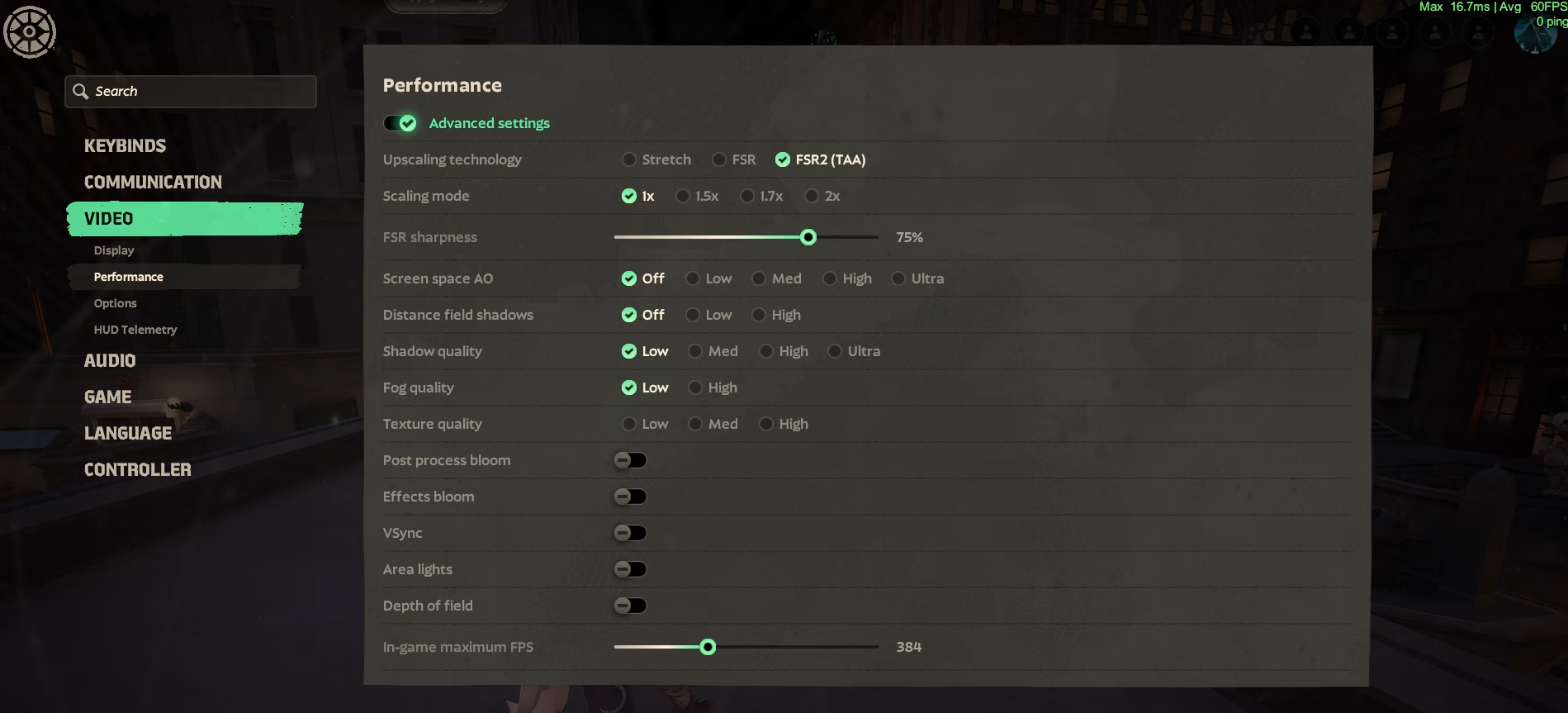
Upscaling mode: FSR2 (TAA) if you want stable frames, or Stretch if you prioritize sharpness and have a strong GPU. Note: after some patches, Deadlock started using newer DLSS versions that can hurt performance on older RTX cards despite better visuals. If you have an older Nvidia card, test whether DLSS actually helps or hurts you.
Texture Quality: Medium. Going lower gives minimal FPS gain, set it according to your preferences.
Shadow quality: Low. We will disable them in config entirely. The single biggest FPS impact with the lowest gameplay cost in Deadlock.
Effects quality: Off. Reduces particle density during team ultimates. Your FPS in teamfights - where it matters most - will benefit.
Depth of field, Bloom: All off. Purely visual and hurts both FPS and clarity.
Flash effect reduction: On. Helps during chaos, if you have this option.
VSync: Off. Adds input lag. Use only together with FreeSync or G-Sync.
FPS limit: Set to your monitor refresh rate or slightly below (e.g. 237 for 240Hz). Unlimited FPS on a 240Hz monitor wastes GPU power and - especially in summer - causes temperature spikes leading to thermal throttling during longer fights. FPS limit is not just smoothness, it’s also lower temperatures. Unlike CS2, Deadlock does not have frame pacing issues with an in-game FPS lock, so at least that works in our favor.
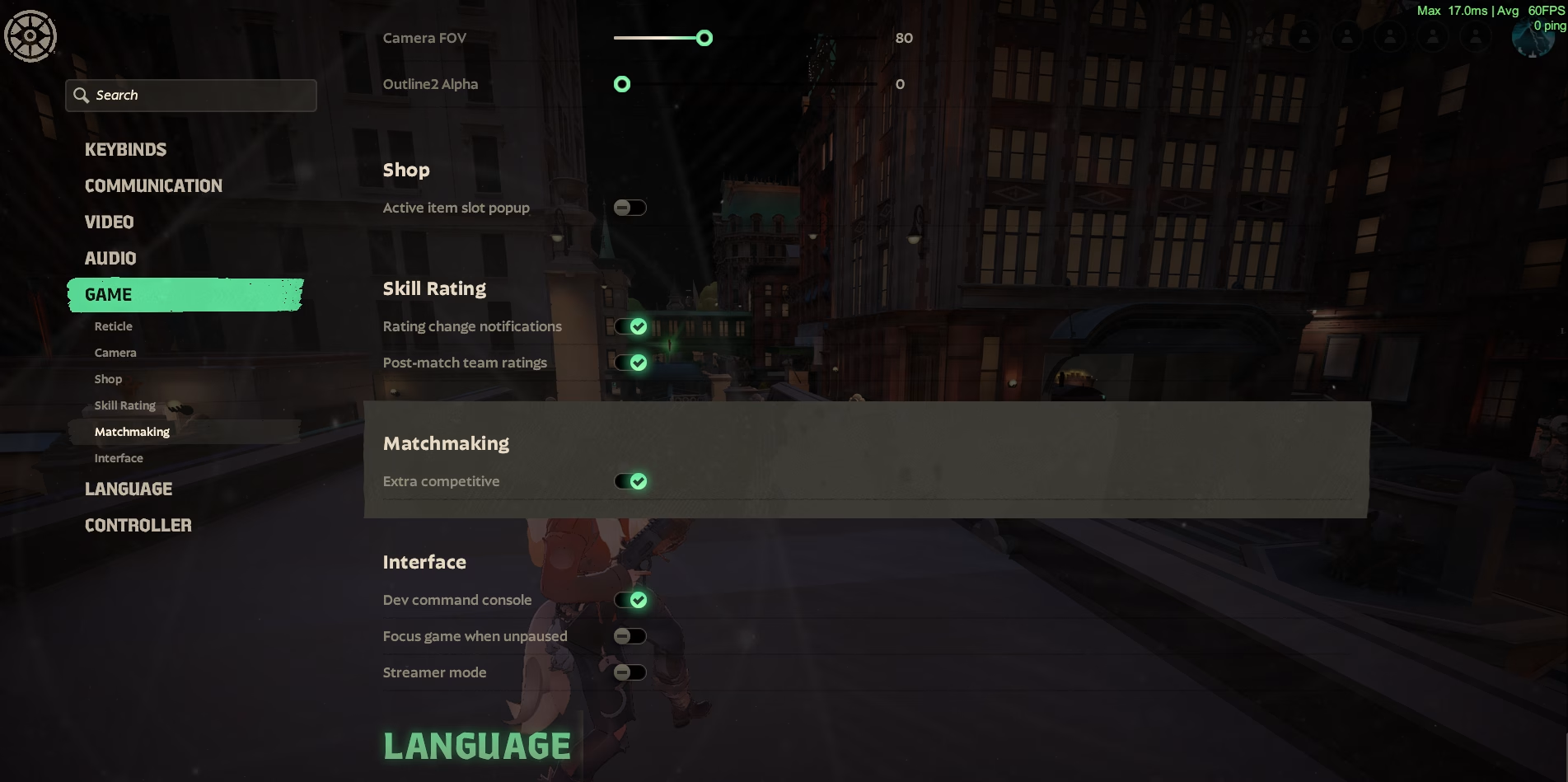
Many options here are not shown in-game, they exist in config files and can still be adjusted.
We connect to your PC remotely, save a restore point, then work through power, drivers and input. The BIOS we go through together on a Discord call while you show us the screen with your phone. The same benchmark at the end shows how much of it landed. For six months after the session we stay with you on Discord.
Launch options
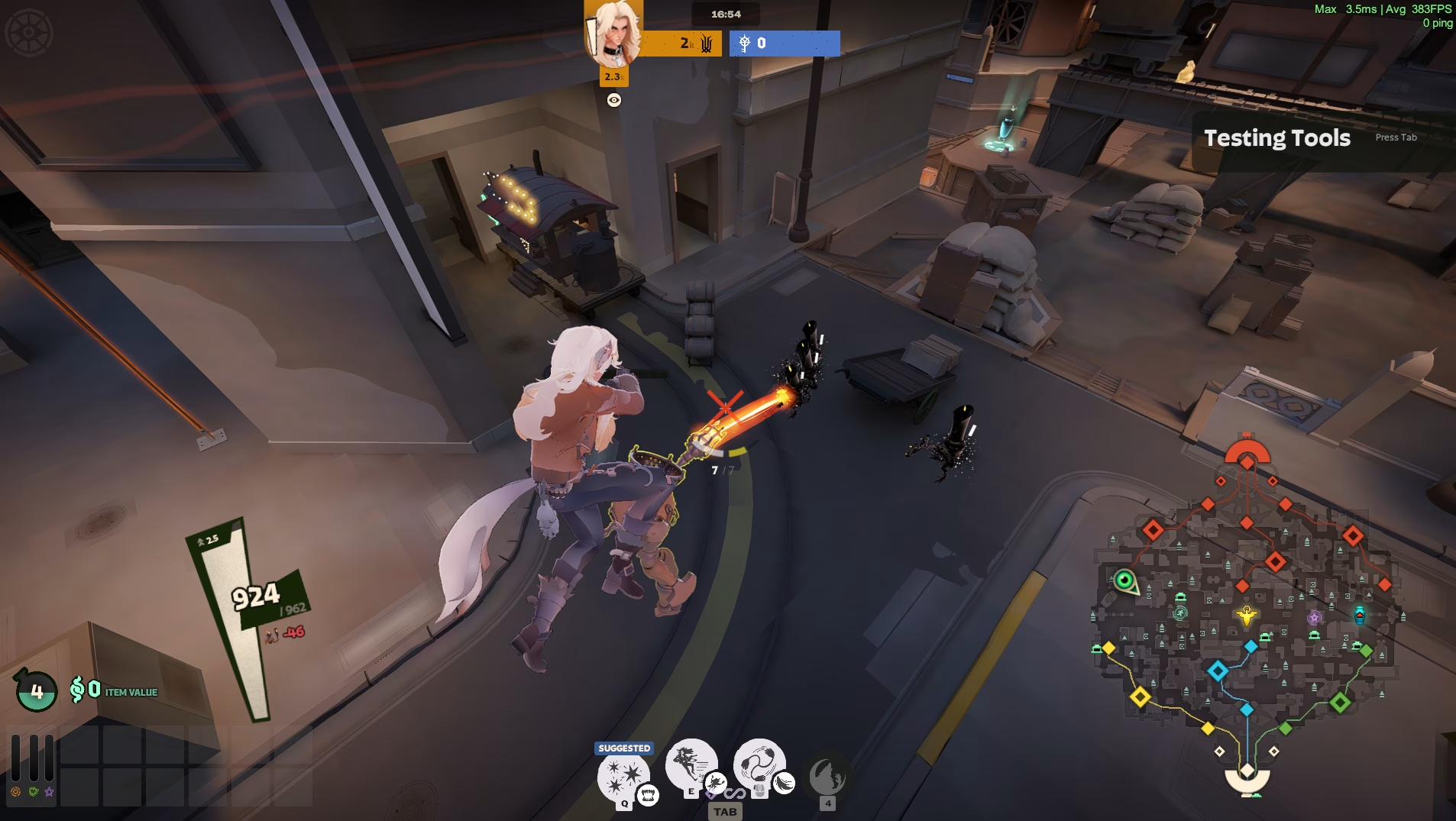
In Steam: right-click Deadlock > Properties > General > Launch Options. Safe, tested set:
-dx11 - forces DirectX 11. You can try -vulkan if you use Radeon and the game runs poorly on dx11.
-high - launches the game with high process priority. Be careful - on some systems it helps, on others it causes issues with other apps. Test it yourself.
Avoid copying long chains of “magic” launch options from random YouTube videos. Many do nothing, some are outdated, and some can even hurt performance. Less is safer. You won’t fix the game this way anyway.
Windows system configuration - this is where real gains start
This is where it gets serious. In-game settings are only half the job - and the easier half. The real performance ceiling of Deadlock depends on how your system handles the game.
Power plan: must be High Performance or Ultimate Performance. The optimal version is a custom plan created during our remote optimization. Balanced plan parks CPU cores and lowers clocks during gameplay - a killer for 1% lows. Don’t follow blind advice from people who don’t take the game seriously.
Game DVR / Xbox Game Bar: turn it off. Background recording steals GPU and CPU resources.
Mouse acceleration (“Enhance pointer precision”): off. Ruins aiming consistency.
Background processes: close everything unnecessary. Every process competing for CPU is a potential micro-stutter in fights - especially mouse software, accessory drivers, or RGB apps.
Temperature and cooling: in summer this isn’t optional for many people. Clean dust from cooling, check airflow in your case, consider increasing fan curves. A throttling CPU won’t deliver frames no matter how good your config is. Deadlock can literally heat rooms to extreme levels on CPUs like Ryzen 7950X or 9950X.
Custom GameInfo - a step beyond in-game settings
If you’ve already squeezed everything from graphics and Windows settings and still feel the game could run better - the next step is engine-level config. We wrote a separate detailed guide about OptimizationLock - a community config replacing Deadlock’s default gameinfo.gi, removing overhead left by default Source 2 settings.
This time we present our own custom GameInfo.gi - a real tool that actually helps - especially in 1% lows during teamfights, where improvements can reach several to dozens of percent. To get it, just join our Discord.

But here’s the key point - game config is still just game config. It works within what the game allows you to change. It won’t touch BIOS, configure MSI interrupts, adjust timer resolution, or optimize the network stack for stable hit registration. And those are the layers where the biggest gains are.
Why our service outperforms even Custom Config
Let’s be completely honest: OptimizationLock is a great free config that is continuously developed and you should use it. But our PC optimization service outperforms it for a simple reason. A config modifies the game. We modify both the game AND the entire system for maximum results.
What does that mean in practice? OptimizationLock tunes how Deadlock loads the engine via gameinfo. We tune the entire path between your CPU and your screen: BIOS and system, C-States and core parking, MSI mode for GPU and network interrupts, timer resolution under load, network stack tuning for stable hitreg, mouse calibration. Plus, of course, optimal game config.
In other words: it gives you one piece of the puzzle - the one you can install yourself. We build the entire puzzle, measure results, and verify stability on your specific hardware. A config doesn’t know your CPU, motherboard, RAM, or how hot your room is. We take all of that into account. And all benefits carry over to other games and your whole system.
And we do it safely. System backup before every change, everything reversible, live session via Discord where you see exactly what we do and why. This is not a one-click “optimizer.exe” - this is manual, tailored work for your system and Deadlock specifically.
If Deadlock still chokes in teamfights despite proper config, if FPS drops even more in summer, if you feel input lag that no setting fixes - these are system-level issues going deeper than game config. That’s exactly what we solve.
Order PC optimization and squeeze the maximum out of Deadlock that your hardware can deliver - even in the middle of July heat.
FAQ
Why does Deadlock have such low FPS even on high-end hardware? Because it is a CPU-bound game on Source 2 with a default configuration prioritizing stability over performance. The bottleneck is usually the CPU and system communication, not the GPU - which is why even strong GPUs drop frames in teamfights.
Why are my FPS even worse in summer? High ambient temperature can cause thermal throttling - your CPU and GPU lower clocks to avoid overheating. A poorly optimized game chokes even more. FPS limiting (less heat), cleaning cooling, and proper airflow help - but full system optimization is the real solution.
Is OptimizationLock safe? The current V2 version was built to remove unverified commands and keep only documented convars. Details are in our separate guide. It’s a free, community config - a good first step.
What does your optimization provide that game config does not? Config modifies only the game. We modify the game and the entire system: BIOS, timers, network tuning for hitreg, mouse calibration, etc. These are layers no config can touch, and where the biggest gains in game feel and input lag are.
Is the optimization safe and reversible? Yes. We create a system backup before every change, everything is reversible, and the session is done live via Discord where you see every step. You can restore your previous setup anytime.
How much FPS will I gain? It depends on your hardware and existing issues. The main goal is not peak FPS, but frame stability and higher 1% lows - eliminating choking in teamfights. Those low values during fights matter more than numbers in menus or lobby.
-
Want to see an optimized Deadlock live? Join the stream. Want your system to get the most out of the game? Order optimization. Want to talk about config, builds, and the meta? Join us on Discord.
 KaRzye
Runs the research and every session at UltimateMove. FACEIT Level 10 in CS2,
Immortal in Valorant. Twenty years in BIOS, memory and drivers.
Watch him play.
KaRzye
Runs the research and every session at UltimateMove. FACEIT Level 10 in CS2,
Immortal in Valorant. Twenty years in BIOS, memory and drivers.
Watch him play.
Our free tools
Built in house. No account, no limits.
 Ultimate Demo Analyzer
Upload a CS2 demo and get your mistakes and round stats written out.
Free, no account Deadlock Replay Analyzer
The same for Deadlock: a replay breakdown and a plan for the next matches.
Free, no account Sensitivity Converter
Carry your cm/360 between games without losing muscle memory.
Free, no account Aim Trainer
Thirty seconds, three levels. No install, no account.
Free, no account