Deadlock optimization: six steps to more FPS in fights
Deadlock optimization comes down to six steps in a fixed order: measure, in-game settings, launch options, config, Windows, and finally CPU, memory and BIOS. After each step you check FPS in the same scene and keep only what added frames.
I have been tuning gaming PCs for over 15 years. Deadlock players usually copy a list of tweaks from a video, apply ten at once, and never learn which one helped and which one hurt. Each step below has a short instruction and a link to the guide that covers it in full.
1. Measure FPS before you change anything
Open the console with F7 and type cl_showfps 2. Valve describes this value as a smoothed FPS counter, so it does not jump around in a fight like the plain one.
A live match is useless for comparisons because no two look alike. Download a replay of your match from the history in your profile and watch the same big teamfight before and after a change. The quickest way to find the minute of the fight is the kill map in our free Deadlock Replay Analyzer.
For exact numbers, record those 60 seconds in the free CapFrameX. It calculates the average FPS and the 1% low, the frames from the heaviest moments of the fight. Do three runs and compare the middle one.
2. In-game graphics settings
Among the settings, lower shadows and effects usually give the most frames. Turn VSync off and cap FPS at your monitor's refresh rate or slightly below.
Stay on DirectX 11. Most players use it, and in my tests Vulkan very rarely does better in Deadlock, especially on GeForce cards. If you have a Radeon, test Vulkan on the same replay and keep it only if it gives a higher 1% low.
Every slider with an explanation is in the best Deadlock settings for 2026.
Deadlock optimization on a low-end PC or laptop
On weak hardware, lower the render resolution with FSR scaling and set textures to low if the GPU has little memory. Plug the laptop into the charger and check in Windows graphics settings that Deadlock runs on the dedicated GPU, not the integrated one.
We go through Windows, drivers and game settings remotely, and in the Advanced package also BIOS and memory. We measure FPS in Deadlock before and after, and if your hardware is the limit, we say so directly.
3. Launch options
In Steam, right-click Deadlock, choose Properties and enter launch options. Add only what you have tested, for example -vulkanif Vulkan won on your Radeon in step 2. Skip the long strings from videos, because many options from the Source 1 days do nothing in Source 2. The options that work are listed in the best Deadlock settings.
4. Deadlock config
Config podmienia plik gameinfo.gi i schodzi z grafiką poniżej minimum z menu. Od aktualizacji City Never Sleeps silnik ignoruje 77 zmiennych z tego pliku, więc część linii w starszych configach nic nie robi, a każda duża aktualizacja nadpisuje plik. Dlaczego sam config już nie wystarcza, wyjaśniam w tekście jak zwiększyć FPS w Deadlock, gdy config nie działa.
That is why we maintain our own Deadlock Ranked CFG and update it after every patch. The install steps are on the same page.
5. Windows
Windows out of the box is not set up for games. Check the power plan, the apps that start with the system, and overlays. A single overlay rarely hurts the result, but if you run several, turn off the ones you do not use and measure the difference.
Microsoft itself says Memory Integrity can lower gaming performance. I covered its cost in the article on Memory Integrity and FPS loss, and five safe post-patch steps are in the article on Deadlock FPS drops after the update.
6. CPU, memory and BIOS
Deadlock spreads its work across the CPU's physical cores. Below is my measurement from a match on a Ryzen 7 9800X3D: every other graph in Task Manager runs hard, one for each of the eight cores, while the second threads of those cores barely move. The game prefers physical cores to SMT threads, so when you pick a CPU, count cores, not threads.
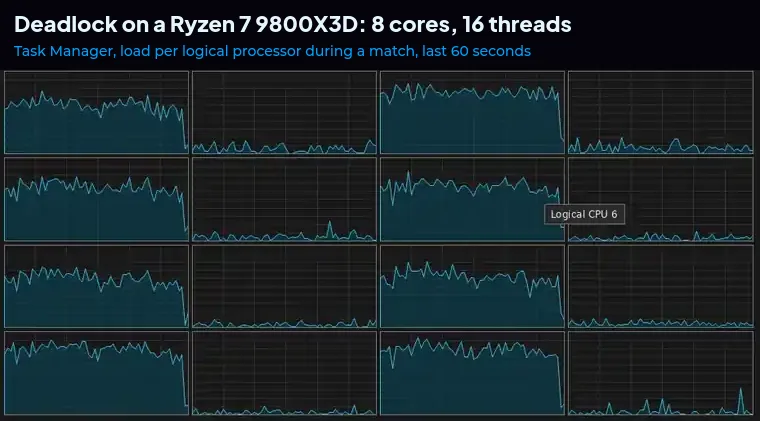
When the GPU clearly stays below full load in a fight and FPS drops, the CPU, memory or system is holding you back. What matters then is memory speed and timings, an enabled XMP or EXPO profile, and a CPU that does not throttle from heat. These are BIOS settings, and a mistake there costs stability, so check every change with a stability test, not just FPS.
What the measurement shows and where to look
Keep Task Manager open on the Performance tab while the replay runs.
| What you see | Most common cause | Where next |
|---|---|---|
| GPU near 100%, low FPS across the whole replay | Settings or resolution too high | Step 2 |
| GPU clearly below full load, drops in fights | CPU, memory or system | Steps 5 and 6 |
| Result dropped after a patch with a config installed | The update overwrote gameinfo.gi | Step 4 |
| Stutter only in the first matches after an update | The game recompiles shaders | Play two matches and measure again |
| FPS counter stays flat but the game stutters | Network or Wi-Fi | Cable instead of Wi-Fi |
When your hardware is the limit
Valve has not published hardware requirements for Deadlock and the big hardware outlets have not tested it yet. If after every step the GPU still runs near 100% and FPS is low, what remains is a stronger GPU. If the GPU has headroom while the CPU cores stay heavily loaded through the match, what remains is a faster CPU.
Deadlock optimization with us
This guide covers what you can do yourself. On a remote session we do far more, and we measure the effect on the same fight from your replay before and after the changes. We set up Windows remotely and the BIOS together over a Discord call: you show the screen with your phone and we walk you through every setting. Windows 11 optimization costs 200 PLN, and the Advanced package with BIOS, memory and safe overclocking costs 400 PLN.
If you first want to know what limits your PC, the remote performance diagnostics for 150 PLN finds the cause, and if the hardware is to blame you get a report on what to replace. Packages and dates are listed under remote PC optimization.
Settings and launch options take fifteen minutes, the config needs fixing after every big patch, and the rest of the frames come back in Windows, memory and the BIOS. Measuring on the same replay shows which step worked on your PC.
Frequently asked questions
How do I optimize Deadlock?
Measure FPS on a match replay, then work through in-game settings, launch options, config, Windows, and CPU and memory in the BIOS. After each step measure the same fight and keep only the changes that added frames.
How do I turn on the FPS counter in Deadlock?
Open the console with F7 and type cl_showfps 2. It is a smoothed counter that is easier to read in a fight.
Do Deadlock configs still work?
Partly. Since City Never Sleeps the engine ignores 77 variables in gameinfo.gi, and every big update overwrites the file. We update our Deadlock Ranked CFG after every patch.
Is Deadlock harder on the CPU or the graphics card?
Check GPU load in a fight. If it reaches full load, the GPU is your limit. If it has clear headroom and FPS drops, the CPU, memory or system is holding you back. The game itself spreads its work across the CPU's physical cores.
DirectX 11 or Vulkan in Deadlock?
DirectX 11. Most players use it, and Vulkan very rarely does better, especially on GeForce cards. On a Radeon it is worth testing with the -vulkan launch option.
How much does PC optimization for Deadlock cost?
Windows 11 optimization costs 200 PLN, and the Advanced package with BIOS, memory and safe overclocking costs 400 PLN. Remote diagnostics that pinpoint the cause of low FPS cost 150 PLN.
Frames dropping exactly when the fight starts?
That drop lands in the one second that decides the round, and no graphics preset fixes it. We tune Windows, drivers and network remotely, and the BIOS together with you on a Discord call. You measure it yourself, in your own game, before and after, with us watching.
See PC optimization →Six months of support after the session. Not sure it is worth it? Ask for a free check on our Discord first. KaRzye
Runs the research and every session at UltimateMove. FACEIT Level 10 in CS2,
Immortal in Valorant. Twenty years in BIOS, memory and drivers.
Watch him play.
KaRzye
Runs the research and every session at UltimateMove. FACEIT Level 10 in CS2,
Immortal in Valorant. Twenty years in BIOS, memory and drivers.
Watch him play.
Our free tools
Built in house. No account, no limits.
 Ultimate Demo Analyzer
Upload a CS2 demo and get your mistakes and round stats written out.
Free, no account Deadlock Replay Analyzer
The same for Deadlock: a replay breakdown and a plan for the next matches.
Free, no account Sensitivity Converter
Carry your cm/360 between games without losing muscle memory.
Free, no account Aim Trainer
Thirty seconds, three levels. No install, no account.
Free, no account