1% Low and Frametime: Measure Before and After
1% low helps investigate stutters that an average FPS figure cannot explain. Your counter looks healthy, yet turning the camera feels uneven. You change settings, play a quieter match and get a higher number. Has the PC improved, or did the test get easier?
Use a comparable scene and repeated recordings: three 60-second captures before a change and three afterwards. Keep the files for your own troubleshooting or a professional diagnosis.
What frametime, P1 and 1% low actually tell you
Frametime describes the interval between successive frame events in the measurement you selected. With evenly spaced intervals, 100 FPS corresponds to 10 ms and 200 FPS to 5 ms. That conversion does not measure the complete delay between a mouse click and a change on the display.
P1 FPS is a lower percentile threshold across frames. It does not automatically mean the game stayed above that figure for 99% of the recording time. CapFrameX explains the distinction.
“1% low” also needs a definition. CapFrameX implements P1, 1% low average and 1% low integralseparately. Average converts the mean frametime of the slowest one percent of frames into FPS; integral uses a threshold based on accumulated time. Compare the same named metric using the same tool version. CapFrameX implementation.
Set up a comparison you can repeat
CapFrameX can capture the data. Record its version and chosen metric; do not compare P1 with another application's unexplained “minimum FPS”.
Choose a repeatable demo section, benchmark or route. Test a fight if fights cause the problem. Two different ranked matches are not a controlled comparison.
Before capturing anything, record:
- CPU, GPU, RAM capacity and resolution;
- game version, Windows build and graphics driver;
- graphics preset, upscaling, FPS limit and synchronization;
- frame generation and background application settings.
For a baseline of rendering performance, disable frame generation, or keep precisely the same mode throughout and label it clearly. Intel’s PresentMon documentation distinguishes application frames from generated frames and lists different timing measurements. Keep those categories consistent.
Save screenshots of the settings to catch accidental changes later.
We connect to your PC remotely, save a restore point, then work through power, drivers and input. The BIOS we go through together on a Discord call while you show us the screen with your phone. The same benchmark at the end shows how much of it landed. For six months after the session we stay with you on Discord.
Run three captures before and three after
Warm up first. Run the scene without recording and let preparation tasks finish. Do not compare a first launch after an update with an already warmed-up scene.
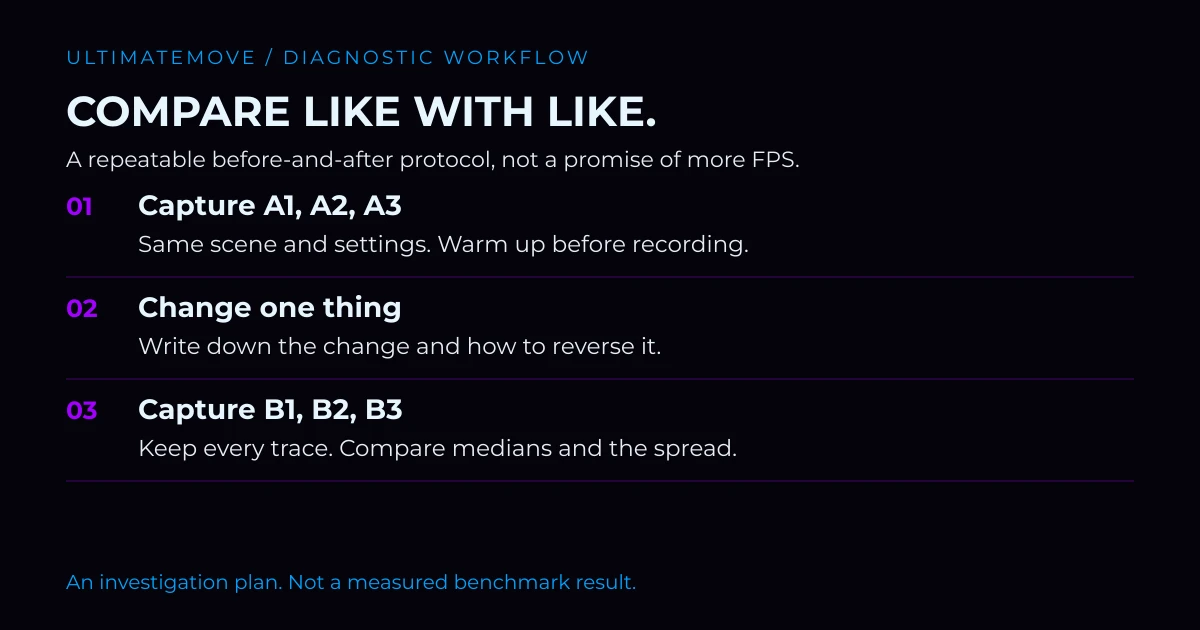
Capture set A. Record three 60-second runs from the same point, with a consistent route and similar thermal conditions. Name them A1, A2 and A3.
Change one thing. Adjust one setting or configuration item. Changing a complete package cannot identify which component helped. Note the change and how to undo it.
Repeat the warm-up and capture set B. Save matching recordings as B1, B2 and B3. An intervening game or driver update requires a new baseline.
Keep every file. Mark accidental alt-tabs, loading screens or wrong turns. Set exclusion rules before comparing results; keep excluded captures with an explanation.
A minute is a starting point. Rare hitches need longer captures. Six short recordings cannot establish hardware stability.
Copy this measurement worksheet
Fill the cells with your own recordings. The blanks are intentional; this is not a claimed customer result.
Download the blank measurement worksheet CSV. Enter your own results; the file contains no sample benchmarks.
| Run | Average FPS | Selected 1% low, FPS | Frametime observations |
|---|---|---|---|
| A1 / before | |||
| A2 / before | |||
| A3 / before | |||
| B1 / after | |||
| B2 / after | |||
| B3 / after |
Above the table, note the scene, software versions, metric definition and exact change. Calculate a separate median for each numerical column in set A and set B: sort the three results and take the middle value. Show all six runs alongside the summary.
A median hides variation. Inspect unusual recordings, and keep identical time and millisecond scales when comparing charts.
Interpret the result without inventing a cause
Higher average FPS with recurring spikes does not establish that stutter is fixed. Check when the spikes occur and what the game is doing.
Improvement across repeated runs strengthens the case for keeping a change. If before and after results overlap heavily, repeat the comparison. No universal percentage separates a real improvement from normal variation in every game. Scene consistency matters.
A frametime chart also cannot identify a faulty component on its own. It gives you evidence to investigate; it does not automatically diagnose the processor, memory or graphics driver.
For a practical sequence in Deadlock, continue with our six-step optimization guide. Keeping your captures lets you check which steps actually helped your machine.
Want us to work through it with you?
See UltimateMove’s remote PC optimizationif you want help interpreting the problem and applying the appropriate changes. We measure your games before and after the work; the service page explains the package scope and booking options.
Bring your hardware details, settings and the complete capture set.
Frequently asked questions
Is 1% low enough to judge performance?
No. Keep average FPS, the trace and the scene description. A summary number cannot locate or explain each hitch.
Can I compare two different matches?
They can reveal symptoms, but a settings comparison needs the same demo section or a repeatable route.
How many runs should I capture?
Start with three minute-long recordings before and three after. Extend the duration for infrequent problems.
Should I delete the worst run?
Not because it is the worst. Keep the full set and explain any departure from the planned test.
Does this measure complete mouse latency?
No. Frame intervals do not replace a measurement of the whole click-to-display path.
Do I need to buy optimization to test?
No. Follow the protocol yourself. Consider a service when you need help investigating and making changes.
Frames dropping exactly when the fight starts?
That drop lands in the one second that decides the round, and no graphics preset fixes it. We tune Windows, drivers and network remotely, and the BIOS together with you on a Discord call. You measure it yourself, in your own game, before and after, with us watching.
See PC optimization →Six months of support after the session. Not sure it is worth it? Ask for a free check on our Discord first. KaRzye
Runs the research and every session at UltimateMove. FACEIT Level 10 in CS2,
Immortal in Valorant. Twenty years in BIOS, memory and drivers.
Watch him play.
KaRzye
Runs the research and every session at UltimateMove. FACEIT Level 10 in CS2,
Immortal in Valorant. Twenty years in BIOS, memory and drivers.
Watch him play.
Our free tools
Built in house. No account, no limits.
 Ultimate Demo Analyzer
Upload a CS2 demo and get your mistakes and round stats written out.
Free, no account Deadlock Replay Analyzer
The same for Deadlock: a replay breakdown and a plan for the next matches.
Free, no account Sensitivity Converter
Carry your cm/360 between games without losing muscle memory.
Free, no account Aim Trainer
Thirty seconds, three levels. No install, no account.
Free, no account