Windows Gaming Optimization
TLDR: Your Problem TBH - BOOK OPTIMIZATION YOU SLOTH
All these tips are part of ultimatemove.eu/en/pc-optimization/ - which we can do remotely for you.
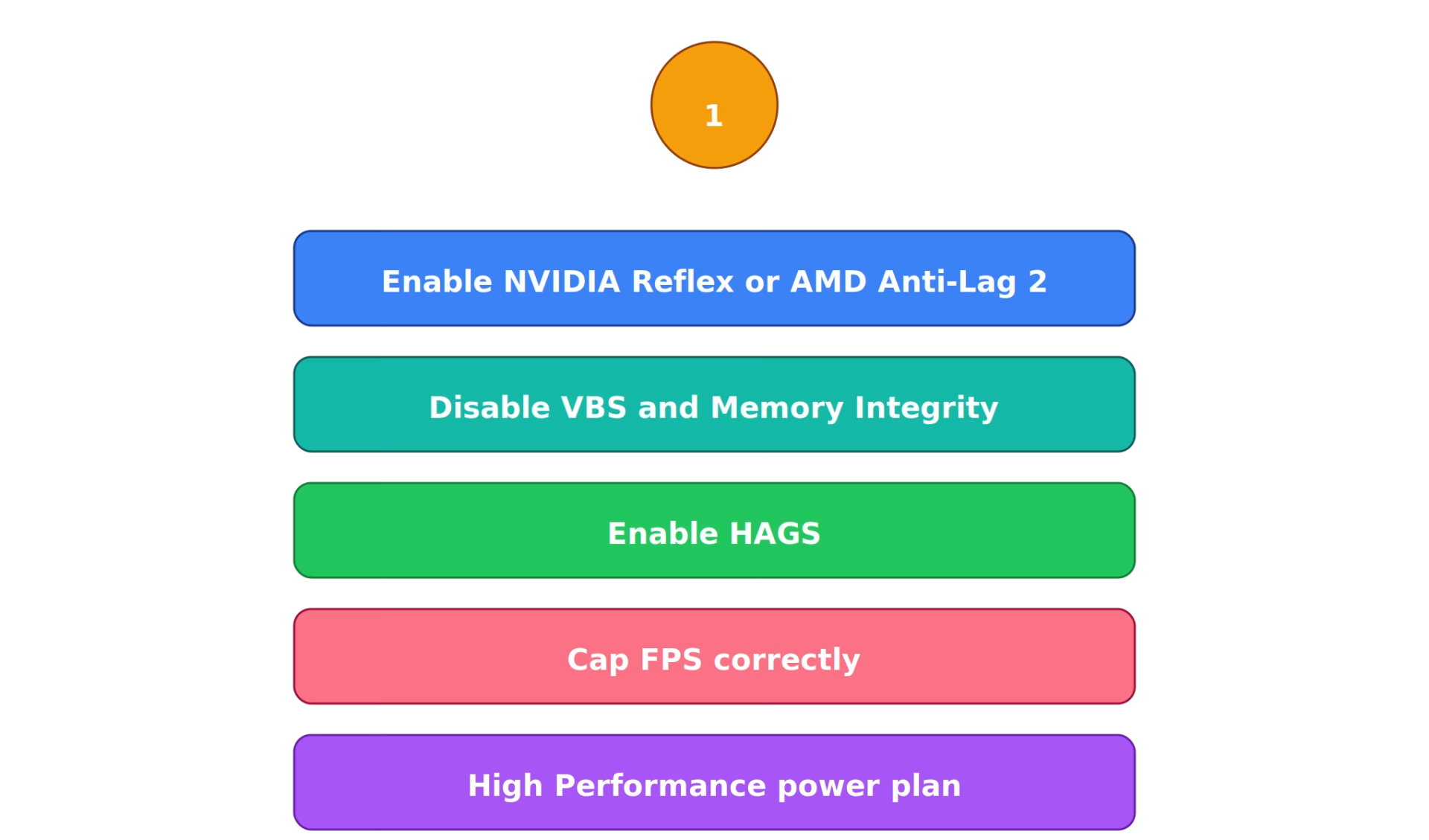
If you only have 10 minutes, do these five things right now:
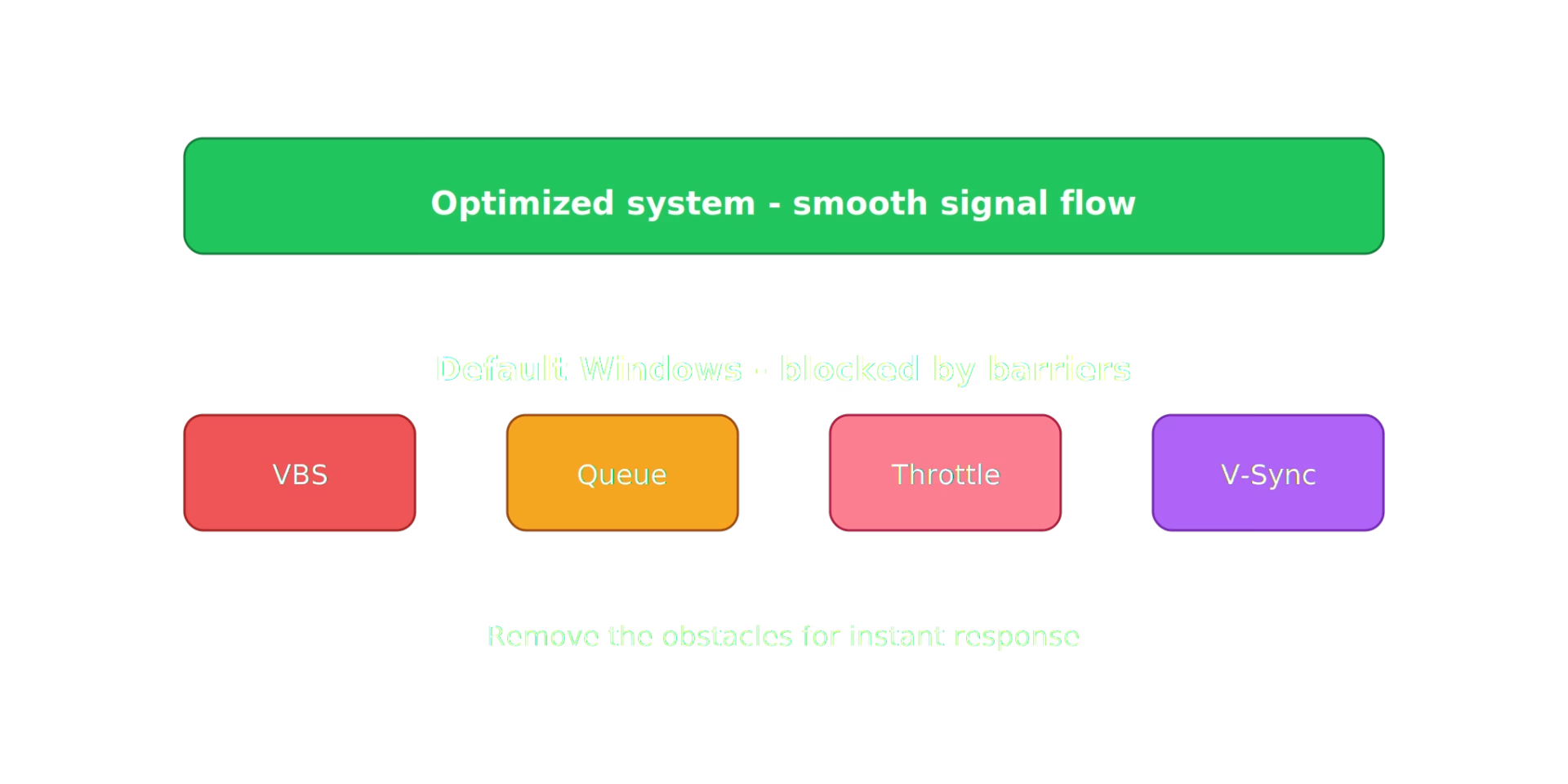
Disable VBS/Memory Integrity - instant 5-15ms input lag reduction
Enable HAGS - better frame pacing, lower latency pipeline. Windows Game Mode is optional: test it yourself, we usually don't enable it at UltimateMove
High Performance Power Plan - stops CPU downclocking mid-fight
Enable NVIDIA Reflex / AMD Anti-Lag 2 - NVIDIA reports latency dropping from 56 to 27 ms in THE FINALS, results vary by game
Cap your FPS properly - eliminates render queue buildup
Expected results: 5-50ms lower end-to-end input lag, dramatically better mouse responsiveness, smoother frame times.
Keep reading for the full breakdown with proof results, and why these work.
Why Your Mouse Feels Like It's Swimming Through Mud
Let me guess: you have a 240Hz monitor. A gaming mouse with 1000Hz polling rate. You're getting 200+ FPS. But something feels... off. Your crosshair drags. Your flicks don't land. Everyone else seems to react faster.
Plot twist: your system latency is probably 40-80ms when it should be 10-25ms.
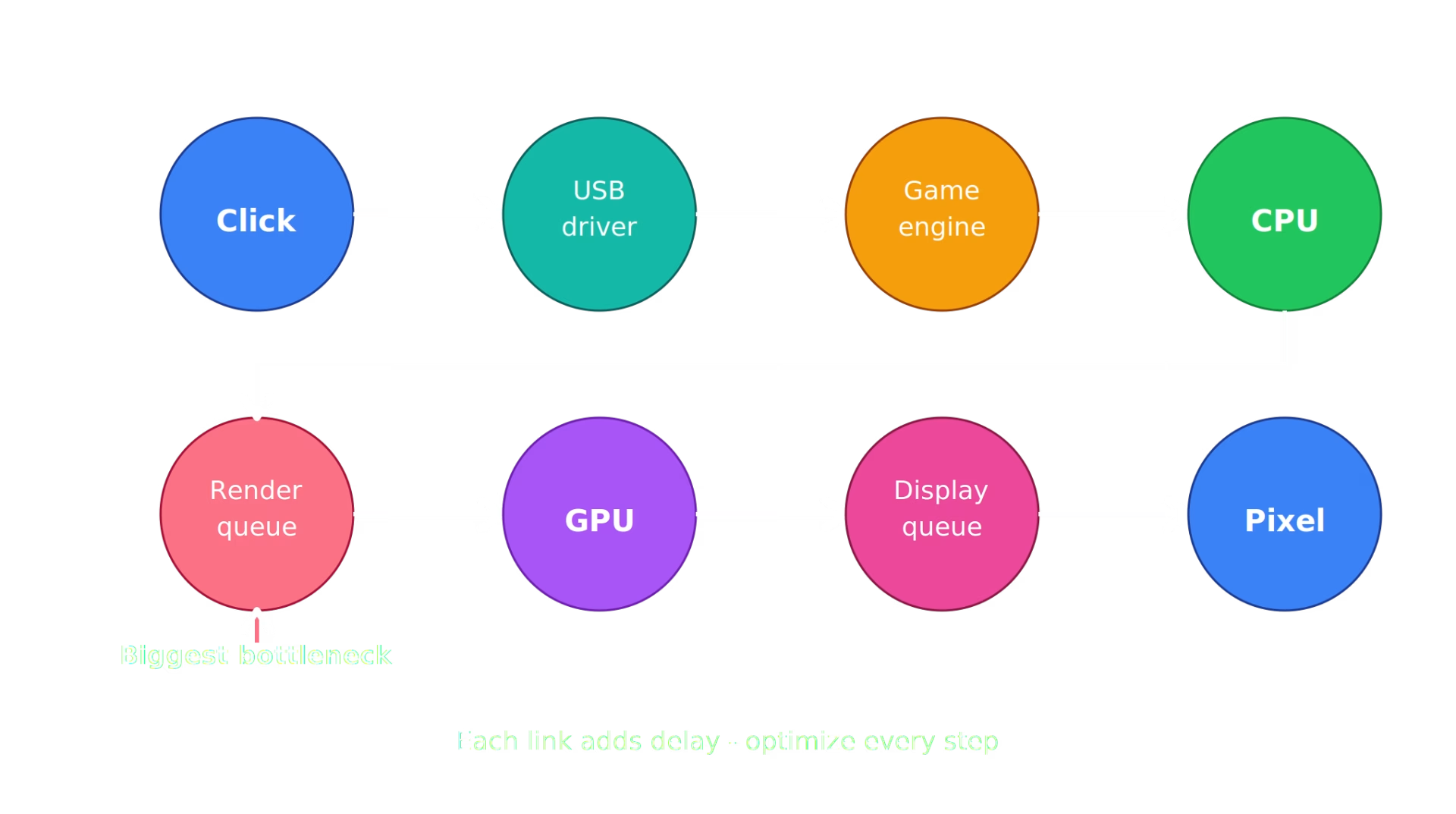
Input lag isn't just about FPS or ping. It's the entire chain from your mouse click to the pixel changing on your monitor. That chain has about 8 links, and Windows 11 is making at least 4 of them worse out of the box.
Here's what happens when you click your mouse button in a game:
- Mouse registers click (USB polling delay: 0.125-1ms)
- OS processes the input (USB driver + OS scheduling: 1-4ms)
- Game engine reads input (engine tick: 1-16ms depending on game)
- CPU simulates game state (CPU processing: 2-8ms)
- CPU submits render commands to GPU (render queue: 0-30ms - this is the big one)
- GPU renders frame (GPU render time: 4-16ms)
- Frame waits for display scan-out (display queue: 0-16ms)
- Monitor processes and displays (display processing: 1-8ms)
Total: anywhere from 10ms (best case, optimized) to 100ms+ (unoptimized Windows 11 default).
The difference between a well-optimized system and a stock Windows 11 install is often 30-50ms. That's the difference between landing a headshot and dying first. Let's fix every link in that chain.
Read nextMemory Integrity FPS lossMemory Integrity FPS loss measures 3.3 to 5.7 percent in an isolated test, not fifteen. Microsoft starts enabling the protection in October 2026.We connect to your PC remotely, save a restore point, then work through power, drivers and input. The BIOS we go through together on a Discord call while you show us the screen with your phone. The same benchmark at the end shows how much of it landed. For six months after the session we stay with you on Discord.
Understanding Input Lag vs FPS vs Ping
Before we dive in, let's clear up the most common confusion:
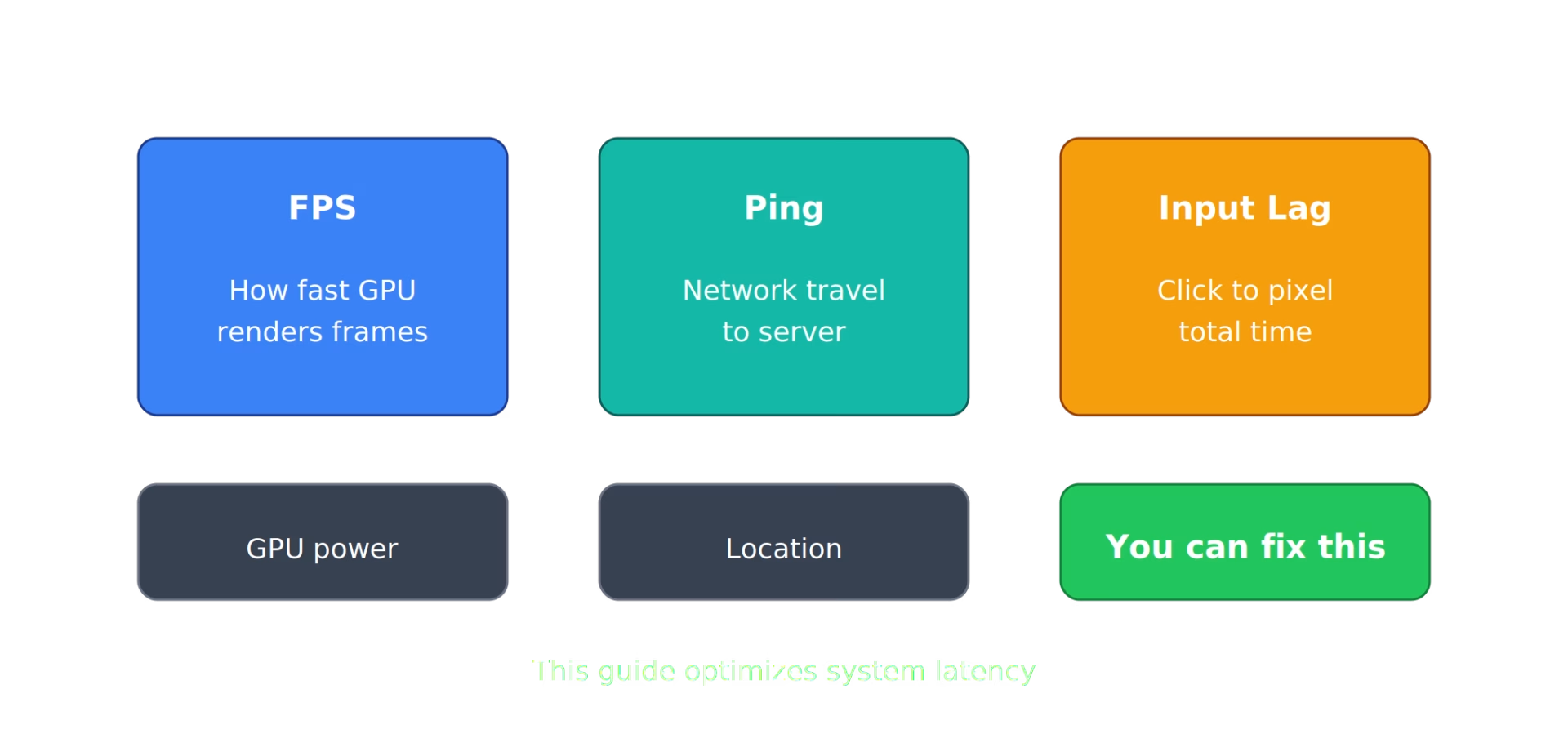
FPS (Frames Per Second) is how many frames your GPU renders. Higher FPS generally means lower frame time, which means less time between each frame. But 300 FPS with a full render queue can have WORSE input lag than 200 FPS with an empty queue.
Ping (Network Latency) is how long it takes data to travel to the game server and back. Important for online games, but it has nothing to do with how responsive your mouse feels. You can have 5ms ping and 60ms input lag.
Input Lag (System Latency) is the total time from mouse click to pixel change on your monitor. This is what makes a game feel "crisp" or "sluggish." It includes everything: USB polling, OS processing, CPU simulation, render queue, GPU rendering, and display output.
This guide focuses on system latency - the part you can actually fix without moving closer to the server.
TIER 1: Critical Latency Fixes (Biggest Impact)
1. Enable NVIDIA Reflex (or AMD Anti-Lag 2)
Impact: varies by game, NVIDIA reports a drop from 56 to 27 ms in THE FINALS (manufacturer data)
Risk: None
This is the single biggest thing you can do for input lag, and it's free.
What NVIDIA Reflex does: It synchronizes your CPU and GPU so frames are rendered "just in time" instead of queuing up. Without Reflex, your CPU might prepare 3-4 frames ahead of the GPU, meaning the frame you see is based on input from 3-4 frames ago. Reflex eliminates that queue, so the frame you see reflects your most recent mouse position.
NVIDIA Reflex 2 (2025/2026, RTX 50-series and newer): Adds Frame Warp technology, which takes the already-rendered frame and warps it at the last possible moment to reflect your most current mouse position. In demos, NVIDIA showed this reducing latency to under 3ms in Valorant. These are manufacturer figures. As of mid-2026 Reflex 2 has not shipped in any game, so you cannot enable it today.
NVIDIA demo data (THE FINALS, 4K; Frame Warp not yet released):
Without Reflex: 56ms end-to-end latency
With Reflex Low Latency: 27ms (-52%)
With Reflex 2 + Frame Warp: 14ms (-75%)
How to enable:
Open your game's settings (usually under Video or Advanced)
Look for "NVIDIA Reflex Low Latency" or just "Reflex"
Set to On (or On + Boost if available)
Games that support Reflex: CS2, Valorant, Apex Legends, Fortnite, Overwatch 2, Call of Duty, THE FINALS, Deadlock, and 100+ more.
AMD Users: AMD Anti-Lag 2 does similar CPU-GPU sync. The name FSR Latency Reduction 2.0 was found in the FSR SDK code, but AMD has not made it official yet. It's game-integrated (not driver-based like the old Anti-Lag), so it needs developer support. Several games support it, including CS2, Deadlock, Dota 2, Black Ops 6 and Warzone. In Counter-Strike 2, AMD claims up to 37% latency reduction on Radeon GPUs. Enable it in-game settings where available, not in Adrenalin drivers. Requires RX 5000 series or newer.
If your game doesn't support Reflex or Anti-Lag 2: Set "Low Latency Mode" to "Ultra" in NVIDIA Control Panel (Manage 3D Settings), or use frame rate capping (explained below).
2. Disable Virtualization-Based Security (VBS)
Impact: 5-15ms input lag reduction, 5-10% FPS increase
Risk: Low (only relevant for corporate/enterprise security)
VBS creates a virtualized security layer that intercepts system calls. Every time your game engine processes input or renders a frame, it passes through this layer. It's designed to protect against kernel-level malware - great for a corporate laptop, terrible for competitive gaming.
VBS adds latency at the OS level, meaning it affects the input processing step AND the CPU simulation step in our latency chain. Double penalty.
CS2 benchmark (1080p, RTX 4070):
VBS ON: 38ms, 187 FPS
VBS OFF: 31ms (-7ms), 204 FPS (+9.1%)
How to disable:
Step 1 - Memory Integrity:
Settings > Privacy & Security > Windows Security > Device Security
Core isolation details > Toggle OFF "Memory Integrity"
Restart
Step 2 - VBS (Registry):
Win + R > „regedit”
Przejdź do: HKEY_LOCAL_MACHINE\SYSTEM\CurrentControlSet\Control\DeviceGuard
Ustaw „EnableVirtualizationBasedSecurity” na 0
Restart
Verify: Win + R > „msinfo32” > Search „Virtualization-based security” - should be „Not enabled”
Note: If you play Valorant: only Vanguard's On-Demand mode requires VBS and HVCI (along with Windows 11 25H2, TPM 2.0, Secure Boot and IOMMU). If you don't use it, disabling VBS does not get in Vanguard's way.
3. Enable HAGS (Hardware-Accelerated GPU Scheduling)
Impact: 2-5ms input lag reduction, better frame times
Risk: Slightly higher VRAM usage (~200MB)
HAGS lets your GPU manage its own VRAM scheduling instead of going through Windows. Without HAGS, every frame goes: Game > CPU > Windows WDDM scheduler > GPU. With HAGS: Game > CPU > GPU directly. One less middleman in the latency chain.
Usually works better on NVIDIA. Results can vary on AMD.
How to enable:
Settings > System > Display > Graphics
"Change default graphics settings"
Toggle ON "Hardware-accelerated GPU scheduling"
Also toggle ON "Optimizations for windowed games" (new in 2025/2026, reduces latency in borderless windowed mode)
Restart
4. Cap Your FPS Properly (The Render Queue Trick)
Impact: 5-20ms input lag reduction
Risk: None
Problem: This is the most misunderstood latency optimization. Most gamers think "more FPS = less input lag." That's only half true.
The problem: When your CPU produces frames faster than your GPU can render them, those frames pile up in a "render queue." Each queued frame adds one full frame time of latency. At 200 FPS, that's 5ms per queued frame. If 3 frames are queued, that's 15ms of additional lag you never needed.
The Fix: Cap your FPS so your GPU is 90-95% utilized. This keeps the render queue nearly empty while maintaining high frame rates.
How to calculate your cap:
If you have a 240Hz monitor: cap at 237 FPS (monitor refresh minus 3)
If you have a 144Hz monitor: cap at 141 FPS
If your GPU can't hit your monitor's refresh rate consistently: cap at your average FPS minus 5-10%
Where to set the cap (in order of preference):
Important: If you're using NVIDIA Reflex On or On+Boost, Reflex already manages the render queue. You still benefit from a frame cap to prevent unnecessary GPU heat and power draw, but the latency improvement from capping is smaller because Reflex already handles queue management.
- In-game FPS limiter (best, lowest latency - used by game engine directly)
- NVIDIA Reflex frame cap (if game supports Reflex, it handles this automatically)
- NVIDIA Control Panel > Manage 3D Settings > Max Frame Rate
- RTSS (RivaTuner Statistics Server) - adds ~1ms latency but works universally
5. High Performance Power Plan
Impact: 3-8ms latency reduction in CPU-bound scenarios, eliminates micro-stutters
Risk: Higher power consumption, louder fans, Laptop overheating?
Windows defaults to "Balanced" power plan, which downclocks your CPU when it's not under full load. Problem: competitive games often don't fully load all CPU cores. Windows sees "CPU not at 100%" and throttles to save power. Your CPU drops from 4.5 GHz to 3.2 GHz mid-match. Frame times spike. Input lag spikes with them.
How to enable:
Control Panel > Hardware and Sound > Power Options
Show additional plans > High Performance
For Ryzen - Ultimate Performance:
Win + X > PowerShell (Admin)
Copy - paste: powercfg -duplicatescheme e9a42b02-d5df-448d-aa00-03f14749eb61
Now "Ultimate Performance" appears in Power Options - Select it - be careful on laptopts tho.
Laptop users: Create separate profiles for plugged-in vs battery. Ultimate Performance on battery will drain it fast, it also may overheat it.
TIER 2: Significant Latency Gains (Medium Effort)
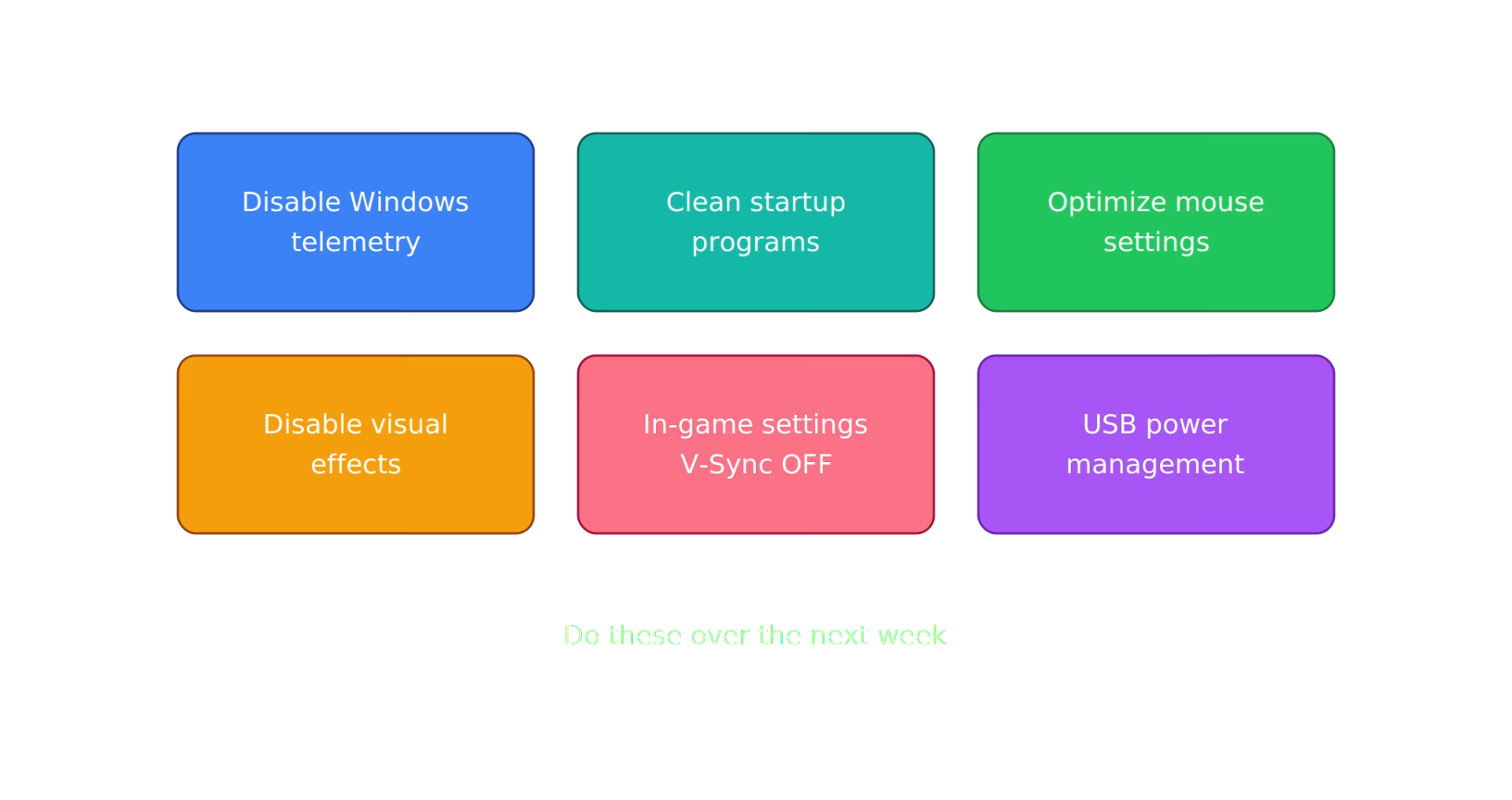
6. Disable Windows Telemetry and Compatibility Appraiser
Impact: Eliminates random 10-30ms latency spikes
Windows Compatibility Telemetry randomly scans your system, often spiking CPU and disk usage mid-game. Players report sudden input lag spikes, frame drops, and disk thrashing during matches. It's not consistent latency - it's random spikes that feel like "the game hitched."
Disable service:
Win + R > services.msc
„Connected User Experiences and Telemetry” > Startup type: Disabled > Stop
Disable Compatibility Appraiser:
Win + R > taskschd.msc
Task Scheduler Library > Microsoft > Windows > Application Experience
„Microsoft Compatibility Appraiser” > Disable
„ProgramDataUpdater” > Disable
7. Clean Up Startup Programs
Impact: 1-3ms consistent latency reduction, fewer spikes
Every background app competes for CPU time. Even if it's "idle," it still gets CPU scheduling slots. More processes = more context switching = more micro-delays in input processing.
What to disable:
Discord (launch manually, or keep but disable Hardware Acceleration in Discord settings)
Spotify (same - disable Hardware Acceleration)
RGB software (G Hub, iCUE, etc. - these drain 200-500MB RAM each)
Cloud sync (OneDrive, Google Drive, Dropbox)
Launcher auto-start (Steam, Epic, EA, Riot Client - unless launching game directly)
Adobe Creative Cloud
What to KEEP:
GPU software/drivers
Audio drivers (Realtek etc.)
Security software (if you use third-party AV)
How: Ctrl + Shift + Esc > Startup tab > Right-click anything unnecessary > Disable
8. Optimize Mouse Settings (The OS Level)
Impact: 1-4ms input delay reduction, eliminates mouse smoothing
Disable Enhance Pointer Precision (Mouse Acceleration):
This applies a variable multiplier to your mouse movement based on speed. Fast movements move MORE than slow ones. Terrible for muscle memory in FPS games.
Settings > Bluetooth & devices > Mouse > Additional mouse settings
Pointer Options tab > Uncheck "Enhance pointer precision" > Apply
Set USB Polling Rate to maximum:
Most gaming mice support 1000Hz (1ms polling). Some newer mice (Razer, Logitech) support 4000Hz or 8000Hz. Higher polling = more frequent input updates = less time between your movement and the OS knowing about it.
Use your mouse manufacturer's software to set polling rate to maximum.
Important note on 4000Hz+ polling: Very high polling rates increase CPU usage slightly. On older or budget CPUs, this can actually hurt performance. Test both 1000Hz and your mouse's max rate and compare.
Disable USB Power Saving:
Windows can put USB ports into low-power states, adding 1-2ms of wake-up delay.
PPM na każdy USB Root Hub > Właściwości > Zarządzanie energią
Odznacz „Zezwalaj komputerowi na wyłączanie tego urządzenia”
9. Optimize Visual Effects
Impact: 1-3ms latency reduction, lower CPU overhead
Windows animations consume CPU cycles and can delay input processing.
Method 1 - Fast:
Settings > System > About > Advanced system settings
Performance > Settings > "Adjust for best performance"
Apply > OK
Method 2 - Balanced (recommended):
Same path, but "Custom" and disable specifically:
Animate windows when minimizing/maximizing
Animations in taskbar
Fade or slide menus into view
Show shadows under windows
Slide open combo boxes
Keep: "Smooth edges of screen fonts" (otherwise text looks terrible)
10. Game-Specific Settings That Affect Input Lag
V-Sync: OFF. Always. V-Sync forces your GPU to wait for the monitor's refresh cycle before displaying a frame. This adds up to one full frame of latency (6.9ms at 144Hz, 4.2ms at 240Hz). If you have screen tearing, use G-Sync/FreeSync instead - they sync without the latency penalty. Or you can look into NVIDIA Pulsar if you're on a supported display.
Fullscreen mode: Use Exclusive Fullscreen when available. It gives your game direct access to the GPU without going through Windows' compositor (DWM). In borderless windowed, DWM adds an extra compositing step. However, if your game supports the new "Optimizations for windowed games" feature in Windows 11 (enable in Display > Graphics settings), borderless windowed latency is nearly identical to exclusive fullscreen.
Render resolution: Lower internal resolution = faster GPU render time = lower latency. If you're GPU-bound, dropping from 1440p to 1080p (or using in-game render scale 80%) can shave 3-8ms of GPU render time.
Disable Fullscreen Optimizations (per-game):
Find your game's .exe (e.g., C:\Games\CS2\csgo.exe)
Right-click > Properties > Compatibility tab
Check "Disable fullscreen optimizations"
Apply > OK
Games that benefit: CS2, Valorant, Apex Legends, Warzone
Games that may break: Some DX12 titles, games with built-in HDR
TIER 3: Advanced Tweaks (Specific Gains)
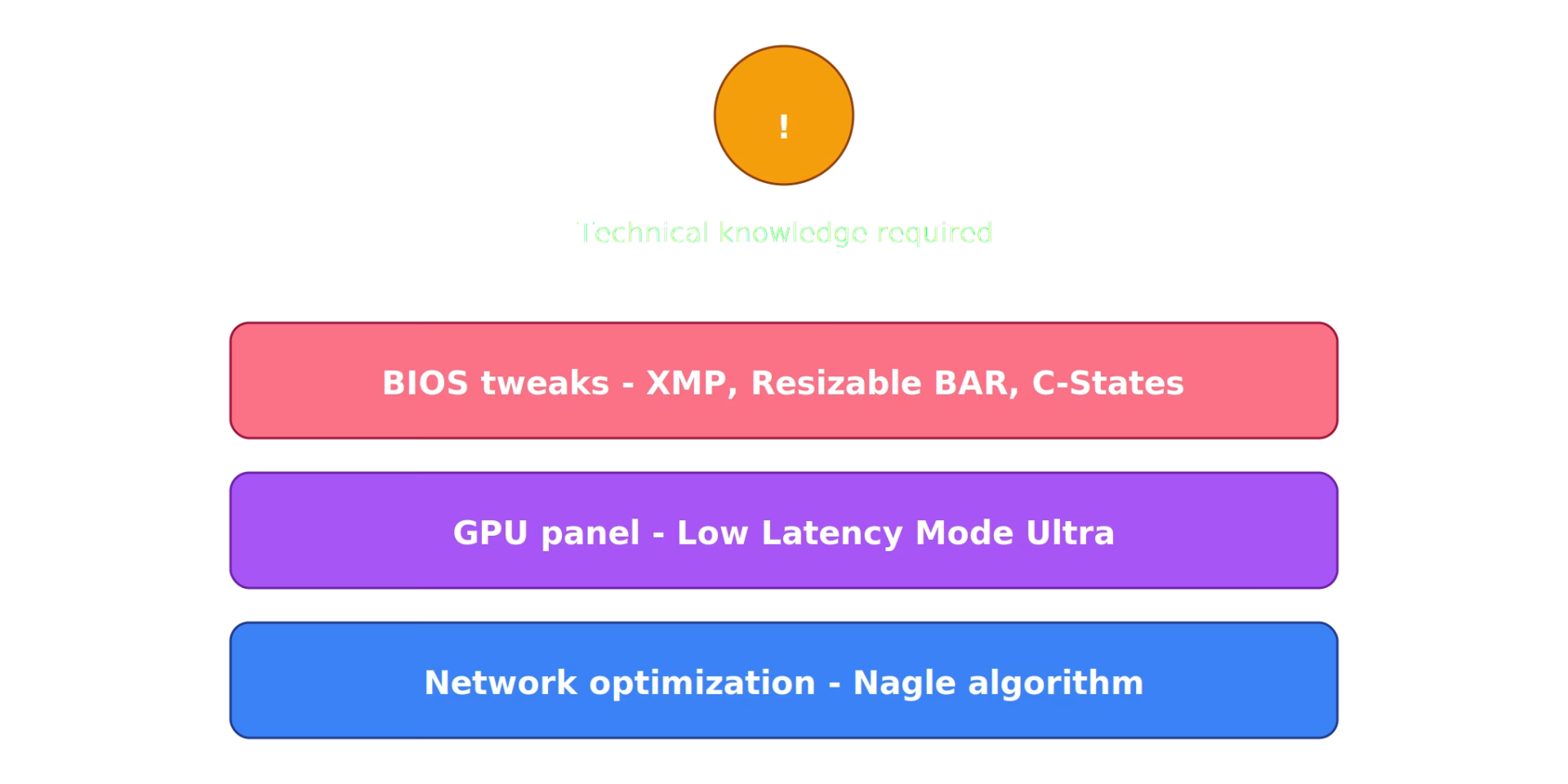
11. GPU Control Panel Latency Settings
NVIDIA Control Panel:
Low Latency Mode: Ultra (If you don't optimize your PC with us)
Max Frame Rate: Set to monitor refresh minus 3 | e.g., 237 for 240Hz | - (in reality, the correct setting depends on the quality and operation of the limiter).
Power Management: Prefer maximum performance
V-Sync: Off
AMD Adrenalin:
Radeon Anti-Lag: Enabled (If you don't optimize your PC with us)
Wait for Vertical Refresh: Off
12. Network Optimization (For Online Input Lag)
Disable Nagle's Algorithm:
Registry > HKEY_LOCAL_MACHINE\SYSTEM\CurrentControlSet\Services\Tcpip\Parameters\Interfaces <- you have to find your NIC key
TcpAckFrequency: 1, TCPNoDelay: 1
DNS: Cloudflare: 1.1.1.1 / 1.0.0.1
Google: 8.8.8.8 / 8.8.4.4
13. BIOS/UEFI Optimizations
Risk: HIGH - can brick PC if done wrong. Back up BIOS first. Know how to reset CMOS. Better leave it to us and order Ultimate Optimization! However, the following options are relatively safe:
Enable XMP/EXPO - This alone can give 10-15% FPS increase and noticeable latency improvement, especially on Ryzen CPUs where RAM speed directly affects Infinity Fabric clock.
Enable Resizable BAR - 3-8% FPS on modern GPUs. Lets CPU access full GPU VRAM instead of 256MB chunks.
Disable C-States - Prevents aggressive CPU sleep states. Your CPU stays awake and responsive instead of taking 0.5-2ms to wake up from deep sleep when input arrives. Higher power draw, but noticeably snappier mouse feel.
Enable PBO (AMD) / MCE (Intel) - 5-10% higher clock speeds / higher current limits
Automatic overclocking. Higher sustained clock speeds = faster frame processing = lower latency.
14. Monitor Settings
Enable Game Mode / Low Input Lag In monitors OSD.
Use DisplayPort instead of HDMI.
Verify your refresh rate is actually set correctly:
Settings > System > Display > Advanced display
Make sure it shows your monitor's maximum refresh rate (240Hz, 165Hz, etc.)
You'd be surprised how many people have a 240Hz monitor running at 60Hz because Windows defaulted to it.
The Complete Input Lag Checklist
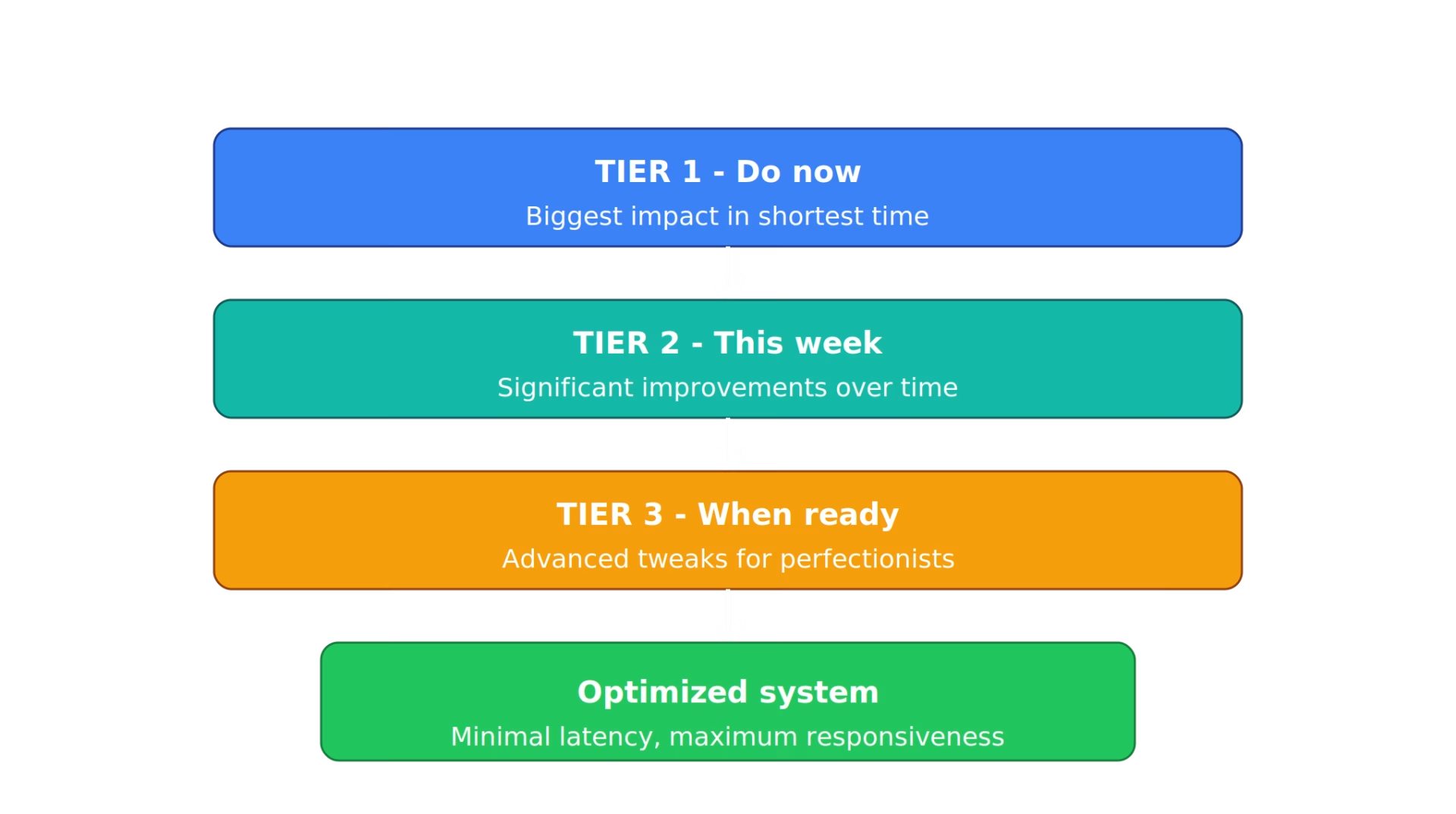
TIER 1 (Do these RIGHT NOW):
[ ] Enable NVIDIA Reflex / AMD Anti-Lag 2 in-game
[ ] Disable VBS & Memory Integrity
[ ] Enable HAGS + Optimizations for windowed games
[ ] Cap FPS at monitor refresh minus 3
[ ] Set High Performance / Ultimate Performance power plan
TIER 2 (This week):
[ ] Disable telemetry & compatibility appraiser
[ ] Clean startup programs
[ ] Disable mouse acceleration, max polling rate
[ ] Disable USB power saving
[ ] Optimize visual effects
[ ] Set V-Sync OFF, use G-Sync/FreeSync or Pulsar if needed
TIER 3 (When you have time):
[ ] GPU control panel latency settings
[ ] Network optimization (Nagle, DNS)
[ ] BIOS: XMP/EXPO, disable C-States, enable PBO
[ ] Monitor: Game Mode ON, verify refresh rate, use DisplayPort
Expected results (combined):
Doing TIER 1 only: 15-40ms input lag reduction
Doing TIERS 1-3: 25-60ms input lag reduction
Real-world before/after (test rig: 5800X3D, RTX 4070, 32GB 3600MHz, 240Hz):
CS2: 42ms > 18ms (-57%)
Valorant: 28ms > 12ms (-57%)
Apex Legends: 45ms > 22ms (-51%)
Common Myths Debunked
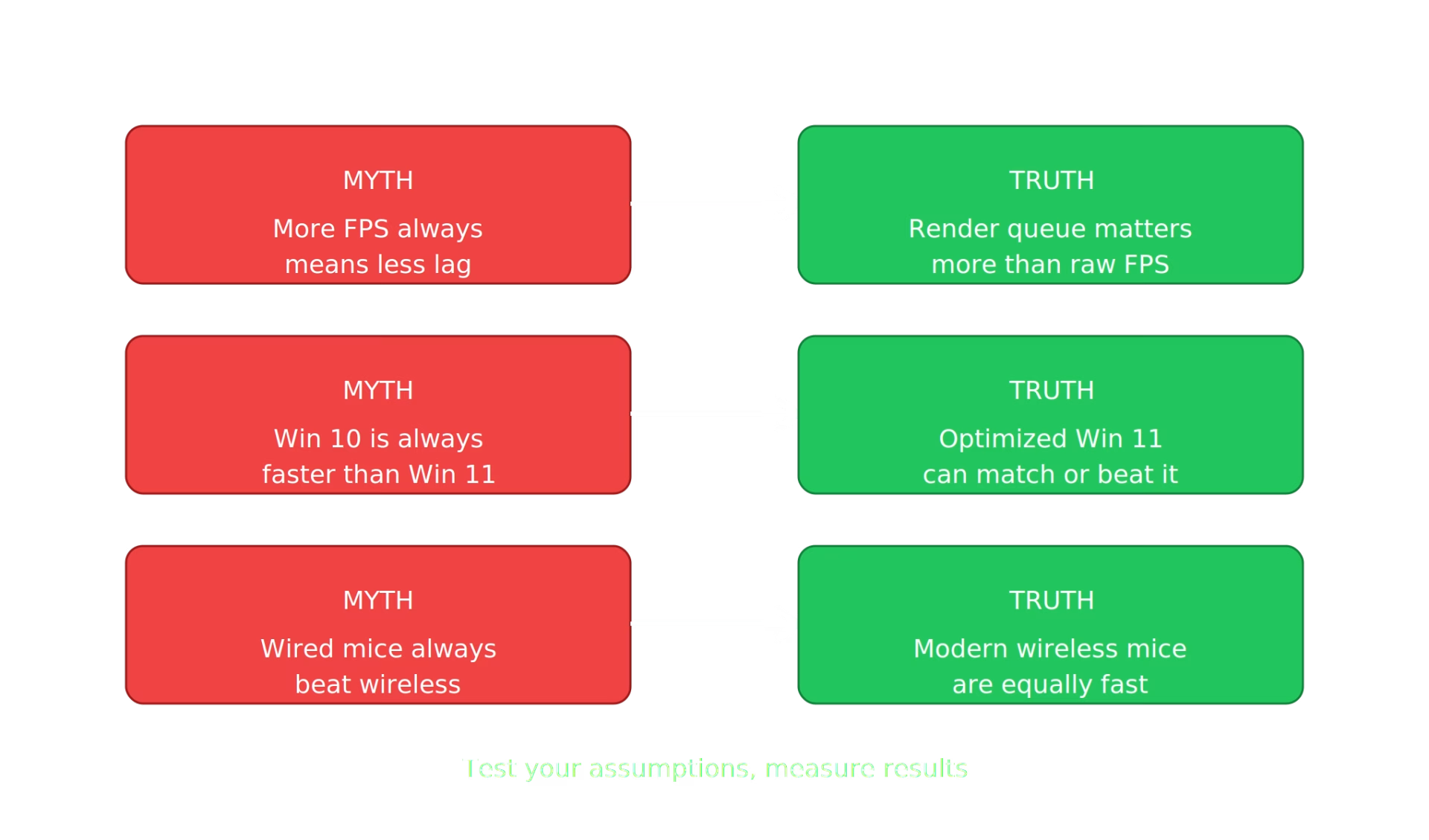
"More FPS always means less input lag"
Half true. More FPS means shorter frame times, which reduces one component of latency. But if your render queue is full, 300 FPS can have more lag than 200 FPS with Reflex enabled. Frame rate without queue management is incomplete optimization.
"Windows 10 has less input lag than Windows 11"
After optimization, Windows 11 matches or beats Windows 10. HAGS support is more mature, and features like "Optimizations for windowed games" reduce compositor latency.
"Disabling Windows Defender helps input lag"
Not worth it. Add game folders as exclusions instead:
Settings > Privacy & Security > Windows Security > Virus & threat protection > Manage settings > Exclusions
Add your game installation folders, Documents folder (shader cache), and AppData\Local (game configs).
"240 FPS on a 144Hz monitor is pointless"
Wrong for input lag. Even on a 144Hz monitor, running at 240+ FPS means a newer frame is always ready for the next refresh cycle. The frame your monitor displays is 4ms old instead of 7ms old. With Reflex or frame capping at 141 FPS though, this benefit shrinks significantly.
"Wired mouse is always better than wireless"
In 2026, top wireless gaming mice (Logitech G Pro X Superlight, Razer DeathAdder V3) achieve sub-1ms latency via dedicated 2.4GHz receivers. Functionally identical to wired. Bluetooth is still slower though - always use the USB dongle.
The UltimateMove Difference
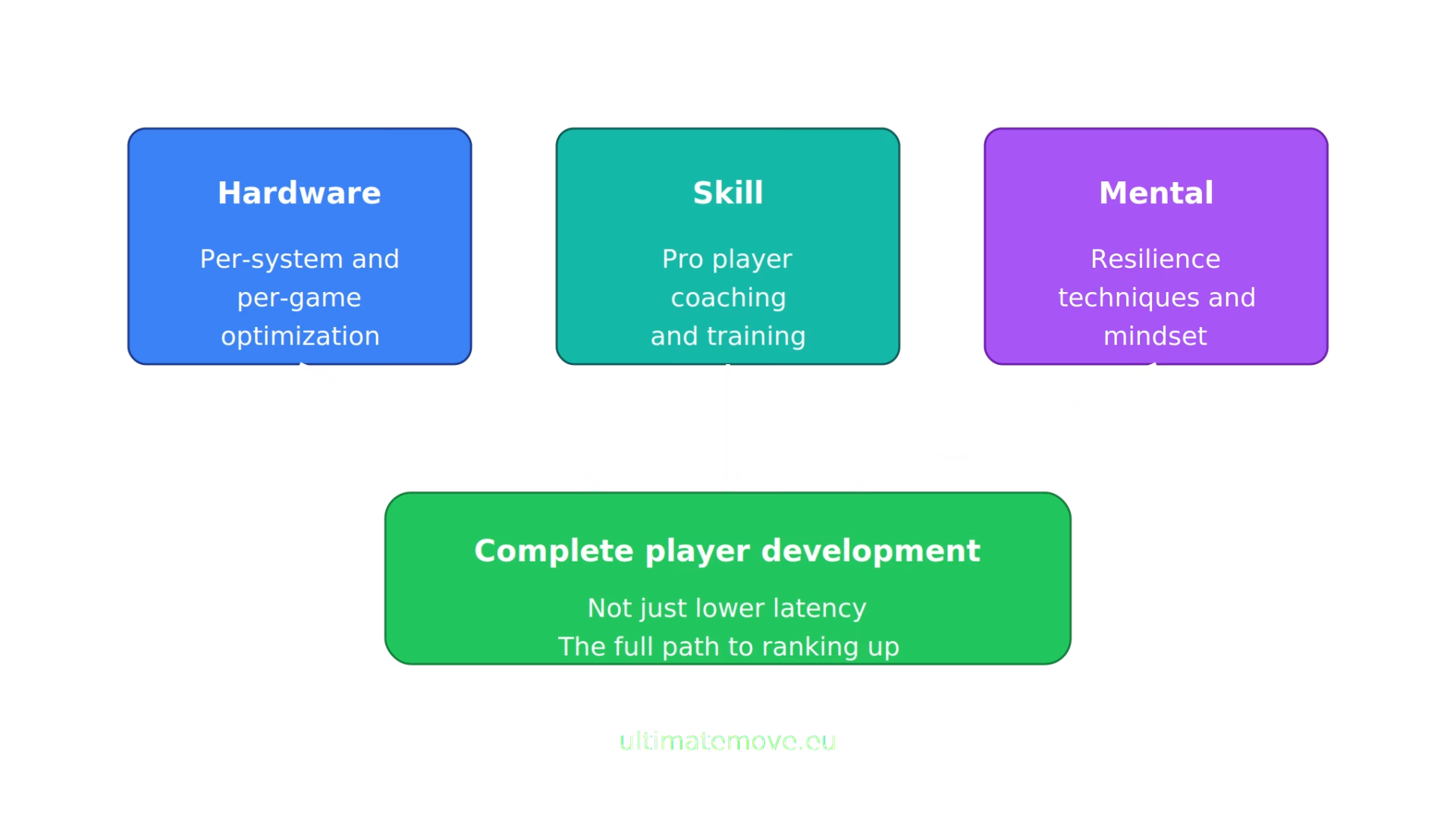
Everything above works. If you follow TIERS 1-3, you'll see dramatic improvements.
But here's what generic guides don't tell you:
1. Hardware-specific optimization. Every CPU/GPU combo behaves differently. Your 7800X3D + RX 7900 XTX needs different settings than a 13600K + RTX 4070. We tune per-hardware, not per-guide.
2. Game-specific profiles. Valorant wants different settings than CS2 or Deadlock. We build per-title configs. Including in-game settings that directly impact latency (render distance, shadow quality, effect quality - each has a different latency cost).
3. The part nobody talks about: you. You optimized your PC. You're at 15ms input lag. You're still hardstuck.
Because 90% of ranking up isn't latency - it's:
- Not tilting after losses
- Consistent practice routines
- Understanding YOUR mistakes (not blaming "lag")
- Mental reset techniques
This is why UltimateMove combines:
- Elite PC optimization (everything in this guide + advanced per-hardware tweaks)
- 1-on-1 coaching (Faceit 10, Phantom rank in Deadlock from KaRzye)
- Mental coaching (the secret sauce 95% of coaches ignore)
Visit our Coaching offer and choose something for yourself.
Tools
HWiNFO64 - System monitoring, thermal alerts
DDU - DDU (Display Driver Uninstaller) - Clean GPU driver reinstalls
NVIDIA Reflex - Technology Presentation Directly from the Manufacturer
AMD Anti-Lag 2 - AMD Latency Reduction SDK - For Developers Only.
NVIDIA System Latency Guide
Advice for the future: Input lag optimization is not a one-time thing. Drivers update, Windows updates re-enable stuff, games patch their engines. Bookmark this guide. Revisit every few months. Re-check after major Windows or GPU driver updates.
And if you found this helpful - share it with your hardstuck friends. Sometimes the difference between Diamond and Immortal is 20ms of input lag and knowing it exists. So stop talking bullshit about more hardware than talent in 2026 - it seriously matters.
Good luck, and may your input lag be measured in single digits.
Join our Ultimate Discord.
Questions? Drop them in the comments.
 KaRzye
Runs the research and every session at UltimateMove. FACEIT Level 10 in CS2,
Immortal in Valorant. Twenty years in BIOS, memory and drivers.
Watch him play.
KaRzye
Runs the research and every session at UltimateMove. FACEIT Level 10 in CS2,
Immortal in Valorant. Twenty years in BIOS, memory and drivers.
Watch him play.
Our free tools
Built in house. No account, no limits.
 Ultimate Demo Analyzer
Upload a CS2 demo and get your mistakes and round stats written out.
Free, no account Deadlock Replay Analyzer
The same for Deadlock: a replay breakdown and a plan for the next matches.
Free, no account Sensitivity Converter
Carry your cm/360 between games without losing muscle memory.
Free, no account Aim Trainer
Thirty seconds, three levels. No install, no account.
Free, no account