AMD Adrenalin Settings: FPS, Latency and Stutter
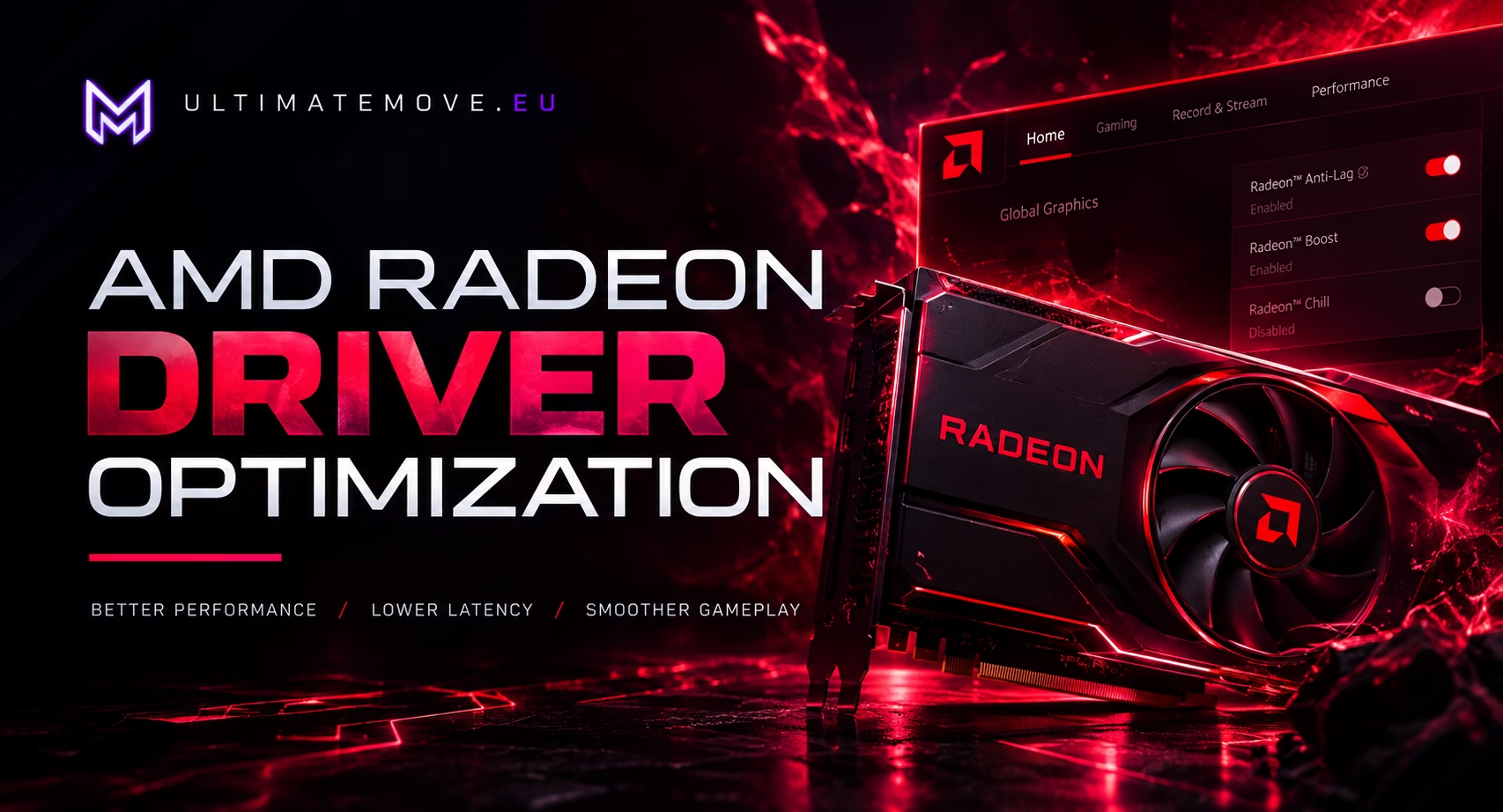
AMD Adrenalin settings should match the game and symptom. Save the current profile, distinguish what each feature does and compare one change. A preset from a video does not establish that FPS, latency and frame delivery improve together on your GPU.
A starting point for online games: Radeon Anti-Lag on, Radeon Chill and Radeon Boost off, and sync matched to your monitor. With FreeSync, cap FPS a few frames below the refresh rate. Test each change on its own, in the order below. We checked the feature descriptions against AMD documentation and Riot's driver settings guide on 24 October 2026. This is not our own Radeon benchmark.
Save the profile first
Record the GPU, driver version, game, graphics API, resolution and monitor refresh rate. Capture the game profile and global settings. AMD documents exporting and restoring settings; available options depend on installation and hardware.
Check whether the game uses its own profile. A global change and a per-game change are different tests. An application profile may override inherited values. Start with the affected game rather than changing the entire desktop configuration.
Anti-Lag, Chill and Boost serve different purposes
| Function | Question before testing | What to observe |
|---|---|---|
| Anti-Lag | Are you testing latency or FPS alone? | Input response and the trace under the same conditions |
| Anti-Lag 2 | Do the game and hardware support the integration? | The game's option; distinguish it from a driver switch |
| Chill | Is reducing power use with changing activity your goal? | Frame limiting during movement and still scenes |
| Boost | Do you accept changing resolution during movement? | Target clarity and performance in a GPU-limited scenario |
AMD describes Anti-Lag 2 as an in-game integration. Standard Anti-Lag does not establish that a title supports Anti-Lag 2. Chill and Boost address other goals; enabling everything is not a useful comparison.
Chill has interoperability restrictions. AMD's ADLX documentationconfirms this as well. Reopen the profile after a change and check what remains active. A remembered list of switches may differ from the driver's actual state.
Read nextMemory Integrity FPS lossMemory Integrity FPS loss measures 3.3 to 5.7 percent in an isolated test, not fifteen. Microsoft starts enabling the protection in October 2026.We connect to your PC remotely, save a restore point, then work through power, drivers and input. The BIOS we go through together on a Discord call while you show us the screen with your phone. The same benchmark at the end shows how much of it landed. For six months after the session we stay with you on Discord.
Define your goal for sync and frame generation
Enhanced Sync, FreeSync and traditional V-Sync are different mechanisms. Identify tearing, uneven frame delivery or delayed input before testing. Compare one synchronization setup while holding monitor configuration and the FPS cap constant.
Do not present generated frames as a gain in underlying rendering performance. Record frame generation and upscaling state. If both rendering resolution and frame generation change, the difference cannot be attributed to one switch.
Do not reset shader cache after every adjustment
AMD describes shader cache as storage for prepared shaders; a reset deletes the stored files. That does not establish that clearing it after every adjustment raises FPS. Rebuilding changes the next launch's conditions.
If a reset follows the developer's instructions for a specific fault, record it and repeat the warm-up. Do not compare the first pass after clearing with a scene warmed through several runs. A frametime spike alone does not identify shader cache as the cause.
Our comparison record
Save the initial profile, the single feature changed, the scene, three runs before and three after, and the rollback method. The 1% low and frametime guide includes a worksheet. Keep every run, including poor results.
| Comparison result | Next step |
|---|---|
| The difference disappears between runs | Return to baseline and repeat the scene |
| The symptom occurs only with a feature enabled | Record the version and profile; check the release's known issues |
| Driver resets or game crashes | Separate stability troubleshooting from graphics options |
Riot describes restoring driver settings as a diagnostic step for problems. Resetting a profile is different from uninstalling a driver through DDU. Avoid combining several resets and reinstalls in the same comparison.
If you still cannot identify the cause, bring the profile and recordings to remote PC troubleshooting or optimization. We match the scope to the symptom. The Radeon model alone does not identify what is wrong.
Frequently asked questions
Should everyone enable Anti-Lag?
In online games, yes. Anti-Lag keeps the CPU from running several frames ahead of the graphics card, so it helps most when the GPU sits close to 100%. If the game has its own Anti-Lag 2, turn that on in the game menu.
Does Anti-Lag 2 work in every game?
No. The game developer has to build it in, and you turn it on in the game settings, for example in CS2. Every other game uses the regular Anti-Lag from the driver.
Is Chill a fixed FPS cap?
No. Chill lowers FPS when you stand still and raises it when you move. In online games turn it off, or set the same minimum and maximum so it works as a fixed cap.
Must I clear cache after changing a setting?
No. A reset deletes the ready shaders, so the first minutes of play after it stutter more. Reset the cache for graphics errors or when the game developer tells you to.
Do generated FPS measure rendering performance?
No. AFMF adds in-between frames, but the game still reads your input only as often as the card renders real frames. Judge any optimization with frame generation off.
What should I do about driver resets?
Restore the default Adrenalin settings and undo any GPU overclock or undervolt. If the resets continue, do a clean driver install with DDU. Tune for FPS only once the system is stable.
Frames dropping exactly when the fight starts?
That drop lands in the one second that decides the round, and no graphics preset fixes it. We tune Windows, drivers and network remotely, and the BIOS together with you on a Discord call. You measure it yourself, in your own game, before and after, with us watching.
See PC optimization →Six months of support after the session. Not sure it is worth it? Ask for a free check on our Discord first. KaRzye
Runs the research and every session at UltimateMove. FACEIT Level 10 in CS2,
Immortal in Valorant. Twenty years in BIOS, memory and drivers.
Watch him play.
KaRzye
Runs the research and every session at UltimateMove. FACEIT Level 10 in CS2,
Immortal in Valorant. Twenty years in BIOS, memory and drivers.
Watch him play.
Our free tools
Built in house. No account, no limits.
 Ultimate Demo Analyzer
Upload a CS2 demo and get your mistakes and round stats written out.
Free, no account Deadlock Replay Analyzer
The same for Deadlock: a replay breakdown and a plan for the next matches.
Free, no account Sensitivity Converter
Carry your cm/360 between games without losing muscle memory.
Free, no account Aim Trainer
Thirty seconds, three levels. No install, no account.
Free, no account