NVIDIA GPU overclocking: core, memory and the FPS drop trap
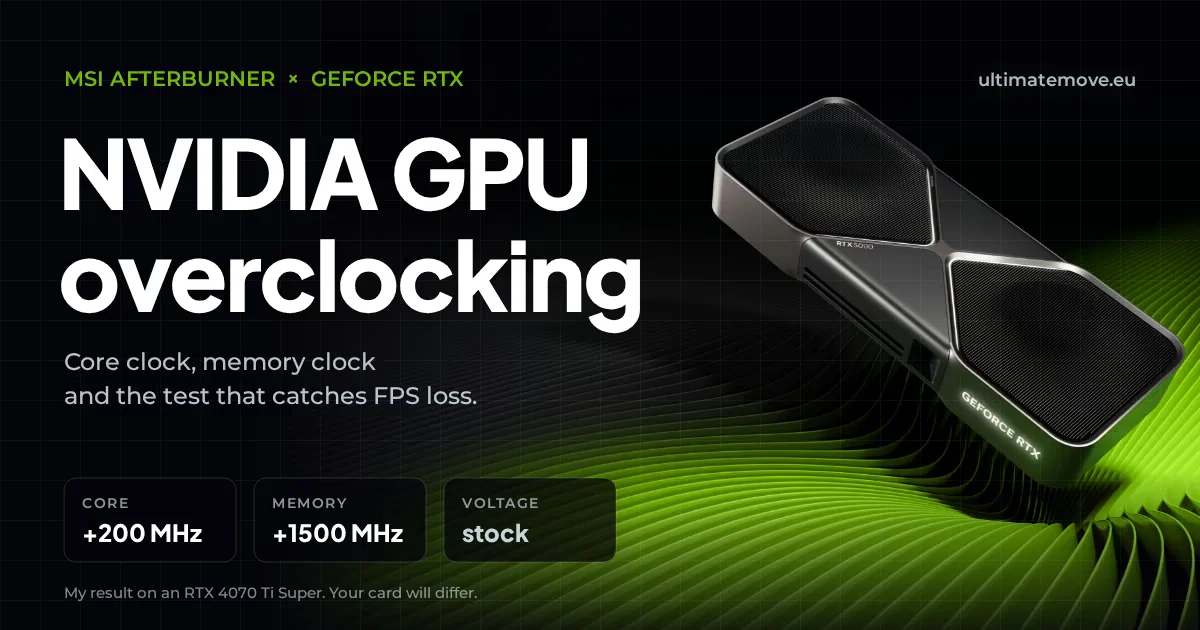
NVIDIA GPU overclocking on an RTX card takes 10 minutes in MSI Afterburner and comes down to two sliders: core and memory. On my RTX 4070 Ti Super the core took about +200 MHz and the memory +1500 MHz in Afterburner. Higher on the memory the card kept running, but FPS dropped, because GDDR6X detects transmission errors and replays them. That is why the limit is not a crash but the point where your benchmark score stops going up. I leave the voltage alone and save the profile only after testing in a game.
This guide is the written version of my short video. You get the order of steps, the ranges I checked on my own card, and the one trap that makes most people leave the memory clock too high and lose frames while thinking they gained them.
Why overclocked memory can lower your FPS
RTX cards with GDDR6X memory, such as the RTX 3080 or RTX 4070 Ti Super, have built-in memory error detection. TechPowerUp described it in its RTX 3080 review: when the memory is unstable, the card does not crash or show artifacts, it replays the failed transfers. Every replay costs time, so your frame rate drops while the clock readout in Afterburner goes up.
In practice it looks like this: you enter +2000 MHz, click Apply, the game runs, nothing crashes. You run the same benchmark and get fewer FPS than at +1500. The stable memory clock is the one where your score peaks, not the highest number the card survives.
What you need before you start
- MSI Afterburner. It works with every manufacturer's card, not just MSI.
- One repeatable test: the game's built-in benchmark or the same scene played every time.
- A note for your results. You compare average FPS, not how it feels.
- An up-to-date driver. An old driver can cause instability that the OC did not.
We connect to your PC remotely, save a restore point, then work through power, drivers and input. The BIOS we go through together on a Discord call while you show us the screen with your phone. The same benchmark at the end shows how much of it landed. For six months after the session we stay with you on Discord.
Memory overclocking step by step
The order does not matter, because both the core and the memory can be unstable. Change one value at a time and repeat the same test after every change. With memory, I first find the range in big steps, then fine-tune in small ones.
- Run a benchmark at stock settings and write down the average FPS.
- In Afterburner set Memory Clock to +500 MHz, click Apply, repeat the benchmark.
- Raise it by another 500 MHz as long as the score goes up. On my card: +1000 better, +1500 better, +2000 worse.
- Go back to the last value where the score was still rising and search more precisely in steps of 50 to 100 MHz, as the MSI guide recommends.
- When the score drops or the game crashes, go back one step. That is your value.
The range depends on the generation and on your specific card. On some cards +500 is already the limit, others handle +1500 like mine. Two cards of the same model can differ by a few hundred megahertz.
Core overclocking
The core has much less headroom. Enter Core Clock +200 MHz, click Apply and launch the game you play most. If it works, keep it. If the game crashes, usually together with the driver, go down 50 MHz and test again. MSI's guide suggests even more careful steps of 20 to 30 MHz if you prefer to search from below.
| Item | First step | Fine search | Sign it is too high |
|---|---|---|---|
| Memory (Memory Clock) | +500 MHz | 50 to 100 MHz | FPS drop in the benchmark |
| Core (Core Clock) | +200 MHz | down by 50 MHz | Game or driver crash |
| Voltage (Core Voltage) | unchanged | unchanged | Temperature and noise |
Voltage, profiles and undervolting
I do not touch the voltage slider and I do not recommend it unless you have really strong cooling. More voltage means more heat, and at higher temperatures the card will cut its clocks anyway.
Do not tick loading the profile at system start right away. Save the profile only after you have played a few matches on it without a crash. Otherwise an unstable setting will load after every restart.
RTX 40 cards take undervolting well in the Curve Editor. You lower the voltage for a given clock, the card draws less power, runs cooler, and on the same profile you can still overclock the memory. I will show the Curve Editor in a separate video.
Automatic overclocking in the NVIDIA app
If you do not want to test by hand, the NVIDIA app has an automatic tuning feature for GeForce RTX cards. According to NVIDIA the scan takes 10 to 20 minutes, ideally without using the PC in that time, and the app re-checks the profile every now and then. The result is usually more conservative than a manual one, because the tool does not know what you play and does not check for the memory FPS drop.
A manual OC gives you free frames only when you measure the result instead of watching the clock. Memory in big steps, then small ones, the core carefully, voltage unchanged, profile saved only after a test in a game. If you would rather not risk your hardware, PC optimization is something we do together remotely: in about two hours we tune not just the card but the whole system, and you get more FPS and lower input lag.
Frequently asked questions
Is overclocking an RTX card safe?
Without changing the voltage the card still enforces its own power and temperature limits. If the clock is too high, the game crashes or frames drop, and after a restart everything returns to factory settings unless you saved the profile.
How many FPS does overclocking an RTX card give?
It depends on the game and on the card. Games limited by memory bandwidth and high resolutions gain the most. Always compare the average FPS in the same benchmark before and after the change.
Why do I get fewer FPS after overclocking the memory?
GDDR6X memory detects errors and replays the failed transfers. With the clock too high the card keeps running but wastes time on replays. Lower the memory clock until the benchmark score stops dropping.
Does MSI Afterburner work with cards from other manufacturers?
Yes. Afterburner supports GeForce cards regardless of the manufacturer, for example ASUS, Gigabyte or Palit.
Do you need to raise the voltage when overclocking?
No. On RTX 40 cards undervolting works better: a lower voltage at the same clock lowers temperature and power draw and leaves room to overclock the memory.
When should you save the profile in Afterburner?
Only after a few matches without a crash on the new settings. Before that, do not enable loading the profile at Windows startup.
Frames dropping exactly when the fight starts?
That drop lands in the one second that decides the round, and no graphics preset fixes it. We tune Windows, drivers and network remotely, and the BIOS together with you on a Discord call. You measure it yourself, in your own game, before and after, with us watching.
See PC optimization →Six months of support after the session. Not sure it is worth it? Ask for a free check on our Discord first. KaRzye
Runs the research and every session at UltimateMove. FACEIT Level 10 in CS2,
Immortal in Valorant. Twenty years in BIOS, memory and drivers.
Watch him play.
KaRzye
Runs the research and every session at UltimateMove. FACEIT Level 10 in CS2,
Immortal in Valorant. Twenty years in BIOS, memory and drivers.
Watch him play.
Our free tools
Built in house. No account, no limits.
 Ultimate Demo Analyzer
Upload a CS2 demo and get your mistakes and round stats written out.
Free, no account Deadlock Replay Analyzer
The same for Deadlock: a replay breakdown and a plan for the next matches.
Free, no account Sensitivity Converter
Carry your cm/360 between games without losing muscle memory.
Free, no account Aim Trainer
Thirty seconds, three levels. No install, no account.
Free, no accountKeep reading
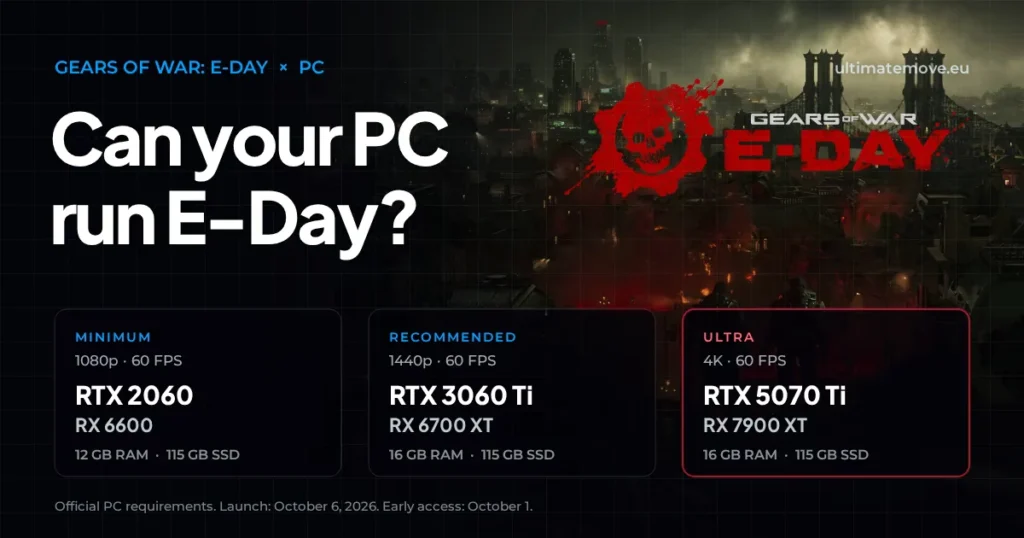 Gaming Research
Gears of War: E-Day PC requirements and FPS optimization
2026-09-28·6 min read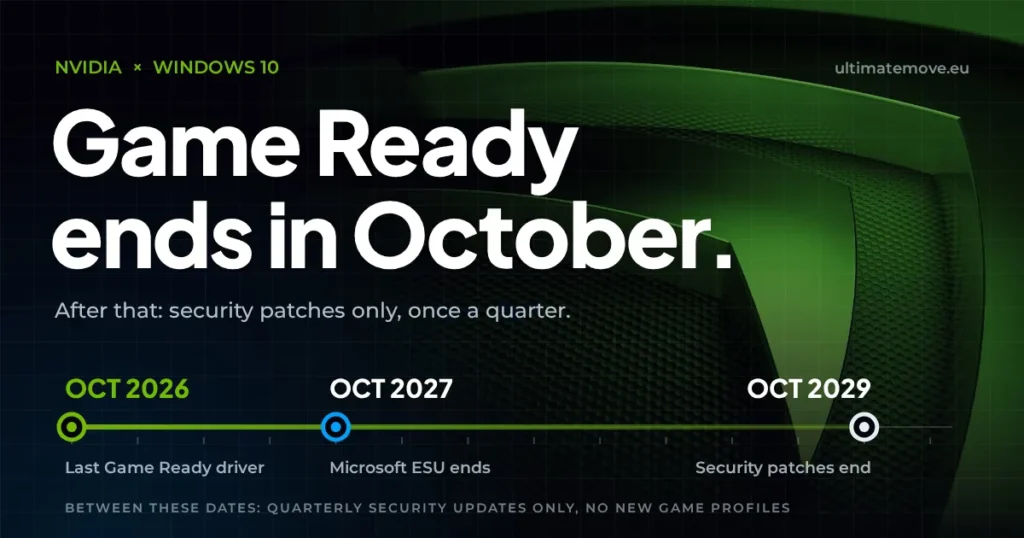 Gaming Research
Nvidia Windows 10 drivers: the last Game Ready release comes in October 2026
2026-09-28·5 min read Gaming Research