System Optimization Scanner - UltimateMove
Most players assume that if they have decent hardware, they are playing at full power. The truth is harsh: almost every PC ships with default settings that leave 10-30% of performance on the table. Not the FPS you see in the counter. The 1% lows, the input lag, the micro-stutters during teamfights. The things you feel but cannot see in a simple FPS number.
The question is: how do you know whether your system is configured well, or quietly losing performance?
We built a tool that tells you.
What Is the UltimateMove System Scanner?
It is a free diagnostic scanner that reads your system configuration and shows you the specific areas that may be holding you back. It changes nothing. It installs nothing. It does not need administrator rights for most of its checks. It simply reads how your system is set up and reports what it finds.
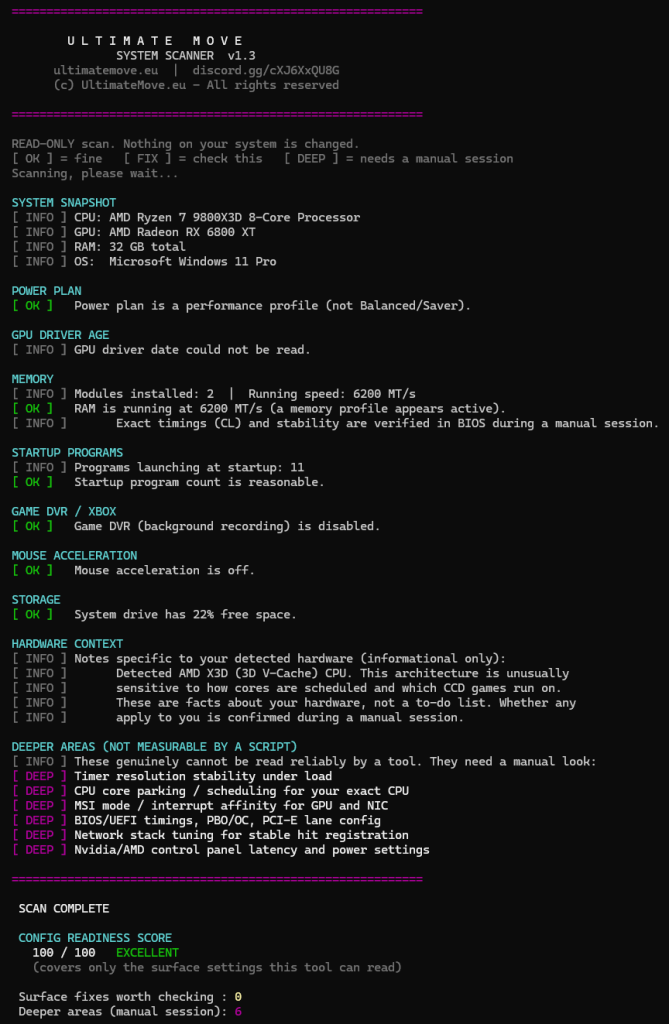
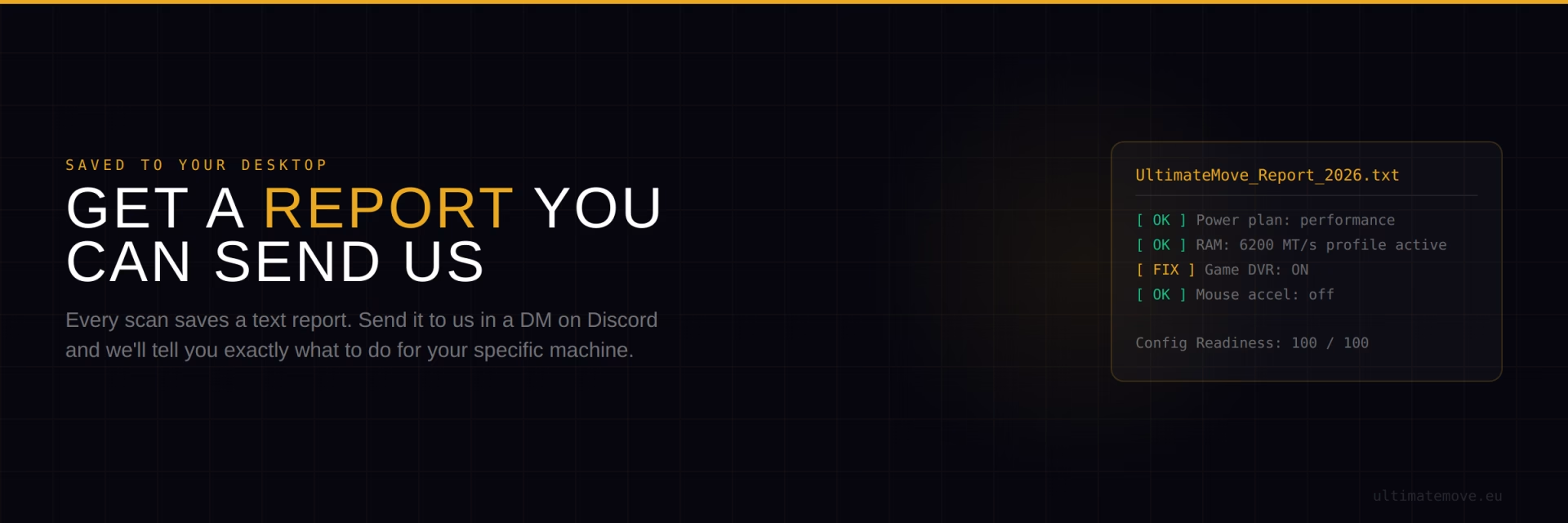
When you run it, you get a report covering things like your power plan, GPU driver age, RAM speed (and whether it matches what your modules are rated for), startup programs, Game DVR / Xbox background recording, system drive free space, and mouse acceleration. Each item is marked clearly: [OK] for things that look fine, [FIX] for things worth checking, and [DEEP] for areas a script genuinely cannot measure.
Your Config Readiness Score
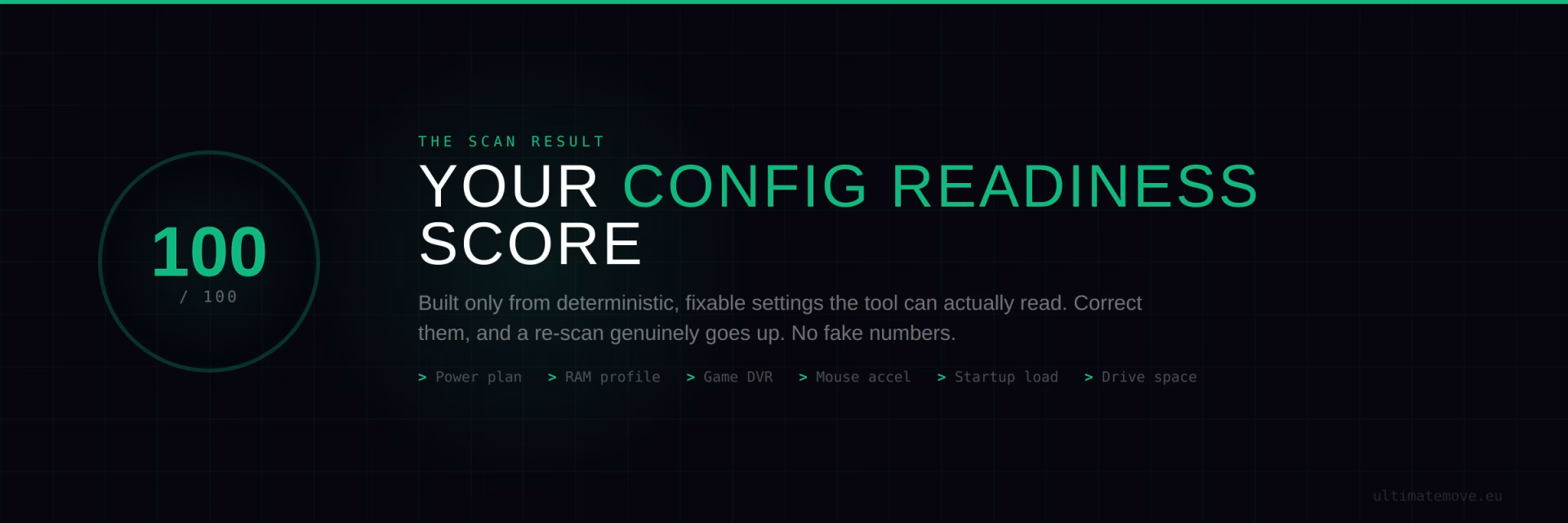
At the end, the scanner gives you a Config Readiness Score out of 100. This score is built only from deterministic, fixable settings the tool can actually read - power plan, memory profile, Game DVR, mouse acceleration, startup load and drive space. It deliberately does not include things that vary from minute to minute. That means the score is honest: it reflects the surface-level state of your system, and when those settings are corrected, a re-scan genuinely shows a higher number.
It is a quick way to see where you stand. A clean system scores high. A system on factory defaults usually does not.
BIOS, memory, network and input we go through together on your screen. We measure before and after in your games, so you see the difference yourself, before we hang up.
Bonus: Built-in Latency Test
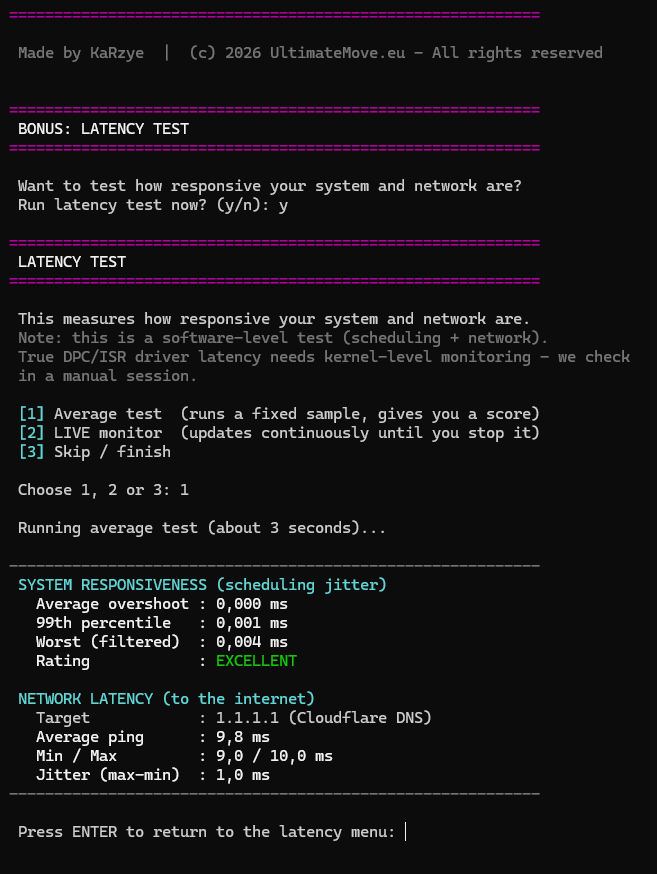
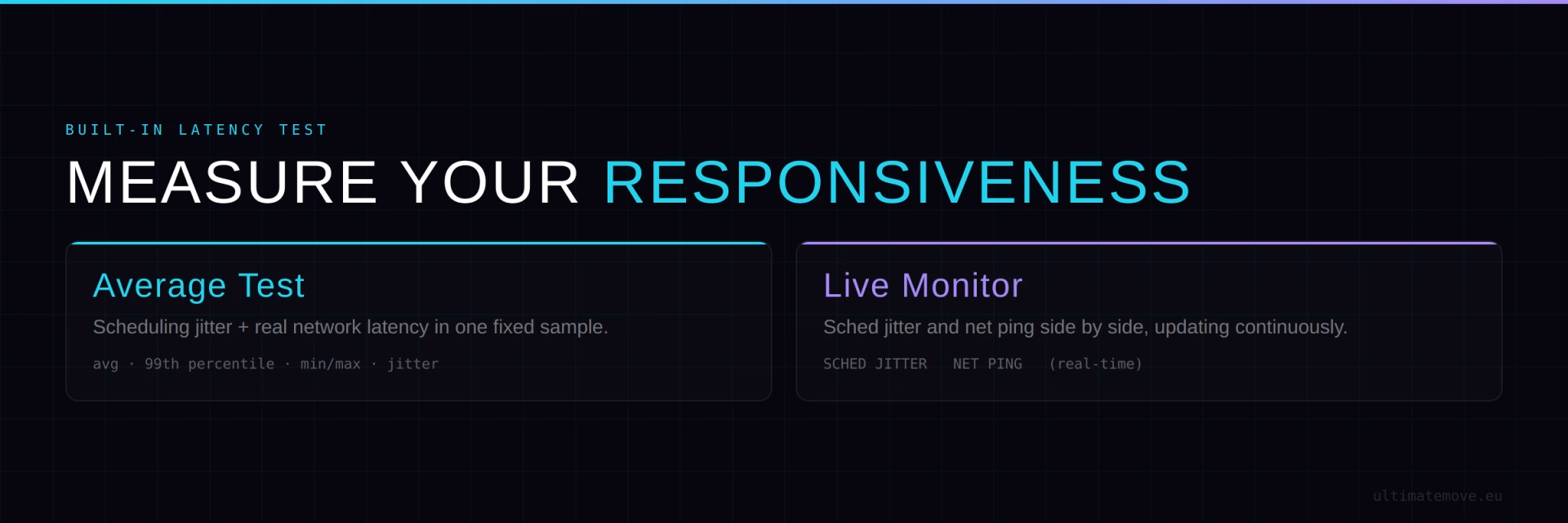
The scanner also includes a latency test with two modes:
Average test - runs a fixed sample and gives you your system's scheduling jitter (how consistently Windows responds, which relates directly to micro-stutter) plus your real network latency to the internet, with min, max and jitter values.
Live monitor - shows scheduling jitter and network ping updating continuously, side by side, so you can watch how your system behaves in real time. Useful for spotting whether a responsiveness problem is coming from your system or your connection.
This is a software-level measurement. True driver-level (DPC/ISR) latency needs kernel-level monitoring, which we handle in a manual session - but the built-in test already gives you a clear, honest picture.
Why the Scanner Only Reports, and Does Not Fix
This is a deliberate decision and it matters.
Fixing these things automatically is dangerous. Every system is different. A setting that adds 30 FPS on one CPU can break stability on another. Disabling the wrong service can take out your audio, your network, or your whole Windows install. The one-click "optimizer.exe" tools that promise to fix everything are exactly the tools that break people's systems.
We do not guess. We measure, tune and validate with data for your exact hardware. That is why the scanner shows you the state of things, and the real optimization happens in a session where we work on your system understanding exactly what we are doing and why.
The scanner is the diagnosis. The optimization is the treatment.
You Get a Report File You Can Send Us
When the scan finishes, it saves a full report to your Desktop as a text file. Send that report to us directly in a DM on our Discord and we will tell you exactly what is worth changing on your specific system - and what deeper work would make the biggest difference. It is the fastest way to get a straight answer about your own machine.
How to Get the Scanner
The scanner is available for free, exclusively through our Discord. You join, find the channel with the tool, download, run, and get a report.
Why Discord? Because if the scanner shows you a few things and you have questions, we want to be able to help you right there. You can send us your report, ask what a result means, and find out whether it is worth fixing. It is where we talk optimization, builds, settings and everything that squeezes performance out of your hardware.
Join our Discord and download the scanner: discord.gg/cXJ6XxQU8G
How to Run It (Quick Guide)
We package the scanner with a launcher so you do not have to deal with Windows script settings. Download the ZIP from our Discord, extract it, and double-click Run_Scanner.bat. That is it - it opens, runs the scan, shows your score and saves your report. No technical knowledge needed.
What Happens After You See Your Results
If the scanner shows your surface config is clean - great, that is a high score. But the real gains live deeper: BIOS/UEFI, MSI interrupts, network stack tuning for stable hit registration, timer resolution under load, control panel latency settings. The scanner cannot touch those, because they need access to your system and the knowledge to set them safely.
If the scanner shows a few issues, that is exactly what our PC Optimization service handles. We focus on your 1% lows and input latency, not just average FPS - and we re-scan afterwards so you can watch your score move.
Download the scanner, check your system, and if you want to push it to its limit, you know where to find us.
Join us on Discord: discord.gg/cXJ6XxQU8G | Order optimization: ultimatemove.eu/en/pc-optimization/
Our free tools
Built in house. No account, no limits.
 Ultimate Demo Analyzer
Upload a CS2 demo and get your mistakes and round stats written out.
Free, no account Deadlock Replay Analyzer
The same for Deadlock: a replay breakdown and a plan for the next matches.
Free, no account Sensitivity Converter
Carry your cm/360 between games without losing muscle memory.
Free, no account Aim Trainer
Thirty seconds, three levels. No install, no account.
Free, no account