AMD Adrenalin SSD writes: bug, checks and workarounds
AMD Adrenalin SSD writes in the background? Optional driver 26.11.1, released on November 12, 2026, fixes two cases of excessive disk writes. The first occurred at idle on Radeon RX 7000 and newer GPUs. The second occurred when moving or resizing application windows. Official AMD release notes.
If we disabled AMD External Events Utility during your UltimateMove optimization, check the service after installing the driver. To compare the fix with your previous setup, record the current service configuration first. Change one variable at a time.
If you see continuous writes or spikes when moving a window, measure before switching drivers and repeat the test after updating. Jump to the two-scenario test.
What has AMD confirmed about atieclxx.exe?
AMD representative AMD_Vik linked the behavior of atieclxx.exe to an interaction between External Events Utility and Microsoft's PCIe filter driver. He later said a fix had missed release 26.10.2. This acknowledges a software issue without identifying every affected configuration. AMD representative's comments.
In a separate thread, Spardax_117 reported roughly 5 MB/s of write activity at idle and improvements in two games after stopping the service. The author explicitly did not establish the direct cause of every symptom. This Radeon user's report is not a repeatable benchmark.
Where did the claim of 1% SSD health loss per month come from?
The 1%-per-month headline comes from an owner's report highlighted by darklinkpower. It does not establish how much wear the AMD service caused. The warning thread also includes people who do not see this activity on their PCs.
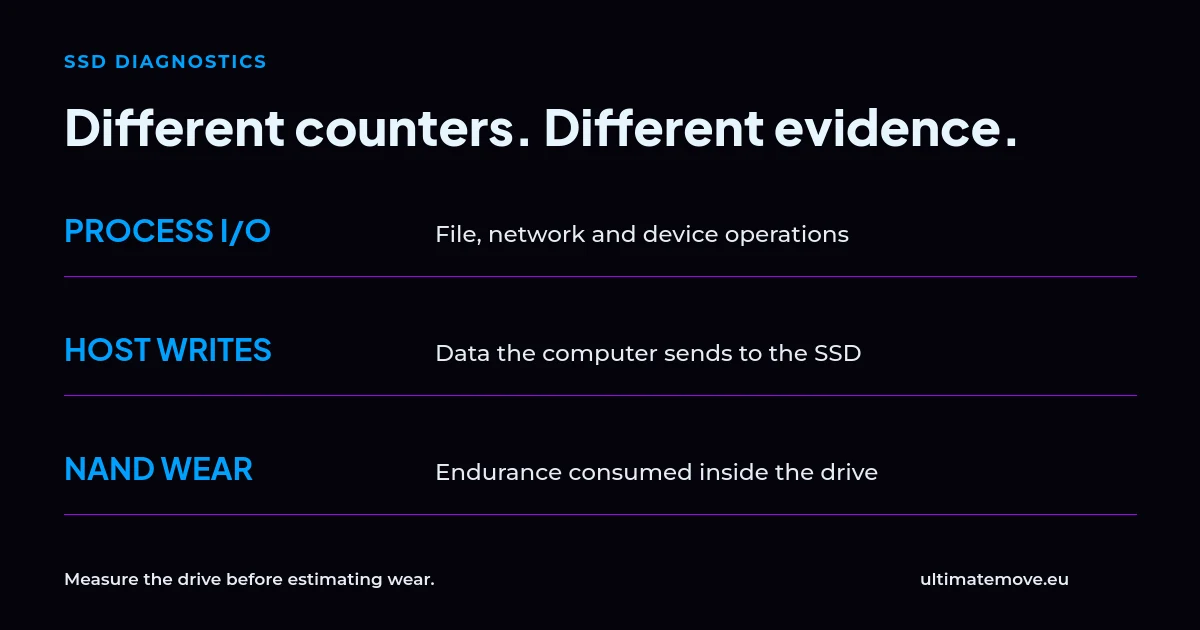
For NVMe, Percentage Used is the manufacturer's estimate of endurance consumed. Even 100 does not necessarily mean failure. Data Units Written tracks data sent to the controller by the host. These differ from process-operation counts and internal NAND writes. See the NVMe field documentation.
Kingston describes endurance through TBW and explains wear leveling. Assess a health change against the specific drive and its history. Without before-and-after measurements, you cannot calculate how much endurance this particular bug consumed. See the SSD manufacturer's explanation.
Driver, application or drive: your observations help choose the work needed on your PC. Bring a record of the symptom to the session.
How much data would continuous writes generate?
At an actual sustained drive-write rate of 5 MB/s, the drive would receive 18 GB per hour: 432 GB over 24 hours and 12.96 TB over 30 such days. This is a calculated scenario, assuming uninterrupted writes, not a typical-PC measurement or a failure prediction.
| Sustained writes | Over 8 hours | Over 24 hours |
|---|---|---|
| 0.7 MB/s | 20.16 GB | 60.48 GB |
| 1 MB/s | 28.8 GB | 86.4 GB |
| 5 MB/s | 144 GB | 432 GB |
Our calculation uses decimal units: MB/s × 3600 × hours ÷ 1000 = GB. If the service writes intermittently, or you are observing general I/O rather than drive writes, these totals cannot be assigned to the SSD.
Check what the counter actually measures
Microsoft documents IOWriteBytesPerSec as including file, network and device I/O. A large process I/O-write value alone is therefore not a measurement of SSD wear. Microsoft's counter definition explains the distinction.
- Record the GPU and SSD models, Adrenalin version, Windows version and test time. Pause game downloads and other known large transfers during the comparison.
- Press Win + R, enter
resmonand open the Disk tab. Checkatieclxx.exeandatiesrxx.exe, the write column and paths in Disk Activity. - Record the SSD's host-write counter using its manufacturer's utility or CrystalDiskInfo. Read it again after a chosen, recorded interval. Compare the same drive and units.
- If you test with the service stopped, repeat for the same duration under similar load. Record process activity separately from the increase in writes for the whole drive.
The drive-wide counter includes other applications. A smaller increase after stopping the service strengthens the suspicion but does not attribute every byte to it. A short observation without activity also cannot exclude a problem triggered under other conditions.
To identify the file targeted by operations, Microsoft Process Monitor can filter process and file-system events. Capture a short trace. The tool's own log can add writes, and its event count still does not measure NAND wear.
Unsure which process is loading your drive?
Bring your observations to a PC diagnostic session. We will assess the symptom and choose the scope for your system. View PC troubleshooting.
Older driver: how to check the impact of AMD External Events Utility
Users report that stopping this service ends the excessive activity. If your measurements point to it, you can run a reversible test. Record its previous startup type. Leave other AMD services unchanged during the comparison.
- Open Windows Services with
services.mscand locate AMD External Events Utility by its exact name. - In Properties, select Stop, apply the change and compare disk activity. Setting Manual startup alone does not stop a service that is already running.
- If you use this workaround on an older driver, set Startup type to Disabled. After rebooting, check the service status and the symptom again.
- Test your Adrenalin hotkeys, FreeSync, monitors and frame generation. If a regression appears, restore the recorded startup type and start the service again.
Disabling the service does not guarantee identical display behavior on every system. Reports include working FreeSync and ReBAR, while the November warning's author described worse frame pacing with Lossless Scaling. Reports also mention losing Adrenalin hotkeys. Test the features you use before keeping the change.
What do we know about the ReBAR and driver file workarounds?
AMD_Vik mentioned disabling ReBAR as a possible workaround, but the reporting user in the same discussion said it did not help. This changes GPU configuration, so do not treat it as a universal drive fix. Establish whether your PC exhibits the symptom first.
Comments also suggest manually replacing PCI-driver files or deleting atieclxx.exe. We do not recommend mixing components from several releases or deleting DriverStore files as a standard reader procedure. Keep a consistent driver package and a way to restore your configuration.
Does this affect only recent Radeon cards?
There is no verified list of every affected card and driver. Reports cover different configurations. The process appearing in Task Manager does not establish a fault, and having no Radeon as the main GPU does not replace measurement.
In a 2025 report, the author observed EEUDumps file changes on a PC with an NVIDIA GPU and AMD CPU. He monitored file-change notifications rather than total NAND writes. That historical thread does not establish that every Ryzen has today's bug or that both cases share a root cause.
How to test the fix in 26.11.1
AMD did not list this fix in 26.10.2. In the 26.11.1 release notes the RX 7000 and later scope applies to writes at idle. AMD did not specify a separate GPU series for writes while moving or resizing windows. Check driver compatibility and the known issues list. On Windows 10, installation may disable AMD Smart Access Memory.
Run two tests in Resource Monitor. Leave the desktop idle for five minutes. Then spend one minute moving and resizing the same window. Record the process, file path, and write rate. Repeat both scenarios after updating, with the service in the same state to isolate the driver change. If the service was disabled, enabling it is a separate test. Use this method to compare symptoms on your own PC.
If the problem persists, prepare the driver version, GPU and SSD models, Windows version, file path, observation interval and before-and-after comparison. AMD Bug Report Tool accepts reports with configuration information and attachments. Saying only that the drive has 99% health does not describe how to reproduce the bug.
Start with measurement and retain a way to undo a change. For graphics options, use our AMD Adrenalin settings guide. If the PC freezes or reports drive errors, choose gaming PC troubleshooting. For a working system whose configuration you want assessed, choose PC Optimization.
Frequently asked questions
Is every Radeon PC affected?
No. Reports describe both excessive activity and its absence. Check the process, file path and drive-write increase on your own PC. The driver version alone does not decide the result.
Does losing 1% health mean losing a month of SSD life?
No. It is a reading related to the particular drive's condition or endurance, not a calendar of remaining operation. One owner's report cannot predict when your drive will fail.
Will stopping the service disable FreeSync?
There is no single outcome for every configuration. Users describe both preserved functionality and smoothness regressions. Check FreeSync, hotkeys, monitors and frame generation; restore the previous service state if problems appear.
Do I have to disable ReBAR in the BIOS?
No. It is a reported workaround that did not help everyone. Confirm the activity first and compare a reversible service change. Avoid changing several parts of the configuration at once.
Should I check a PC with NVIDIA graphics and an AMD CPU?
If the service runs and you see unusual writes, investigate them regardless of the main GPU brand. A historical report involved that combination, but it does not establish the same fault on every Ryzen PC.
Which AMD driver fixes excessive SSD writes?
Optional Adrenalin 26.11.1 fixes writes at idle on Radeon RX 7000 and newer GPUs, and writes triggered by moving or resizing windows. AMD release notes.
Frames dropping exactly when the fight starts?
That drop lands in the one second that decides the round, and no graphics preset fixes it. We tune Windows, drivers and network remotely, and the BIOS together with you on a Discord call. You measure it yourself, in your own game, before and after, with us watching.
See PC optimization →Six months of support after the session. Not sure it is worth it? Ask for a free check on our Discord first. KaRzye
Runs the research and every session at UltimateMove. FACEIT Level 10 in CS2,
Immortal in Valorant. Twenty years in BIOS, memory and drivers.
Watch him play.
Our free tools
Built in house. No account, no limits.
 Ultimate Demo Analyzer
Upload a CS2 demo and get your mistakes and round stats written out.
Free, no account Deadlock Replay Analyzer
The same for Deadlock: a replay breakdown and a plan for the next matches.
Free, no account Sensitivity Converter
Carry your cm/360 between games without losing muscle memory.
Free, no account Aim Trainer
Thirty seconds, three levels. No install, no account.
Free, no account