Deadlock FPS Config: Step-by-Step Installation and Launch Options
Most Deadlock "fps guides" tell you to set shadows to low and call it a day. That works - but it leaves 30-50% of the potential gains on the table. The real ceiling on Deadlock performance isn't your graphics settings. It's how the game communicates with your system, and that's exactly what OptimizationLock fixes.
This guide covers what OptimizationLock actually does, how to install it correctly, which launch options matter, and what to set in Windows so the config has something to work with.
What overwrites the config file, and where can I get it?
Deadlock runs on Source 2 - the same engine as CS2. Like CS2, it's heavily CPU-bound and ships with a default configuration that prioritizes stability over performance. That default config contains settings that make sense for Valve's servers and average hardware, but actively hurt frametime consistency on a tuned gaming PC.
The config file replaces gameinfo.gi, which determines how Deadlock loads engine settings, convars, and the rendering pipeline. There are several such projects out there; the best-known is the community-developed OptimizationLock. This guide covers the installation itself and works regardless of which config you choose.
If you're not sure which one to choose, or if you're looking for a config optimized for ranked matches, we've provided a comparison and described both profiles separately: Deadlock Ranked CFG. There, you'll also find our own config, which we update after every patch.
Before You Touch the Config: Windows First
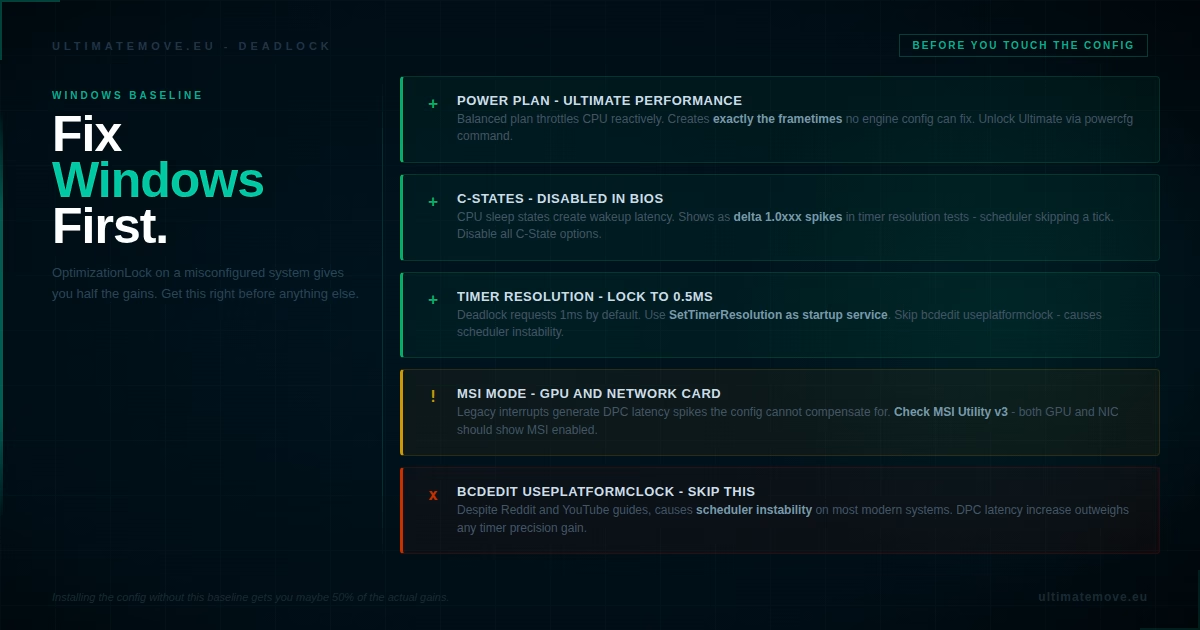
Installing OptimizationLock on a misconfigured system gets you maybe half the gains. The config assumes your Windows baseline is clean. Check these first:
Power Plan - must be High Performance or Ultimate Performance. The Balanced plan throttles CPU frequency reactively, which creates exactly the kind of inconsistent frametimes that a tight engine config can't fix.
To unlock Ultimate Performance (if it's missing from your power options):
powercfg -duplicatescheme e9a42b02-d5df-448d-aa00-03f14749eb61
Then set it in Control Panel - Power Options.
Timer Resolution - you want 0.5ms locked, or the value that precisely stabilizes the timer on your specific hardware. Convars unfortunately don't cover this kind of function, though typically the game engine imposes its own rhythm on the timer unless you force a system-level cap beforehand. Use a lightweight tool like SetTimerResolution running as a startup service. On Windows 11, for this to work at all you need to add a registry entry: HKEY_LOCAL_MACHINE\SYSTEM\CurrentControlSet\Control\Session Manager\kernel - add DWORD GlobalTimerResolutionRequests with value 1.
Don't mess with bcdedit /set useplatformclock - regardless of what you read on Reddit and YouTube, it causes scheduler instability on most modern systems and the DPC latency increase outweighs any timer precision gain.
MSI Mode - check that your GPU and network card are running in Message Signaled Interrupt mode, not legacy interrupts. Legacy interrupts can generate DPC latency spikes that show up as stutter and micro-freezes. Use MSI Utility v3 or check Device Manager - Properties - Details - Resources.
We connect to your PC remotely, save a restore point, then work through power, drivers and input. The BIOS we go through together on a Discord call while you show us the screen with your phone. The same benchmark at the end shows how much of it landed. For six months after the session we stay with you on Discord.
How to Install OptimizationLock
Step 1 - Download
Go to GitHub repository: github.com/Sqooky/OptimizationLock
Download the gameinfo.gi file from the version you want (Performance or Ultra Performance).
Step 2 - Find your Deadlock installation
In Steam: right-click Deadlock - Manage - Browse local files.
Navigate to: \game\citadel\
You'll see the existing gameinfo.gi file there.
Step 3 - Backup the original
Copy the original gameinfo.gi somewhere safe before replacing it. If the game updates and the new config is incompatible, you'll need this to restore and wait for an OptimizationLock update.
Step 4 - Replace
Drop the downloaded gameinfo.gi into \game\citadel\ and overwrite.
Step 5 - Set to read-only (optional but recommended)
Right-click the file - Properties - tick "Read-only". This prevents Deadlock updates from overwriting your config automatically. If a major patch breaks the game after this, uncheck read-only and verify game files through Steam.
Launch Options That Actually Work
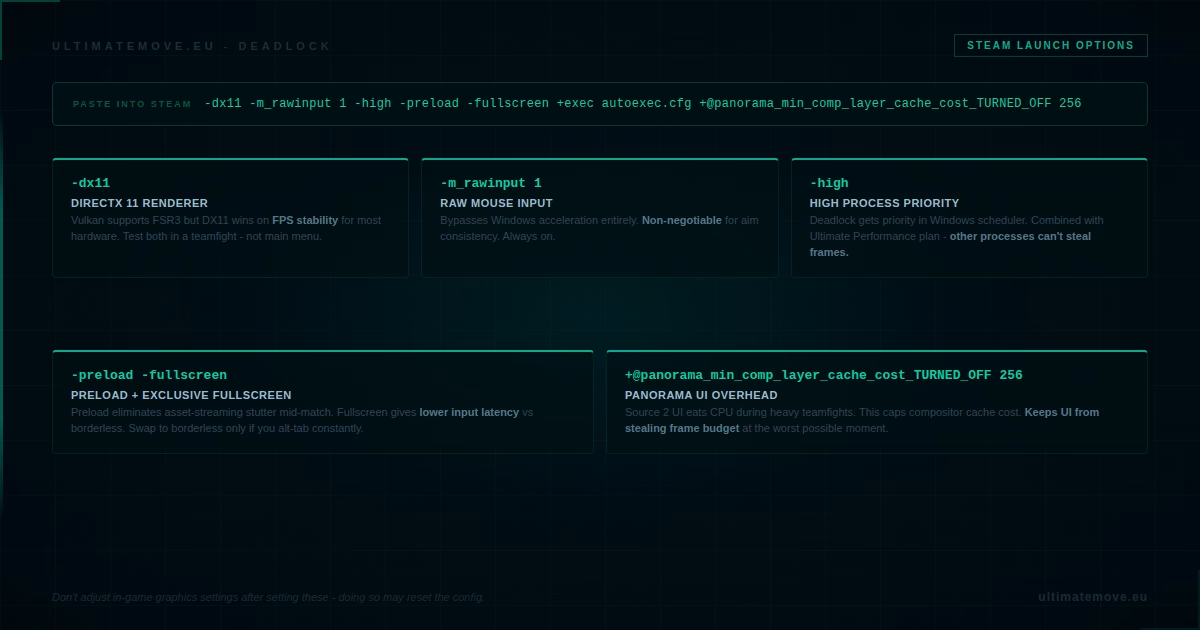
Right-click Deadlock in Steam - Properties - Launch Options. Paste this:
-dx11 -m_rawinput 1 -high -preload -fullscreen +exec autoexec.cfg +@panorama_min_comp_layer_cache_cost_TURNED_OFF 256
What each option does:
-dx11 - forces DirectX 11 renderer. Vulkan supports FSR3 but DX11 consistently produces better FPS stability for most hardware in 2026. Test both and keep whichever gives you lower frametimes in a teamfight - not on the main menu. Some setups, particularly AMD/Radeon, may perform better with -vulkan.
-m_rawinput 1 - a leftover from CS:GO. In CS2 raw mouse input is always on and this option changes nothing. There is no confirmation that it works in Deadlock, so treat it as optional.
-high - sets the Deadlock process to high priority in the Windows scheduler. Combined with a tuned power plan, this reduces the chance of other processes eating into your frame budget during ranked games.
-preload - preloads game resources at startup. Trades loading time for eliminated in-game stutter from asset streaming.
-fullscreen - exclusive fullscreen. Lower input latency than borderless windowed. If you alt-tab constantly during play, swap to borderless and accept the ~1 frame latency cost.
+@panorama_min_comp_layer_cache_cost_TURNED_OFF 256 - reduces UI composition overhead. The Panorama UI in Source 2 games can eat CPU time during heavy teamfight moments. This caps the compositor cache cost and keeps the UI from stealing frame budget at exactly the worst possible moment.
In-Game Settings to Pair With the Config
OptimizationLock handles engine-level convars. These in-game settings complete the picture:
Rendering: Direct3D 11. Matches the -dx11 launch option. Some setups, particularly AMD/Radeon, may perform better on -vulkan.
Scaling Mode: FSR2 (TAA) if you want frame stability, or Stretch if sharpness is the priority and you have a strong GPU. Avoid DLSS unless you're on a very high-end Nvidia card where it clearly outperforms.
Texture Quality: Medium. Going lower gives minimal FPS gain - set it however you like or based on how much free VRAM you have.
Shadow Quality: Low or Off. Highest single setting impact on FPS with the least gameplay cost in Deadlock.
Ragdoll Quality: Off. Ragdolls are CPU work you don't need.
Effects Quality: Low. Reduces particle density during things like Bullet Dance and other AoE ultimates. Your FPS in teamfights - where it matters most - will thank you.
Depth of Field, Motion Blur, Bloom: All off. These are purely visual and hurt both FPS and readability.
Reduce Flashing Effects: On. Helps during team ultimates and genuinely makes ability tracking easier in chaotic fights.
VSync: Off. Always. Cap your FPS instead.
FPS Cap: Set to your monitor refresh rate or slightly below (e.g. 237 for 240Hz) - this will vary depending on which limiter you use. An uncapped framerate on a 240Hz monitor wastes GPU frames and can cause GPU temperature spikes leading to thermal throttling during extended fights - stutter and floaty inputs. If you don't have temperature issues and know your hardware, leave it uncapped - it's always lower input lag if you're exceeding your Hz significantly in FPS.

How to Check It Worked
After installing and launching with the new config, open the developer console (add -console to launch options temporarily) and type fps_max 0.
For frametime specifically: add a performance overlay via Steam (Shift+Tab - in Steam settings - In-Game - FPS counter) or use RTSS (RivaTuner Statistics Server) to monitor 1% and 0.1% lows during a real match. OptimizationLock's primary benefit shows up in those low values during teamfights - not in peak FPS in the main menu.
Important: Valve and Config Files
As of March 2026 there's active discussion in the Deadlock community about Valve potentially restricting certain config convars. OptimizationLock V2 was specifically built to remove unverified commands and only include documented, legitimate convars - so it's in a better position than the original version if Valve does tighten restrictions, but that doesn't mean Valve won't change their mind (which would be unfortunate and harmful for players and the game long term).
The safest approach: keep the original gameinfo.gi backed up, watch OptimizationLock on GitHub after every major Deadlock patch, and update the config whenever it's revised.
What to Expect
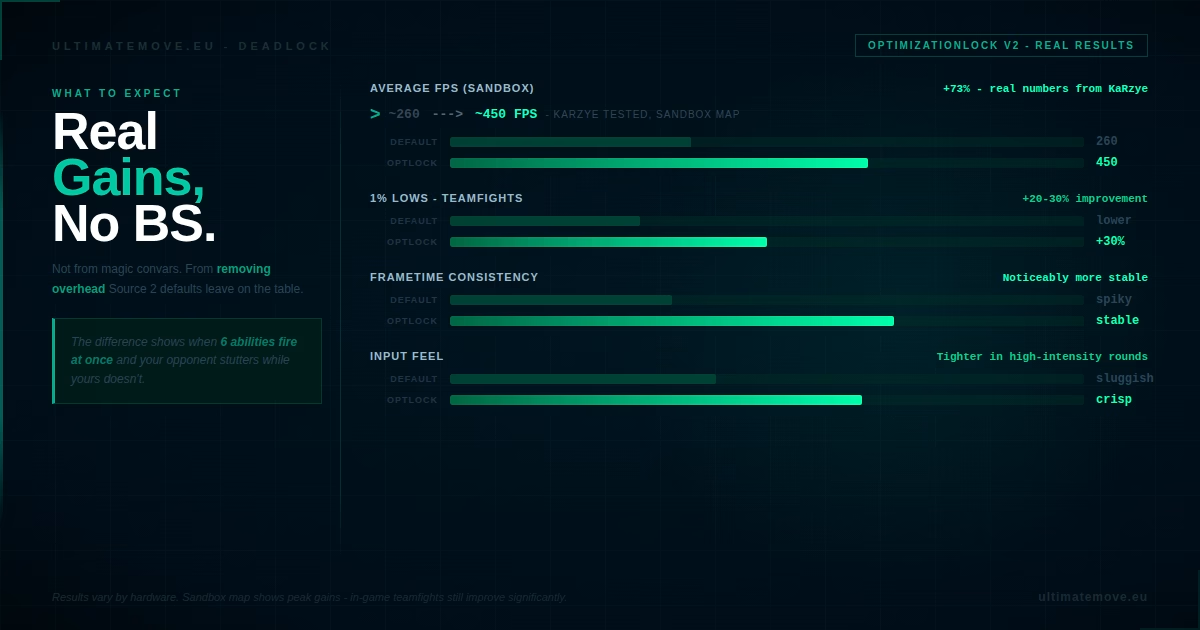
Realistic numbers after OptimizationLock V2 and the Windows setup above:
- Average FPS: in my observations, hardware optimized through UltimateMove typically gains 30-50% more frames
- 1% lows: 15-30% improvement in teamfights
- Frametimes: noticeably more consistent (this is the main win)
- Input feel: tighter and more stable, especially in high-intensity rounds
The gains come from the combined effort of optimizing everything together. At UltimateMove we approach this individually - we research what can be done with each specific game to its fullest and don't leave things at generics like the competition does. Removing the overhead that Source 2's default settings leave on the table gives the engine a cleaner path between your CPU and the renderer. On a properly tuned system the difference between default Deadlock and OptimizationLock shows up exactly where it counts - in the moment when six abilities fire simultaneously and your opponent's machine stutters while yours doesn't. If you're taking Deadlock seriously, this is a must-have.
If you've optimized your config and still feel like your system isn't performing the way it should - inconsistent frametimes, input lag that in-game settings alone aren't fixing, strange timer resolution behavior - that's usually a system-level issue that goes deeper than a game config. PC Optimization at UltimateMove covers BIOS, interrupt configuration, network and mouse calibration. Exactly one session shows you what's holding your hardware back - and we solve your problems as far as possible.
 KaRzye
Runs the research and every session at UltimateMove. FACEIT Level 10 in CS2,
Immortal in Valorant. Twenty years in BIOS, memory and drivers.
Watch him play.
KaRzye
Runs the research and every session at UltimateMove. FACEIT Level 10 in CS2,
Immortal in Valorant. Twenty years in BIOS, memory and drivers.
Watch him play.
Our free tools
Built in house. No account, no limits.
 Ultimate Demo Analyzer
Upload a CS2 demo and get your mistakes and round stats written out.
Free, no account Deadlock Replay Analyzer
The same for Deadlock: a replay breakdown and a plan for the next matches.
Free, no account Sensitivity Converter
Carry your cm/360 between games without losing muscle memory.
Free, no account Aim Trainer
Thirty seconds, three levels. No install, no account.
Free, no account