144 Hz vs 240 Hz. Check your frame times before changing monitors
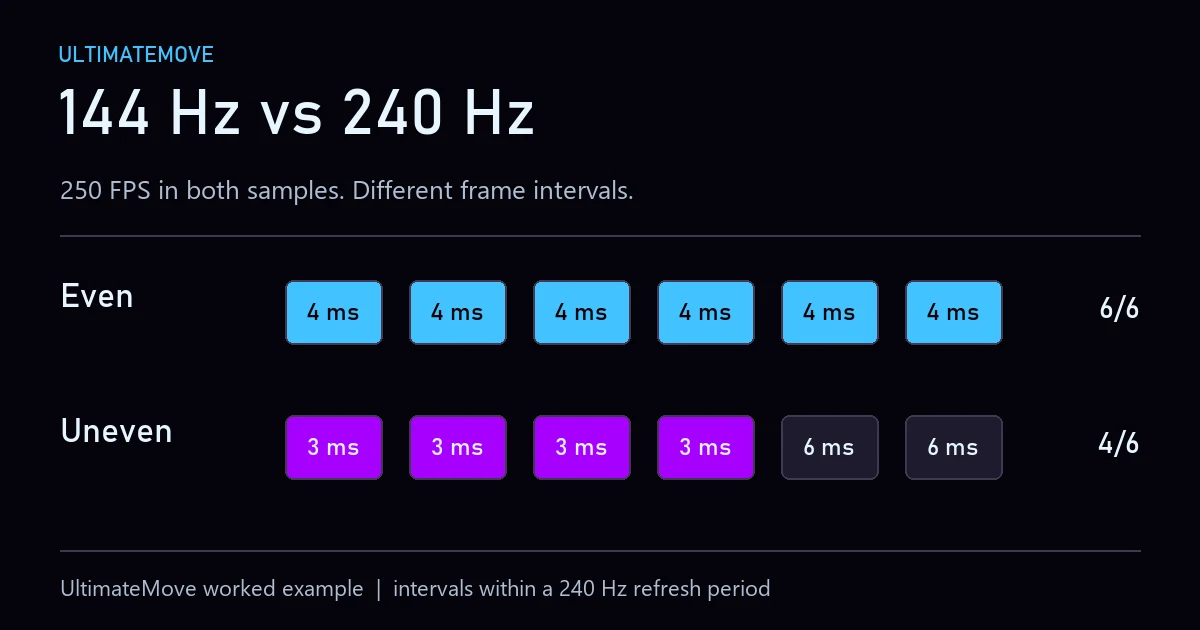
144 Hz vs 240 Hz means 6.94 ms and 4.17 ms between refreshes. To judge the change for your game, check how often it can deliver frames at those intervals. Two samples we built both average 250 FPS. Every interval in the first sample fits within one 240 Hz refresh period. Four out of six fit in the second.
Two samples at 250 FPS
We built two short worked examples. In both, six intervals add up to 24 ms, yielding an average interval of 4 ms and a rate of 250 FPS. Count how many individual intervals fit within one refresh period and the difference appears.
| Sample | Times in ms | Average FPS | Within 6.94 ms at 144 Hz | Within 4.17 ms at 240 Hz |
|---|---|---|---|---|
| Even | 4, 4, 4, 4, 4, 4 | 250 | 6/6 | 6/6 |
| Uneven | 3, 3, 3, 3, 6, 6 | 250 | 6/6 | 4/6 |
In the uneven sample, the two 6 ms intervals account for half the elapsed time. The average hides that difference. Our calculator shows the share of intervals within each threshold, the average, and P95, the value at or below which at least 95% of the samples fall. It calculates the thresholds using the full 1000 / Hzvalue and rounds them for display.
Open the UltimateMove refresh rate calculator
Paste a column from your own game
- Capture a scene where you care about smoothness. In CS2 you could use a replay with a fight and grenades, then return to the same section after changing settings. Our frame-time capture protocol
- From the export for one game and one run, copy the column of intervals in milliseconds. Look for
MsBetweenPresentsin the relevant PresentMon export. It describes the time between the application’s calls to Present(). PresentMon column definitions - Paste one number per line and compare the two refresh rates. Keep the scene and metric consistent. If you change the FPS cap, save a separate capture.
We connect to your PC remotely, save a restore point, then work through power, drivers and input. The BIOS we go through together on a Discord call while you show us the screen with your phone. The same benchmark at the end shows how much of it landed. For six months after the session we stay with you on Discord.
What does it tell you about the monitor?
If most of your intervals struggle to fit inside 6.94 ms during normal gameplay, I’d look at what is causing the long frames first. If the game stays within 4.17 ms for most of the capture, that’s a reason to try the higher rate and see how it feels. On a monitor that supports both modes, compare 144 and 240 Hz at the same resolution. Record the VRR mode and FPS cap, and check in Windows that the selected refresh rate took effect. Change your refresh rate in Windows
The calculator’s percentage describes intervals in the capture. What you see also depends on synchronization, the rendering queue, and the monitor. Measuring click-to-photon latency requires measuring the full path. NVIDIA on measuring latency
Questions about 144 and 240 Hz
How long is one refresh interval at 240 Hz?
It’s about 4.17 ms. At 144 Hz it’s about 6.94 ms.
Is 250 FPS enough for a 240 Hz monitor?
250 FPS is a starting point. Check for longer intervals in a scene that represents how you play.
Does the calculator show how much I use 240 Hz?
It shows the share of recorded intervals that fit within one refresh period. To check what was displayed, measure the display output.
Does the 2.78 ms difference tell me how much input lag I’ll save?
It’s the difference between the two refresh periods. Measure end-to-end latency separately.
What does P95 mean for frame times?
Sort the samples from shortest to longest and select the position corresponding to 95% of the sample count, rounded up.
How do I export data for the calculator?
Copy one column of millisecond values from your capture. Paste one value per line and use a dot or comma as the decimal separator.
Frames dropping exactly when the fight starts?
That drop lands in the one second that decides the round, and no graphics preset fixes it. We tune Windows, drivers and network remotely, and the BIOS together with you on a Discord call. You measure it yourself, in your own game, before and after, with us watching.
See PC optimization →Six months of support after the session. Not sure it is worth it? Ask for a free check on our Discord first. KaRzye
Runs the research and every session at UltimateMove. FACEIT Level 10 in CS2,
Immortal in Valorant. Twenty years in BIOS, memory and drivers.
Watch him play.
Our free tools
Built in house. No account, no limits.
 Ultimate Demo Analyzer
Upload a CS2 demo and get your mistakes and round stats written out.
Free, no account Deadlock Replay Analyzer
The same for Deadlock: a replay breakdown and a plan for the next matches.
Free, no account Sensitivity Converter
Carry your cm/360 between games without losing muscle memory.
Free, no account Aim Trainer
Thirty seconds, three levels. No install, no account.
Free, no account