NVIDIA App Optimization 2026: Best Settings for FPS and Low Latency
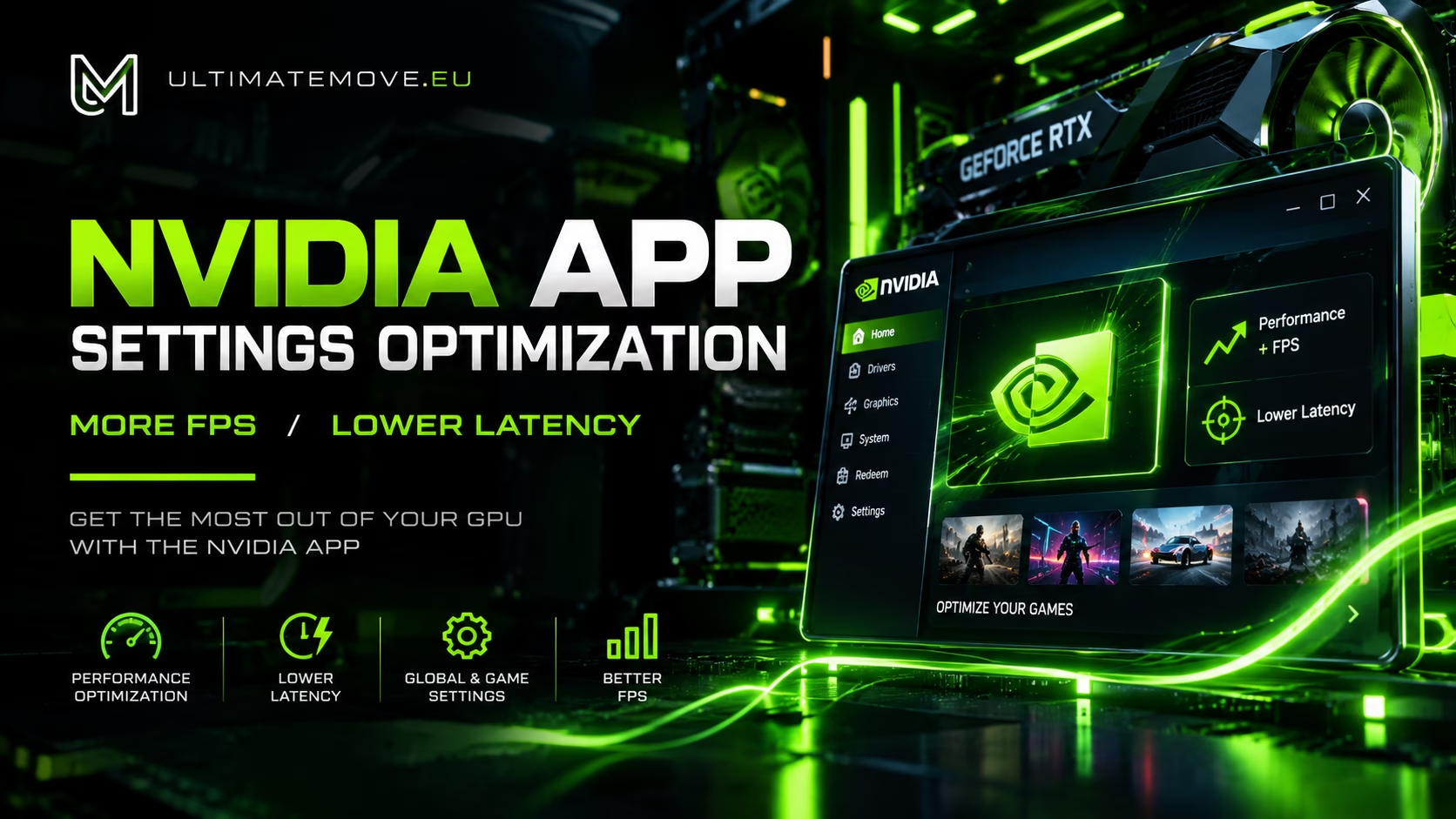
NVIDIA App optimization is the key to stable frame rates and low latency in games. The UltimateMove team regularly tests the latest driver updates to select only those settings that truly impact performance. Below you will find a complete overview of the Global Settings tab based on our latest analysis.
📺 Watch the full video guide:
🔗 Watch on TikTok | 🔗 Watch on YouTube (Shorts)
In the video we show step by step where to click in the NVIDIA App interface and how settings look in actual gameplay.
NVIDIA App:
Smooth Motion (Smooth Motion): Equivalent to AMD Fluid Motion Frames. Enabling this option generates additional frames in games that do not support native DLSS Frame Generation. Ideal for calm single-player titles.
Frame Generation (DLSS & Universal): In games supporting DLSS FG you get the best quality. In older titles without support, the "Smooth Motion" option acts as a universal frame generator at the driver level - worth testing.
Low Latency Mode: Works on practically the same principle as NVIDIA Reflex: it shrinks the render queue. It does not turn on Reflex globally, though. Reflex needs integration in the game, and when a game has it enabled, Reflex overrides this setting. The options are Off, On and Ultra. For competitive players in games without Reflex we recommend "Ultra" - it minimizes input lag, though it may slightly lower FPS. In story games the "On" option is enough.
Maximum Frame Rate Limit: Driver-level FPS limiter. Often more stable than limits built into the games themselves. If you want to cap a game at 144 or 240 frames so the GPU does not work unnecessarily - this is your easiest solution.
Energy Management Mode: Prefer Maximum Performance.
Advanced Graphics Settings
Graphics Processor Shader Cache (Shader Cache): Key change. This setting decides how much disk space the driver may use for compiled shaders. Set it to "Unlimited" so compiled shaders stay on disk and the game does not have to compile them again.
Anisotropic Filtering: Force to the highest value (e.g. 16x). The performance cost is negligible, and near and far textures remain sharp.
Threaded Optimization: This is a single CPU setting: it lets the driver spread work across several CPU cores. The default is Auto. Anisotropic sample optimization and trilinear optimization are separate texture filtering options with nothing to do with threads.
Maximum Background Application Frame Rate: A very practical option. Set a limit of 30 FPS (or lower) for background applications. Let the GPU focus on gameplay rather than rendering Discord windows or browsers in the background.
Monitor Technology: Set it to G-SYNC / G-SYNC Compatible if you have a compatible monitor. Fixed Refresh means G-SYNC is off. Use this mode mainly for single-player games and calm titles to get a smooth image without tearing.
Power Management Mode: Always prefer maximum performance (Prefer Maximum Performance), unless you are playing on a laptop with limited battery.
We connect to your PC remotely, save a restore point, then work through power, drivers and input. The BIOS we go through together on a Discord call while you show us the screen with your phone. The same benchmark at the end shows how much of it landed. For six months after the session we stay with you on Discord.
What to DISABLE or leave DEFAULT?
FXAA Edge Smoothing: One of the worst anti-aliasing methods. Leave it off. MFAA has nothing to do with DLSS Frame Generation: it only works in games rendering with 2x MSAA or higher and improves the quality of that anti-aliasing.
CUDA - Sysmem Fallback Policy: Decides whether CUDA applications may use system RAM when VRAM runs out. Most users should not change this - the default is OK. If you use advanced 3D applications, remember that excess data from VRAM may spill over to system RAM.
Overlay (In-Game HUD): If you are not recording videos and tracking live stats, disable it in the Settings tab. It relieves the system and speeds up game startup.
System, G-Sync and Scaling
In the tab OS ensure that G-SYNC is enabled globally. Also check Display Properties and set scaling to Graphics Card (GPU), not Monitor.
Why? Scaling on GPU ensures image sharpness even at resolutions lower than the monitor's native. In the Color section, set maximum color depth (10 bpc or 12 bpc) and ensure output dynamic range is set to "Full", not "Limited".
For graphic design work consider reference mode (wide gamut), and in games stick to standard color profiles.
🚀 Want to squeeze more out of your PC?
Not every solution can be reduced to a few clicks in the driver. If your system still generates stutters, high GPU/CPU temperatures or worrying input lag despite optimization settings - The UltimateMove team offers professional optimization of the entire computer.
As part of the service we analyze not only drivers but also BIOS/UEFI configuration, Windows power plans, background processes and component synchronization. Result? Stable FPS, reduced input lag and no stuttering in the most demanding moments of gameplay.
Check the UltimateMove optimization offer →
Do you have questions about configuration? Join our community on Discord or write to us.
 KaRzye
Runs the research and every session at UltimateMove. FACEIT Level 10 in CS2,
Immortal in Valorant. Twenty years in BIOS, memory and drivers.
Watch him play.
KaRzye
Runs the research and every session at UltimateMove. FACEIT Level 10 in CS2,
Immortal in Valorant. Twenty years in BIOS, memory and drivers.
Watch him play.
Our free tools
Built in house. No account, no limits.
 Ultimate Demo Analyzer
Upload a CS2 demo and get your mistakes and round stats written out.
Free, no account Deadlock Replay Analyzer
The same for Deadlock: a replay breakdown and a plan for the next matches.
Free, no account Sensitivity Converter
Carry your cm/360 between games without losing muscle memory.
Free, no account Aim Trainer
Thirty seconds, three levels. No install, no account.
Free, no account